NewsletterDecember 2010Newsletter Editor: In This Issue:
 Meeting information
Future Meetings: (subject to change)
Do not forget to bring your used ink cartridges. Minutes of the November 17th meetingBy Susan Prescott The Macintosh User Appreciation Group of Island County (MAGIC) met at 4 p.m. at the Deer Lagoon Grange Hall on Bayview Road on Wednesday, November 17, 2010. Approximately 29 people attended. The meeting began with a Q&A session coordinated by President Robert Elphick. Business meeting: the meeting was called to order about 5:11 p.m. by President Elphick. A collection hat was passed around for meeting dues at the suggested amount of $2 per person. Treasurer's Report: Treasurer Sue Keblusek reported the bank balance is $4,682.44. Classes: Robert announced he may do a class on HTML, probably at the Race Road firehall. Interested people should contact him at Education chair Tom Baxter plans to offer the next class series in April 2011. The classes will be eight weeks on Saturday. He asked to know who might be interested in the beginner class and in which parts of iLife (iPhoto, iMovie GarageBand, iWeb) and iWork (Pages, Numbers and Keynote ). He plans to design a online survey. Penny Holland recommended the approaching the Windermere office in Freeland as a potential classroom. Annual MAGIC Solstice Celebration is Wednesday, December 15 at the Deer Lagoon Grange Hall. Everyone is invited to bring a potluck dish to share and Nancy Ruff will bring paper plates, cups and juice and sodas. Robert will secure a permit for those who wish to bring wine or beer. There is no business at this meeting, just holiday cheer and merriment. Everyone is welcome to bring games to play as a group. Robert has some new humorous slides to show. Officer duties: Secretary Prescott reminded all the officers to send her a description of what they perceive their job duties, send to Newsletter: Ron Sharp, the MAGIC newsletter editor was introduced. Ron invited members to send contributions for the newsletter. It was suggested that a question and answer column could be included in each issue. He and Robert explained how the newsletter is indexed and therefore searchable — open the newsletter index page, and type "Command-F." and then type what you are looking for. All instances will be highlighted throughout the text. Use "Command-G." to go to the next one. Adjournment: Because the representatives from Whidbey Telecom did not come, due to a communication glitch, the meeting evolved into more questions and answers with a presentation on protecting Macs from evil. The meeting ended at 6 p.m. MAGIC Moments

by RYE, a self appointed wizard of the very best kind! 
SEASONS GREETINGSHere is wishing that Santa brings all the iPads, iPhones and Macs that you need. Be sure to hang socks of the right size and shape. Video and Documentary training with 4-HThe MAGIC sponsored club is called the 4-HD Video Club. Five young people have signed up. Formal sessions began in October and will be running classes on most Wednesdays at the Race Road fire Station. Classes to date have focused on iMovie and will be adding Audacity and Graphic processing in the December. Let me know if you would like to attend. NEEDED: Macs. Have you got an unused Mac that the 4-HD club could use to make videos. We will provide a tax deduction certificate for the value of the Mac to the donor (We have 501(c)(3) status). We are especially interested in Intel macs, but all possibilites considered. Also backup hard drives. ElectionsAt the January meeting we need to elect a replacement for the VP Programs. Anyone interested in this position, please contact me at We also will need to rotate one of the Director-at-Large positions. For Sale and Wanted PageDo not forget to have a look at our Swap page from time to time where Apple items are listed for sale and also there is a list of wanted items. There are some good deals to be had. SOFTWARE UPDATES
Note: This Software Update section of the newsletter lists the most relevant Apple updates. Security Update 2010-007 patches Mac OS X 10.5by Dan Moren, Macworld.com Apple on Wednesday (Nov. 11,2010) released Security Update 2010-007, bringing the same security patches included in the recent Mac OS X 10.6.5 release to Macs running 10.5 Leopard client or server versions. Among the more prominent fixes included in the update is a fix for a bug in Apple Type Services which could allow the downloading of a maliciously crafted font file to lead to arbitrary code execution. That bug, originally caught by security firm Core Security, was similar to a vulnerability in Apple's iOS that allowed hackers to jailbreak devices running that software. Apple patched the flaw in an iOS update In addition to fixing the font bug, 2010-007 brings an updated version of Adobe's Flash Player plug-in—numbered 10.1.102.64—which patches a number of security vulnerabilities, some of which could lead to arbitrary code execution. Patches are also included for a number of holes in QuickTime, Time Machine, Safari RSS, Quick Look, and several of OS X's other underlying systems. The Leopard client version of Security Update 2010-007 weighs in at 240.74MB while the server version is 448.10MB. If you're running an eligible system, the relevant update should appear in Software Update—otherwise you can download them from Apple's support download Website at the links above. iTunes 10.1 Releasedby Ben Bonaccio, smalldog 
Rounding out the software updates for this week, Apple today (Nov. 12, 2010) launched iTunes 10.1. While not drawing the levels of anticipation surrounding iOS 4.2, this update brings a few key changes to the application. Although it will not be fully realized until the release of iOS 4.2, iTunes 10.1 brings more robust AirPlay support to OS X. In addition to music, users can now instantly stream videos from iTunes to Apple TV. The update additionally contributes a number of stability improvements and bug fixes. Some users are also reporting smoother performance when navigating their libraries. Though iOS 4.2 is still MIA, users will presumably need to have iTunes 10.1 installed to update their devices once it is made live. iTunes 10.1 can be acquired through Software Update, or downloaded directly here. Apple releases Safari 5.0.3, Safari 4.1.3
Apple has released Safari 5.0.3 for Mac OS X 10.6, 10.5, and Windows and Safari 4.1.3 for Mac OS X 10.4. The releases enhance features, fix bugs, and patch a number of security vulnerabilities in the company's Web browser. The updates brings several tweaks to the browser, including more accurate Top Hit results in the location bar and the Top Sites display, a fix for an issue that could cause Flash content to overlap Web page content, better pop-up blocking, improved stability for search and text input on Netflix and Facebook, and improved stability for both JavaScript-intensive extensions and VoiceOver. More importantly, the updates also include more than 25 security fixes for WebKit, the software layout engine that underpins not only the desktop version of Safari, but the iOS version of Apple's browser and other software like Google Chrome and the iTunes Store. Among the patches are one that prevents a Website from tracking users and one that stops sites from spoofing the location bar address or altering your Web history. The vast majority, however, patch vulnerabilities that could allow a maliciously crafted Website to cause Safari to quit or allow the execution of arbitrary code. Safari 5.0.3 is compatible with Mac OS X 10.6.4 or later, Mac OS X 10.5.8 or later, Windows 7, Windows Vista, and Windows XP and is available via Software Update or from Apple's Safari page; Safari 4.1.3 is available via Software Update or from Apple's support download site. iWork for iPad updates add iOS 4.2 supportby Jason Snell, Macworld.com Apple has released updates to its three iWork apps for the iPad. Version 1.3 of Numbers, Keynote, and Pages add support for Monday's iOS 4.2 update. 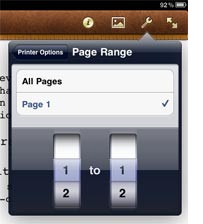
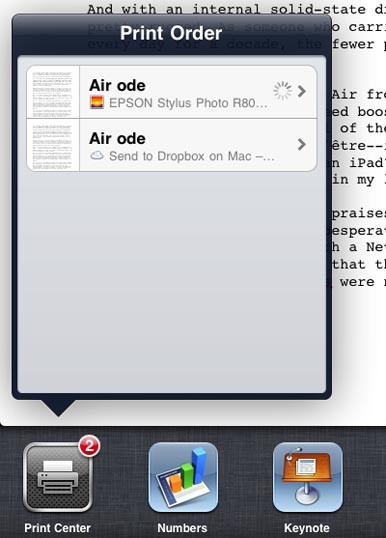
All three apps now support iOS 4.2's multitasking features, so when a user switches away from them, their state is saved, then immediately restored when the user switches back. They also now support wireless printing via AirPrint, including page- or slide-range selection, setting the number of copies, and duplex printing. The Tools menus of all the apps have been simplified, with printing placed at the top level and more esoteric settings moved into a Settings submenu. Users of iOS 4.2 will also see an improvement in the reliability of the PDFs they export from all three apps and then send to users of Windows PCs—apparently fixing a font incompatibility in PDFs generated by earlier versions of the apps. 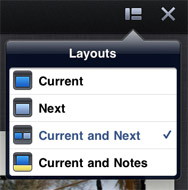
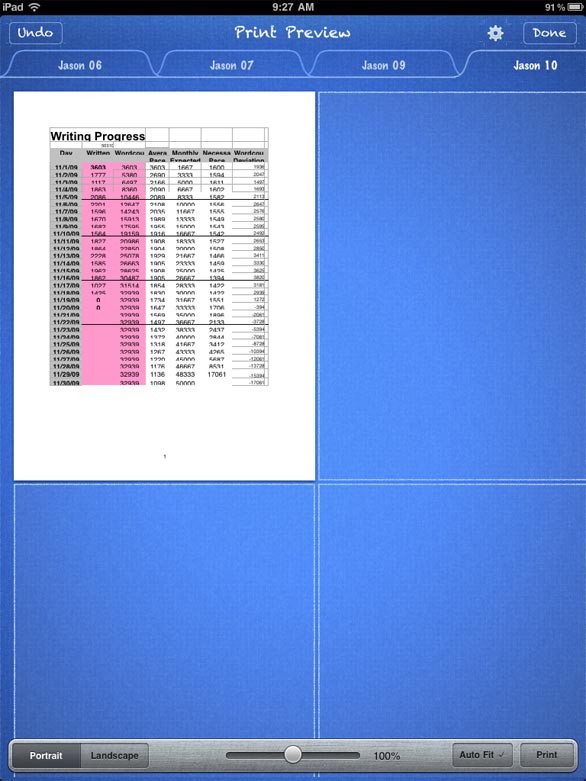
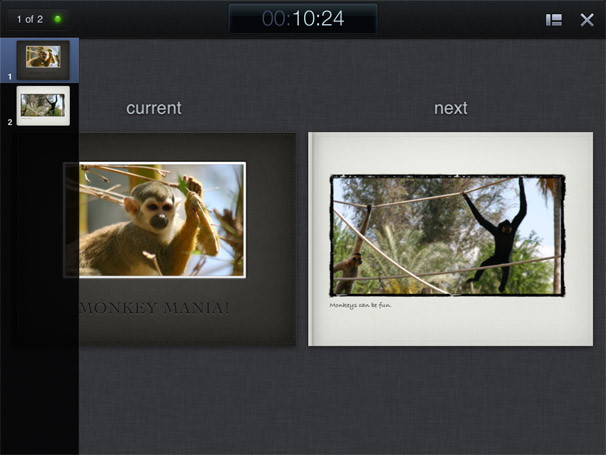
Perhaps the biggest single other feature addition to the suite is the addition of presenter-display support in Keynote 1.3. When an iPad is connected to an external display for presentations, Keynote will now display the current slide, the next side, or your presenter notes on the iPad's own display. (Sadly, you can't use an Apple TV and AirPlay to present wirelessly.) Keynote now also imports presenter notes when importing presentations. To create presenter notes on your iPad, choose Presenter Notes from the Settings menu and you'll enter a new mode where you can toggle back and forth between slide view and a presenter-notes view, which is basically a yellow lined sheet of paper with notes in the Chalkboard font. Apple also says that Keynote is now more reliable when importing Keynote '09 and Microsoft PowerPoint documents. Other Numbers 1.3 features include the ability to preview how a sheet will print across multiple pages, including an Auto Fit button. Likewise, PDF exporting can now take advantage of the pagination settings available in print-preview mode. And there's now support for formula entry using a keyboard, including a predictive-function selector. Other Pages 1.3 features include automatic pagination of tables that cross a page break. There are also several minor usability improvements, including font-size selection and bold, italic, and underline indicators in the ruler. And the new version fixes some importing bugs for Pages '09 and Microsoft Word documents.
News, Info and Stories
Tinkering with the Finder's Column viewby Christopher Breen, Macworld.com Reader Alec Decker would like some help tweaking the Finder's Column view. He writes: I prefer to use Snow Leopard's Column view but I'm tired of having to constantly resize columns because I can't see the full names of the items in them. Is there some setting I can use to see those full names? There is. Open a Finder window in Column view and double-click on the Resize handle at the bottom of the window (to the right of the column you want to resize). The column will expand to the width of the longest name in the column. While we're on the subject of roomier columns, here's another trick. When you Option-drag on a column handle, the Finder will use the column size settings for every Finder window you open. 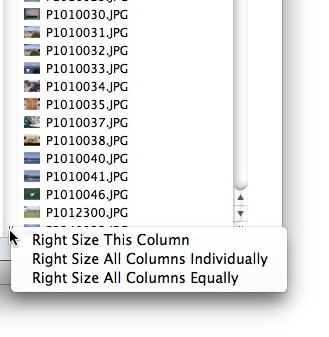
More? Okay. Control (Right) click on a column handle and you'll see three options: Right Size This Column, Right Size All Columns Individually, and Right Size All Columns Equally. The first option does what I outlined earlier—makes that column the width of the longest name in the column. The second option does this same thing for each individual column that contains items (so each column will be a different size based on the length of names within each column). And the third imposes the widest column length on all the columns. Click here for complete article. Virgin releases iPad-only magazine, Projectby David Dahlquist, Macworld.com At a New York City press conference on Tuesday, Virgin CEO Richard Branson and his editorial team from customer engagement agency Seven Squared showed off Virgin's new digital publication for iPad, Project. 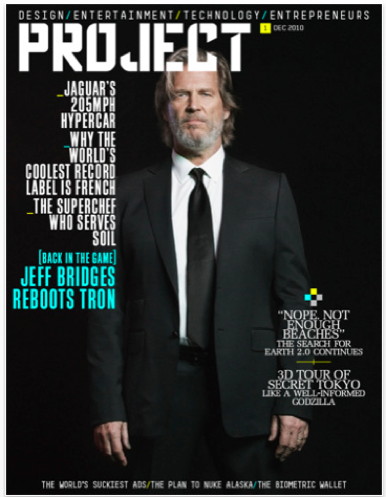
Branson bills the publication as the "first truly digital magazine for creative people, by creative people." Its editorial sections will focus on technology, entrepreneurs, design, and entertainment, and will profile influential people in these fields. Branson noted that the focus of the magazine will be on people who are important to their fields, rather than on celebrities and big name stars. Though, with Jeff Bridges adorning the first issue's cover, it's clear they've made room for marquee names as well. Project's editor in chief, Anthony Noguera, said he believes the iPad is "the most exciting thing to happen in generations" for media; he describes Project as "an agenda-setting magazine that spotlights the people who are changing the world in large and small ways." During the press conference, Noguera gave a live demonstration of the app. The "cover" of the magazine closely resembles a print magazine, but from that point on, the differences quickly become apparent. The publication takes full advantage of the iPad's gesture-based controls, and was clearly designed to maximize reader interaction. You can take a virtual tour through Tokyo, led by five prominent city residents; you can view high-resolution photos of the new Jaguar concept car—and even listen to the sound of its engine purring; touch a picture of Jeff Bridges, and watch him come to life. This is what the future of print media should look like. Project will also make heavy use of crowdsourcing and user-generated content for its stories—a contest to develop next month's cover design is already underway. By completely abandoning print media in favor of a digital medium, Project will be free of the constraints of typical magazines—an advantage Branson clearly plans to build on. All content can be custom-tailored to capitalize on the iPad's interactive abilities. Even the advertisements will be designed to be as engaging as possible—something entrepreneur Branson is especially excited about. The Project app is free, but each month's issue will cost $3 as an in-app purchase. Unlike traditional magazines, however, the content of each issue will evolve throughout the month, with updates made on a regular basis. The first issue, featuring Tron: Legacy actor Jeff Bridges, is available now. Click here for complete article. Pages Templates 6.0 give your documents a faceliftby David Chartier, Macworld.com Admit it: after seeing the umpteenth flier your intern designed using Comic Sans on a blank page, you're starting to think it might be time to add some design inspiration to your Pages tool belt. Fortunately, Jumsoft has updated its Pages Templates pack to version 6.0, giving you plenty of new options. 
Altogether, the package features 50 new templates and 50 refreshed templates suitable for uses like business planning, calendars, family trees, quizzes, and even wine labels. A number of holiday-themed templates are also right on time for the upcoming season. Jumsoft boasts that the packages features a total of 280 layouts in all, thanks to the fact that some templates features up to 12 different sections. While the company does not offer demos of its Pages Templates, you can at least preview the company's designs before making an investment. Pages Templates 6.0 is available now for $39, and requires iWork '08 or later. Click here for complete article. FCC's Genachowski pushes for vote on net neutralityby Grant Gross, Macworld.com U.S. Federal Communications Commission Chairman Julius Genachowski will push for a vote this month on new network neutrality rules that would prohibit broadband providers from blocking customer access to legal Web content and require providers to disclose their network management practices. The proposal, outlined by Genachowski Wednesday, would also bar wireline-based broadband providers from "unreasonable discrimination" against Web traffic, although it would not impose that rule on mobile broadband providers. The FCC would watch mobile broadband providers closely and act if it sees evidence of anticonsumer or anticompetitive conduct, Genachowski said in a speech. Click here for article. Timothy Karr of freepress.net say's: After more than a year of waffling on Net Neutrality, FCC Chairman Julius Genachowski just announced plans to issue weak regulations that give just about everything to giant phone and cable companies, and leave Internet users with almost nothing. David Gardner of infomationweek.com writes: As Congress, the courts and the FCC continue what appears to be an inexorable slide toward relaxing oversight of the nation's delivery of broadband access, Federal Communications commissioner Michael J. Copps has emerged as a voice against the trend. Click here for complete article. Easily and Securely Store Passwordsby Matt Klein, blog.smalldog.comAll versions of Mac OS X have a system called Keychain to store passwords. You can open up the Keychain Access program from your Utilities folder to see just what's being stored, and to manually maintain the database. One particularly useful feature in Keychain Access is the ability to look up forgotten passwords. 
It is the Keychain system that remembers the passwords used by iChat, Mail, and many network services. Until recently, when I needed to retrieve a forgotten password, I would locate the item in Keychain Access, double-click it, click the Show Password button, enter my password, and copy the password from there. You can save a few steps by just control-clicking (or right clicking) on the item and selecting "Copy Password to Clipboard." Just enter your computer's password, and paste the password where it needs to go. Keychain Access is also a great place to store secure notes. They function pretty much like the Stickies so many of us know and love, but these are password-protected. Are You Using Adequate Protection?by R.J. Murphy, smalldog.com Do you wonder if the data on your hard drive is truly protected from technological intruders? Apple has produced a variety of resources that can protect your files from unwanted hard drive peepers. However, just how secure are these methods of file protection? 
First, let's look at the most common form of user file protection: the administrator password. Created when Mac OS is initially installed, this password prevents unauthorized users from accessing the files on your account… or does it? A simple click in the Reset Password Utility after booting from the Mac OS DVD proves otherwise. As long as the DVD is the correct version of Mac OS, it can boot any system with that corresponding OS. Resetting the password only requires entering a new password, which becomes the new administrator password. So basically, all anyone would need to access an account that is simply password protected is the correct version of Mac OS installation DVD (this can also be accomplished using a string of commands in Single User mode—no DVD needed!). One thing to note is that the Keychain Access utility will not be viewable with this new password. Now is when all the extra-protected Mac users say "Hah! everyone knows that. That's why all my files are heavily protected by a firmware password." In which case the intruder would pull out one stick of RAM, and boot the computer, bypassing the firmware password. Now the real heavy hitters come out. FileVault is a file encrypting tool that works on the corresponding user's home folder, encrypting it when the user is logged out. Nothing is for sure, but as far as the research I have done, FileVault is basically un-hackable. Knowing this, if you decide to use FileVault on your account, you had better remember that password. So, are you using adequate protection? The first question I asked myself while trying to accurately answer this was: Do I really care if someone could potentially have access to my files? The answer is no. So in short, am I protected from potential technological intruders? Nope, not really, my information may be easily hacked into. However, is my protection adequate enough for the sensitivity of the files on my hard drive? Totally. Not satisfied? Well, if you truly believe the data on your hard drive is sensitive enough to warrant it, then FileVault it up. Click here for complete article. Here They Are! The Beatles!by Matt Klein, smalldog.com 
Apple has announced the availability of the entire Beatles catalog in the iTunes Music Store. After years of back and forth negotiations with label EMI, an agreement has finally been reached, ushering the Fab Four into the digital era. The announcement-which slipped almost thirty minutes early-has replaced yesterday's teaser image on Apple's homepage, and taken over iTunes' digital storefront. The band's entire discography is available in stereo and is being sold by individual song, album, or an all inclusive box set akin to last year's remaster collection. Tracks retail for $1.29 a piece-the premium tier of iTunes pricing-and single "disc" albums are priced at $12.99. The eponymous "White Album," Past Masters Vols 1 & 2, and other traditionally 2 LP albums are available for $19.99 each. The all encompassing box set sells for $149.99. All albums feature bonus iTunes LP content including photos, mini-documentaries, and more. Though many fans likely already possess a fair portion of the group's recordings, the catalog's availability on iTunes marks a new era for the Beatles as well as digital music in general. Much like Led Zeppelin, the Beatles have been notoriously hard to license. Today's news indicates that the recording industry (read EMI) may finally be adapting to the changing ways music is acquired and enjoyed. If you've been waiting to load up that iPhone 4 with the tunes of the Fab Four, then today is your day. Click here for complete article. Stop iTunes after this songby Dan Miller, Macworld.com Normally, when a song in a playlist finishes playing, iTunes immediately proceeds to the next track in the list. Sometimes, however, it'd be nice to just stop playback when the current tune is done. Hints reader llee came up with a simple script that will do just that. In AppleScript Editor, type: Click here for complete article. Force HTML5 video use in Safari 5 on the Macby crarko, Mac OS X Hints If you prefer HTML5 video to Flash, here is a method suggested by John Gruber to employ User Agent masquerading in Safari 5 to try to force sites to serve it to you. If you turn on the Develop menu in Safari (Preferences » Advanced » check the box), you get the option to choose the User Agent string Safari will hand to a site to tell what browser it is. From the Develop menu, Choose User Agent » Mobile Safari 3.2.2 - iPad and the site will switch to HTML5 if it supports it. You will need to refresh the page if you've already loaded it. The setting will only last for the current browsing session. It can be made persistent using the following command (note that this is slightly different than the command linked to in the article; that one produced errors when I tried it in Terminal):
This can be undone by:
[crarko adds: Read Gruber's article for some caveats associated with making the permanent change. Remember it may make sites think you're using an iPad. It's possible the Windows version of Safari 5 can do this as well, but I haven't tried it. This hint discusses adding the iPad User Agent to the list if you are running a version of Safari that doesn't already have it.] Click here for complete article. Mac of the future: the OSby John Siracusa, Macworld.com To see where OS X is headed, just look at iOS These days, it's easy to take Mac OS X for granted. Sure, we all love our Macs and the applications we use. But what has the operating system done for us lately? Mac OS X 10.6 (Snow Leopard) was released a year and a half ago, but most of its changes were under the hood. The last release to include significant user interface enhancements was Mac OS X 10.5 (Leopard), which is now more than three years old. If Mac OS X has seemed neglected lately, it probably has a lot to do with iOS hogging all of Apple's attention. Since Leopard's release, iOS has gone through four major revisions, each bringing important new features to iPhones, iPads, and iPod touches. At last October's "Back to the Mac" press event, Apple finally announced Mac OS X 10.7 (Lion), due to ship in summer 2011. Only a few new features were demonstrated, and then only briefly, so it's hard to say whether Lion will be another bargain-priced release like the $29 Snow Leopard, or a feature-packed $129 blockbuster like Leopard. But the details we did get make some things very clear. For the next iteration of Mac OS X, Apple has taken inspiration from the defining characteristic of iOS: simplicity. Just as the Mac was originally a friendlier alternative to command-line operating systems, iOS today stands in stark contrast to Mac OS X and other powerful, but still relatively complex, desktop operating systems. Apple plans to use what it has learned from iOS to make Mac OS X more approachable and even easier to use. The trouble with apps Let's start with the most basic operating system task: installing and running applications. Experienced Mac users may take this process for granted, but try explaining it to a novice. The byzantine system of compressed files, disk images, and installer applications can be cumbersome even for expert Mac users. You download an application. Where does it go? Once you find it, is that an installer or the app itself? Once it's installed, do you drag it to the Dock or run it from where it is? And what do you do with the disk image after that? Uninstalling an app is even worse. Mac OS X offers no uniform way to do it. Sometimes, dragging the application's icon (assuming you can find it) to the trash is sufficient. But any application that uses a multistep installer probably also needs an uninstaller to really remove it. Compare all of this to iOS, in which installing any app is as easy as tapping one button. Uninstalling an app is just as simple, and works the same for all apps. This ease of installation (along with low pricing) is why iOS users are so much more willing to purchase and install software. People who are daunted by the prospect of installing Mac applications will happily tap their way to screenfuls of apps on their iPhones and iPads. Apple has listened to that feedback. The forthcoming Mac App Store will bring the iOS app experience to the Mac: one-click purchase-and-install, explicit visual feedback on download progress, and a clear indication of where the application will live once it's downloaded. At the October event, Apple didn't demonstrate a new process for uninstalling. But it's a good bet that it, too, will be modeled on iOS. Finding without the Finder Mac OS X's Dock went a long way toward simplifying the experience of launching applications on the Mac. Things take a turn for the worse once the user has to move beyond the Dock. The Finder is a big step up in complexity from the Dock's simple row of icons. There's also the shotgun approach offered by Spotlight, but once the user starts typing search queries, the battle for simplicity has already been lost. iOS has taken the Dock's approach a step further. Instead of just a single line of the most frequently used applications, iOS arrays all of its apps in a series of icon grids. Yes, there's still a search function as a last resort, but there is nothing like the Finder in iOS. Apple now appears to be questioning whether there should even be a Finder in Mac OS X. Lion's Launchpad feature brings iOS's app icon grid to the Mac, usurping the Finder's role as the fallback tool for finding and launching applications that are not in the Dock. With Mac applications increasingly using a "library" metaphor, as pioneered by iTunes and iPhoto, the need to interact directly with files by accessing the file system is slowly disappearing. Toward the iOS ideal The OS also influences the design of the applications themselves, through the development tools and frameworks it offers and the example set by the OS's bundled applications. Apple's new directive for Mac OS X applications is that they should be more like iOS apps. For example: iOS apps cover the entire screen. That makes sense, given the small screens of handheld devices. But it also provides a measure of focus that customers seem to like. Mac developers are now being encouraged to add full-screen modes to their applications; Apple has already done so itself in apps such as iPhoto. Future versions of Mac OS X will provide a way to switch easily between applications without leaving full-screen mode, retaining both the Mac's multitasking advantages and iOS's clarity of focus. Due to the memory constraints of handheld devices, iOS only recently gained the ability to run multiple applications at once. Even so, iOS applications must still be ready to be evicted from memory at any time, and are expected to automatically restore themselves to their previous state when launched. This also means that there's no explicit Save operation in iOS applications; work is saved automatically. Though not subject to the same hardware limitations, Mac OS X applications should behave the same way, Apple has decided. Future versions of Mac OS X will likely include native support for automatically saving and restoring an application's state. It's possible that the Dock will no longer provide any visual indication that an application is running: If application state is never lost, the distinction between running and not running no longer really matters. Eyes on the prize There are many more traditional areas where Mac OS X will continue to develop: the transition to 64-bit will be completed, support for flash storage will improve (perhaps with the help of a new, more modern file system), and 3D performance could get some much-needed attention. But these efforts are dwarfed by the bold new course Apple has charted for Mac OS X. From its experience with iOS, Apple believes it has discovered—or perhaps rediscovered—the secret to selling consumer technology products: simplicity. This doesn't mean that the Mac we know and love will disappear. Rather, by stealing the most successful ideas from iOS, the Mac OS of tomorrow could slowly shed its legacy constraints while still remaining true to the power, utility, and spirit that has always defined the Mac. Click here for complete article. Become a power Userby Jonny Evans, Computerworld Mac OS X contains many shortcuts, special keyboard combinations you can exercise to make things happen, but unless you make the effort to learn them there's no guarantee you'll recall the one you need at the time you most need it. Fear no more: there's ways to make finding shortcuts easier. Bring out your inner power user! Dashboard There's all kinds of interesting Dashboard apps, including a series of handy little items which offer you useful lists of keyboard shortcuts, Dashkards. Dashkards are cheat sheets you can add to your Mac OS X Dashboard and have them handy at the press of a button. You'll find Dashcards for Mail, Pages, Safari, Yojimbo, OS X Text, Formatting, Webmail, trackpad and more. Take a look at the Dashcard siterthese free to downloand widgets which should help you find the right keyboard shortcut. [This story is from Computerworld's Apple Holic blog. Follow on Twitter or subscribe via RSS to make sure you don't miss a beat.] Unfortunately, there isn't a Dashcard for every application, that's where the next combination kicks in: Master of command You only need to remember one shortcut, a shortcut I'm going to share with you below. Meanwhile you may want to take a look at LaunchBar, a smart and powerful, keyboard-driven utility that lets you access and control applications, documents, contacts, calendars, bookmarks, media libraries, search engines and more. The keyboard combination to rule them all, the heavyweight of the pack has to be Shift + CMD + /. What's it do? It invokes your application's help menu, giving you really easy access to Menu Items. But there's more... Hover over a menu item and you'll be shown where it can be found along with a keyboard shortcut for the action. This may help you learn the command. As Adam Walters remarks, this is the keyboard combination to rule them all. 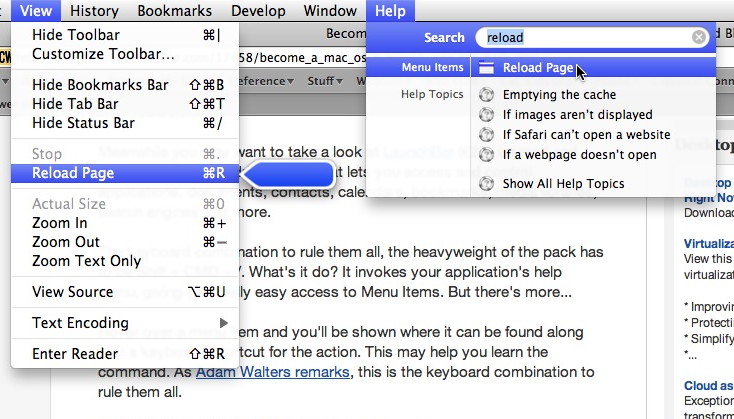
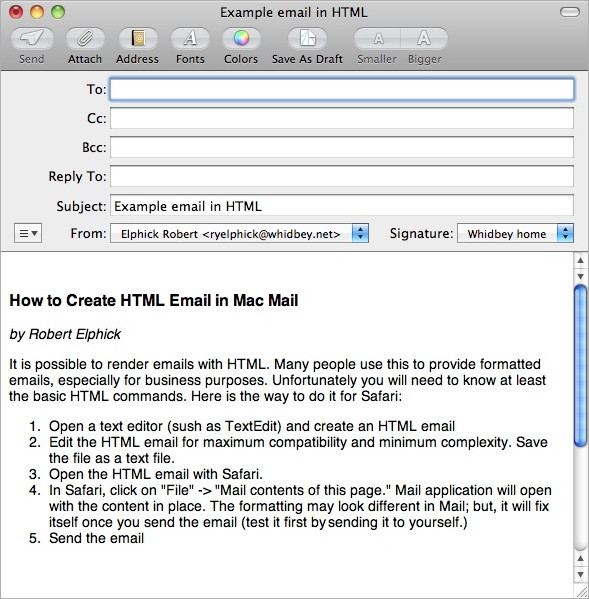
The other ruler This raises a menu which enables you to easily shut down applications which have become inactive. You can also achieve this via the Dock by clicking on the application icon while also pressing the Alt/Option key. You can also invoke this via the Apple menu at the top left of your Mac, and clicking 'Force Quit...' Shortcuts -- the list Mac OS X keyboard shortcuts - Apple's list of the most common shortcuts (or just use Shift + CMD + /) Dan Rodney's List of Mac OS X Keyboard Shortcuts & Keystrokes - As it says on the can -- an extensive list which should be essential reading for any Mac user. Shortcuts - Relatively extensive collection of shortcuts grouped by application. Click here for complete article. How to Create HTML Email in Mailby Robert Elphick It is possible to render emails with HTML. Many people use this to provide formatted emails, especially for business purposes. Unfortunately you will need to know at least the basic HTML commands. Here is the way to do it for Safari:
Here is an example of some HTML code (actually this article) and a picture of the resulting email
By The Way
Computer Buyingby Ron Sharp Buying a new computer for yourself or a holiday gift this season? You can customize your computer when ordering from Apple. Here is the information from Apple's web site. You can also check out the refurbished items. Customize Your Mac Because everyone's needs are different, the Apple Online Store makes it easy to build the Mac that's right for you. Models that can be Customized:
You have several options to build the system that is right for you. After you choose a model with the processor speed and optical drive you want, you can configure, for example:
Buy a Certified The Apple Online Store is the exclusive provider of Apple Certified Refurbished products and Clearance Items. Refurbished Products Apple Certified Refurbished Products are pre-owned Apple products that undergo a rigorous refurbishment process prior to being offered for sale. We back these products with our standard one-year limited warranty. For extended coverage, you have the option of purchasing the AppleCare Protection Plan with any Apple Certified Refurbished Mac or iPod. Refurbishment Process Each Apple Certified Refurbished Product:
Clearance Items Clearance Items are new, unopened products from Apple and other manufacturers offered with special pricing. Finder Tipsby Ron Sharp Finder is the application that handles all your files and folders and desktop chores and offers your view options such as Column view, List view, Icon view and Cover Flow. 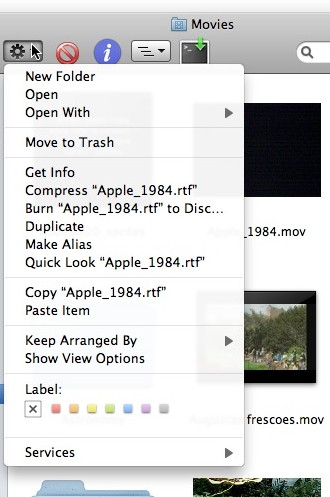
A few tips for convenience for using Finder options. The Action button can be used for quick access to making Duplicates of files or folders, creating New Folders, and selecting a color to label a file or folder making it easier to spot. You can also make an Alias of a file or folder and drag it to the desktop or to the document side of your Dock for quick easy access. The action button is in the Finder window toolbar and is similar to the File Menu in the top menu bar. If you don't have the Action button showing you can add one with the View -> Customize Toolbar menu. And I'm sure I've mentioned this before somewhere in my incredibly helpful tips, but I like using the Column view for my Finder window preference because it's easier to see a file path to where your files are located. However, for searching a large image folder for a particular file or photo, especially when you can't remember what you named it, Cover Flow view is cool to use. Try it, you'll see. It's particularly cool when using a track pad, sliding your fingers across the pad to "flip" through file images. Now once you really get all the Finder options mastered, the Finder application will be eliminated in the next operating system version! Maybe! See Mac of the future: the OS in this newsletter. 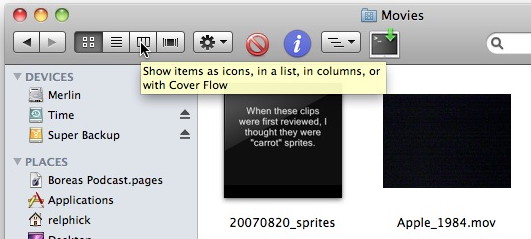
MAGIC, the Macintosh Appreciation Group of Island County, serves people who use Macintosh computers, software and peripherals. Our goal is to share information and get answers to questions to make us more productive with our use of technology. Our monthly meetings give us a chance to discuss computer problems and share ideas with other Mac users, feature speakers on specific topics, and to keep apprised of Apple news. |