NewsletterJuly 2011Newsletter Editor: In This Issue:
 Meeting information
Future Meetings: (subject to change)
Do not forget to bring your used ink cartridges. Minutes of the June 15 MeetingBy Susan Prescott, MAGIC Secretary The Macintosh User Appreciation Group of Island County (MAGIC) met at 4 p.m. at the Useless Bay Country Club on Wednesday, June 15, 2011. About 30 people attended. Vice President of Membership Ed Severinghaus arrived early to prepare name badges for participants. Sue Keblusek and Ron Norman helped set up the meeting room. Questions and Answers: The standard Q&A portion of the meeting lasted about an hour. Business meeting: the meeting was called to order about 5 p.m. by President Elphick. A collection basket was passed around for meeting dues at the suggested amount of $2 per person. Treasurer's report: Sue Keblusek reported $4,409.11 in the treasury, to date. Announcement: Robert presented details about an Adobe Photoshop webinar, Creative Live. Next meeting: The Wednesday, July 20 meeting of MAGIC will again be at the Useless Bay Golf Club, as Whidbey Telecom's new facility will not yet be ready. The meeting is 4 to 6:30 p.m. Members who wish to stay for dinner and socializing may contact Ron Norman in advance so that table reservations can be made. Ron can be reached at ronald_norman@me.com. Future Programs: Vice President of Presentations Ron Norman reported he is contacting Apple about a presenter for a future program, lasting about an hour and a half. He explained Apple offers free classes on any topic but participants must get to the store by 8 a.m. Ron is willing to coordinate trips to the store for classes. Contact him about which topics are of interest. One member suggested a class about using iDisk would be useful as well as a session using Pages on an iPad. Ron introduced member David Beers who will present how to check out library books using an eReader such as an iPad. David is also a staff person with Sno-Isle Regional Library and gave a similar presentation through that system. The August 17 MAGIC program is about the new operating system, Lion, OS7. The September 21 MAGIC program is a presentation about Quick Read cards (QR) by the 4-HD club. Classes: Macintosh Essential Training, also known as Macintosh 101 or Macs for Beginners, begins Saturday, September 10 through October 8, from 2 to 5 p.m. The sessions will all be about Mac OS-X and will focus on OS-X 10.7 (Lion) with additional comments on Leopard and Snow Leopard. There will be two teaching computers, one with Lion and the other with Snow Leopard. Students are strongly encouraged to attend all five sessions, bring their own Macs and to ask questions. Registration is now open for the first 15 applicants at this location. All five classes cost a total of $50 otherwise it will be $15 per class. The books recommended may be obtained through Amazon.com. Program: Computer Security by Robert Elphick was prepared as in Keynote. Robert provided sources of security software and how to set up a computer for security particularly when a user is traveling or visiting an insecure WiFi spot. He followed the presentation with a brief demonstration about settings in System Preferences> Security and Network. To review this information visit the Tricks/Tip section of the MAGIC website. He cautioned everyone against a Trojan application MacDefender and illustrated how to clear it out. Apple products are not likely to get viruses yet, but it could be possible. iOS Program: To accommodate new iPad, iPod and iPhone users the MAGIC meetings will include a Q&A session about these devices. Due to so many questions about the security presentation, this session didn't get started until about 6:15. The meeting adjourned at 6:25 p.m. in order for Robert to give special attention to member's somewhat baffling iPad question. MAGIC Moments
by RYE, a self appointed wizard of the very best kind! EducationA beginners Mac class will start on September 10. The style of the class will be hands on teaching and will be led by the President with the help of several board of directors members. Keep your eyes on this newsletter and the MAGIC website for details of this class. The class size will be limited. Click here to find out more. 4-HD Video ClubIn the July 7 issue of the Whidbey Examiner on Page 3 there was a report on the QR Project that the club executed. The club is now making a Documentary of their experience doing this project. The Documentary will be shown to the members at the September monthly meeting. Club members will also be there to talk about their experience with the project.For Sale and Wanted PageDo not forget to have a look at our Swap page from time to time where Apple items are listed for sale. Also there is a list of wanted items. There are some good deals to be had. Check it out. SOFTWARE UPDATESNote: This Software Update section of the newsletter lists the most relevant Apple updates. Not all updates are listed for all products. Additionally, I'll add other pertinent updates on occasion. Apple Releases iTunes 10.3by Ben Bonaccio, SmallDog 
Apple today released iTunes 10.3, bringing the first wave of iCloud beta support to OS X. Following yesterday's keynote event, Apple pushed the first minor "over the air" update to iOS 4.3.3 users bringing a new "Purchased" tab to the iTunes and App Stores. From this tab, iOS users can download previous purchases to their devices for no additional fee. Today, iTunes has been updated to better compliment Apple's newly announced cloud services. According to the support document accompanying the update's release, iTunes 10.3 includes the following:
Apple Releases Mac OS X 10.6.8by Ben Bonaccio, smalldog.com This Thursday (06/23/11) Apple released Mac OS X v10.6.8, the first incremental Snow Leopard update since late March. Likely the last major maintenance update before Mac OS X 10.7 Lion debuts next month, the release includes several new features, tweaks and bug fixes. Among the more notable features of the update are enhancements to the Mac App Store and built-in protection against known variants of Mac Defender malware—essentially the features of last month's Security Update 2011-003. The enhancements to the MAS claim to "get your Mac ready to upgrade to Mac OS X Lion," seeming to indicate the software update is a mandatory install prior to upgrading to the new OS. According the the support document accompanying the release the following changes supplement the aforementioned features.
Apple issues Java updates for Snow Leopard, Leopardby Lex Friedman, Macworld.com 
Fire up Software Update, and you're likely to find a Java-flavored update waiting for you. Apple has updated Java for both Snow Leopard and Leopard, releasing Java for Mac OS X 10.6 Update 5 and Java for Mac OS X 10.5 Update 10. The Snow Leopard Java update "delivers improved compatibility, security, and reliability," Apple says, by upgrading Java SE 6 to version 1.6.0_26. The update addresses multiple vulnerabilities that could allow arbitrary code execution. The Leopard Java update upgrades J2SE 5.0 to 1.5.0_30, and Java SE 6 to the 1.6.0_26 version for 64-bit Intel Macs. Apple says that support for "out-of-process Java applets" under Leopard is removed with this update. The update is only for Leopard Macs running Mac OS X 10.5.8 or higher; it too addresses multiple vulnerabilities that could allow arbitrary code execution. Apple recommends quitting any Web browsers and Java applications before installing the update. News, Info and StoriesPlaying With Lionby Carl Grasso, smalldog.com On June 15, 2011 Apple announced the upcoming release of their next version of OS X, 10.7 Lion. I am very excited about this release and wanted to share some of the coming changes to the system with all of you. In my opinion, the biggest change is that this release will not be available on conventional optical media, but will instead only be available through the App Store. This seems to effectively lock out anyone not running 10.6 from upgrading to Lion. I have seen websites with instructions on how to burn the Lion installer to a DVD to enable installation on other computers. It's unclear, however, whether or not this will work with the final release, as the only version available now is Developer Preview 4. The server version of Lion will also be available through the App Store as a separate download. Server is also seeing a huge change in that it will be available for around $50, rather than several hundred. Down to the nitty gritty: Lion boasts over 250 changes over its predecessor. I was able to take a very quick look at the Developer Preview a short time before writing this article and I can tell you that while it's definitely still OS X, there are noticeable changes in almost every aspect of the system. I'm not going to release any information that isn't already available so don't get your hopes up for major spoilers. I will say this, however: it's cleaner, slicker and more refined. My favorite is Launchpad. This brings the iOS home screen to your Mac. If you have an iPad, iPhone or iPod touch then you're well familiar with the home screen. On your Mac Launchpad will be a resting place of links to all your applications. Click on Launchpad in your dock, or use multitouch gestures, and your dock, menubar and desktop icons fade away leaving a frosted surface over your desktop with all your application icons lined up neatly across your screen. You can move them and organize them into folders as you would in iOS. From what I hear, deleting them is a trifle annoying as the OS will ask you to confirm deletion with each app. Another biggie is what Apple is terming Resume. This also takes a cue from iOS. When you shut down your machine, the state of every application running is saved. This way when you restart your machine you are brought back to where you were when you shut down. The third take from iOS is Mail. I really like Mail. Again, if you're familiar with the version of Mail on the iPad you'll be familiar with what Lion will be like. You can see some images of Mail on Apple's website. It's much easier to navigate through multiple mailboxes, so if you're like I am and have several email addresses, it's much easier to get through it all. Do you have multiple Macs in your home? Have you ever tried to transfer files between them? Apple has always made it easy to network Macs together but now they've made it even easier. Now you don't even need a network. As long as each Mac is able to run the AirDrop software (requires Lion), the computers will discover each other as long as they are close enough and allow you to drag and drop files between them. There are many other changes, but to me, these are the largest. While these changes are really amazing, it's the little details that make Lion such an awesome upgrade. If you wait with bated breath over the release of Lion, you will not be disappointed. Click here for complete article. iCloud: What you need to knowby Macworld Staff, Macworld.com 
On June 8, 2011 Apple introduced its iCloud wireless data sync service at the companyʼs annual Worldwide Developers Conference. So what exactly is iCloud? How does it compare to MobileMe? How much will it cost? We answer these questions—and many more—below. Because much of iCloud wonʼt be up and running until this fall when iOS 5 ships, there will still be lots of unanswerable questions, but hereʼs everything you need to know right now. 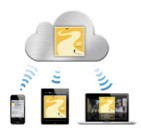
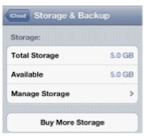
What is iCloud? iCloud is Apple's name for a number of Internet-based services for syncing files and data across iOS devices, Macs, and PCs. Isnʼt that what MobileMe does? Yes and no. iCloud will offer some of the same features as MobileMe, but not all, and it will add new features, as well. What does this mean for MobileMe? MobileMe will be going the way of the dodo. More on that in a bit. What does iCloud offer? As with MobileMe, iCloud can sync your contacts, calendars, e-mail, and Safari bookmarks between iOS devices and computers. But it will also offer document storage, photo storage, and music-syncing features, along with backup features for iOS devices. Will iCloud store and back up any file I want it to? Not quite. Apple says that iCloud will sync documents created with Appleʼs apps (Pages, Numbers, and Keynote, for example) as well as any third-party apps that are adapted to take advantage of iCloud. Presumably, most iOS and Mac developers will get on the iCloud bandwagon, but there will be a transition period where some apps will sync with iCloud and others wonʼt. That means users will need to be careful not to assume that all their files are automatically saved to iCloud, because only some apps will do the job. How much will I be able to store on iCloud? 5GB. That covers mail, documents, and backup. Purchased music, apps, books, and Photo Stream photos (more on that below - wonʼt count against your 5GB limit. What if I need more storage? Will there be a way to pay for more? It looks like there will be. In the iOS 5 beta, buried within the iCloud section of the Settings app is a "Buy More Storage" button. Which makes a lot of sense, since some users will hit that 5GB ceiling rather easily. The Dropbox cloud-storage and file syncing service offers 2GB of storage for free, and charges $10 per month for 50 GB or $20 per month for 100 GB. Apple will probably offer extra storage at similar prices.
How does iCloud compare with Dropbox and SugarSync? Unlike Dropbox and SugarSync, which are designed to let you sync any file or folder on your computer through their servies, iCloud is focused on integration with apps. So it doesnʼt matter where you save that Pages document on your Mac; itʼll be synced with iCloud merely by virtue of being a Pages document. On the other hand, you wonʼt be able to—at least from what we know so far—use iCloud to sync a document created in an application that doesnʼt offer iCloud support. What about photos? iCloud includes a feature called Photo Stream, which auto-imports any new pictures taken on an iOS device or added to iPhoto and stores them for 30 days in the cloud. You can view those photos on (and in some cases download them to) your other iOS devices, computers, and even your Apple TV. Because of their size, photo syncing is limited to 1000 pictures on iOS devices, but is unlimited on computers. (Although you obviously canʼt run iPhoto on a Windows PC, Apple says Photo Stream will work with those computers as well—youʼll simply choose a folder on your hard drive that you want to use as your "photo library".) Only 1000 photos? What about all my other photos? iCloud stores and syncs your most-recent 1000 photos. But that doesnʼt mean you lose older photos. Apple said on Monday that any photos in iPhoto (or, on a Windows PC, to another folder) will be permanently stored on your computer. What kind of music features does iCloud have? iTunes in the Cloud offers manual downloading of all your previously purchased iTunes Store music, as well as automatic downloads of all new purchases, to any computer or iOS device authorized for your iTunes account. If you have purchased tracks from the iTunes Store in the old 128-kbps protected AAC format and re-download them, theyʼll be delivered in that same format—they wonʼt be offered to you as unprotected 256-kbps AAC files (for that youʼll have to pay 30 cents a track to upgrade them through iTunes). If tracks that youʼve purchased are no longer available from the iTunes Store, you wonʼt be able to re-download them. 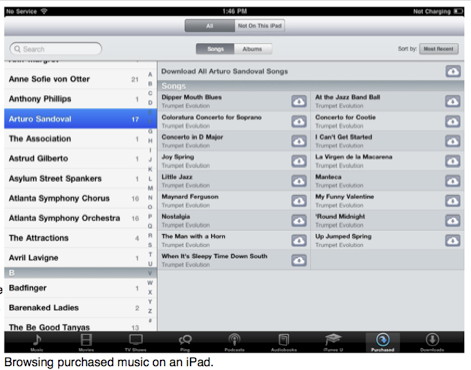
Currently, streaming music from iCloud is not supported, which means in order to listen to a song or album, youʼll need to download it to the device or computer on which you want to listen to the music. For iOS devices especially, storage will be a limiting factor. Thereʼs also a new feature called iTunes Match (as weʼll explain in the very Browsing purchased music on an iPad. next item). What about music that isnʼt from the iTunes Store (stuff I ripped from CDs myself, say)? For $25 a year, Appleʼs iTunes Match feature can scan your iTunes library and match up (if possible) any songs you have that you didnʼt buy from iTunes with the same track in Appleʼs Store—and then you can access those tracks from all your computers and iOS devices, just like tracks you bought through iTunes. This is in sharp contrast to the cloud-based musical offerings from Amazon and Google, which require you to actually upload your music to be able to access it (although those services allow you to stream your music, rather than just download it like Appleʼs). Even better, once iTunes Match has "matched" those tracks, it replaces low-bit rate versions with 256-kbps, DRM-free AAC versions. For the songs iTunes doesnʼt offer (Apple says it currently has 19 million tracks) you can upload your own files instead. Apple says that you can store up to 25,000 matched and manually-uploaded tracks—iTunes-purchased tracks donʼt count against this limit. For those with really big iTunes libraries, we donʼt know how youʼll decide which tracks and albums you want access too. Also, itʼs unclear what happens when you stop paying the annual subscription fee, but if itʼs anything like other subscription music services, chances are that a portion of your iCloud experience will cease to function. If I donʼt renew iTunes Match after a year, do I lose all of those non-iTunes songs I downloaded to my devices? We donʼt know. If we had to guess, weʼd say you probably get to keep those files forever, but when your subscription lapses, you will no longer have access to them on iCloud, so you wonʼt be able to download them to any device on demand. Weʼre guardedly optimistic that the music files themselves will remain intact and playable, but detached from the cloud. Does it work with any other purchased files? Yes, you can set up your iOS devices to auto-download newly purchased apps and books as well. What about other iTunes Store content, like movies and podcasts? 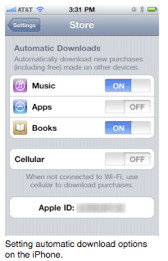
At this point, it looks like the iTunes in the Cloud features are limited to music/apps/books, so no TV shows, movies, podcasts, or iTunes U content downloaded from the iTunes Store. That could be due, in the case of movies and TV shows, to concerns about bandwidth and/or licensing agreements with studios. But we suspect Apple will extend iTunes in the Cloud to at least some other types of content at some point. Setting automatic download options on the iPhone. Yes, you can set up your iOS devices to auto-download newly purchased apps and books as well. What about other iTunes Store content, like movies and podcasts? At this point, it looks like the iTunes in the Cloud features are limited to music/apps/books, so no TV shows, movies, podcasts, or iTunes U content downloaded from the iTunes Store. That could be due, in the case of movies and TV shows, to concerns about bandwidth and/or licensing agreements with studios. But we suspect Apple will extend iTunes in the Cloud to at least some other types of content at some point. Can I use iCloud to back up my iOS device? Another aspect of iCloud is automatic data backup. According to Apple, once a day—but only when your iOS device is connected to both a power source and a Wi-Fi network—iCloud will back up many types of user data to the cloud. It wonʼt back up everything, but it will handle purchased music, apps, and books; your Camera Roll (photos and videos); device settings; app data; Home-screen and app organization; text and MMS messages; and ringtones. If you ever get a new iOS device or need to restore from a backup, Apple said, you can just enter your Apple ID and password and everything will be automatically loaded onto that device. Will I be able to use iCloud to sync settings and other data between my Macs? Other than the types of data already mentioned—photos, media, and data in iCloud-enabled applications—Apple hasnʼt said much. But we think itʼs only a matter of time before youʼll be able to sync, say, your application and system settings, and perhaps even your login sessions, between your Macs. Iʼve got lots of Apple IDs. Iʼve got an iTunes account with all my apps and music on it, we have family MobileMe accounts for e-mail... what does the advent of iCloud mean for me? Weʼre not sure how Apple is going to handle multiple accounts. However, the iOS 5 beta features an iCloud settings item as well as a separate Store settings item. The iCloud item handles the syncing of mail, contacts, calendars, reminders, bookmarks, notes, Photo Stream, and Find My iPad, as well as storage and backup. The Store setting seems to cover music and apps. So itʼs possible youʼll be able to use one Apple ID for media purchases and syncing, and a separate ID for all the other data. In this way, if you have a single family account for media purchases, you can keep everyone on that while using a separate account for other data. Will I be able to merge my iTunes and MobileMe accounts into a single account? Or change my Apple ID and retain my old apps and media? Apple hasnʼt said anything about how management of Apple IDs will be handled. Given their increasing importance, it would certainly be nice if Apple allowed users to change, merge, and even split accounts. If I have an expired me.com e-mail address from a MobileMe trial, or a mac.com AIM account, will I be able to claim them when iCloud is released? It seems likely that if you signed up at some point for a me.com or mac.com address, you may be able to re-activate that user name once iCloud launches. We wonʼt know for sure until that day gets closer. Can I play music directly from iCloud, or do I have to first download them to a device? You can listen to a preview of your purchased music to help you identify a track before downloading it (when browsing by album) but you canʼt stream complete songs. Can you use Mail with a custom domain, or does it have to be me.com? You can use Mail with any mail account you want. But iCloudʼs e-mail system is based solely on the me.com domain, so far as we can tell. Will parts of iCloud be accessible with a browser? We donʼt know yet, but weʼd assume that youʼll be able to at least view your mail, calendars, and contacts (as you can with MobileMe now). The stuff that requires iTunes (apps, music, books) probably wonʼt work in a browser, although photos might. I have a few albums I copied from a friend. How will iTunes Match know which files are legal for me to upload? The specifics of how iCloud does or doesnʼt deal with pirated music will likely be a secret. Weʼd guess that if you try to match tracks purchased from someone elseʼs iTunes account, youʼll be told that you donʼt have the right to use them. Those tracks are watermarked with another Apple ID and therefore easy to identify. As for tracks that have been downloaded from the Internet, itʼs possible that Apple could look for identifying characteristics that indicate the music came from a dodgy source. For example, tags, watermarks, and sonic footprints. On the other hand, itʼs possible that part of the $25 you pay each year buys you a measure of amnesty from the labels. Can you delete apps through the cloud from all devices by deleting on one? It doesnʼt look like thereʼs any facility to delete items on other devices from a single device. Which is nice, because it might make the other people who share your Apple ID quite angry. Can I choose what syncs and what doesnʼt, per device? The iCloud settings area suggests you can turn contacts, calendars, reminders, bookmarks, notes, Photo Stream, Find My iPad, and iCloud backup on and off individually on each device. With "the truth is in the cloud" in the new OSes, what about people who want local copies of everything (e.g., POP vs. IMAP)? It seems like Appleʼs solution here is to push everything back out to all the Macs or PCs attached to your account. But if youʼre uncomfortable with having the canonical form of your data be on Appleʼs servers, iCloud may not be for you. What happens to data when you delete a game and reinstall it? Is there a way of restoring game saves? It seems likely that game saves will be syncable using iCloud, so you can pause on an iPad and pick up on an iPhone. Will using iCloudʼs photostream on the Mac require me to upgrade to iPhoto ʼ11? Windows users donʼt need an extra expenditure to use it. Yes, it looks like youʼll need to upgrade to the latest version of iPhoto for $15. Will iCloud eat up my data plan? Or will it only use Wi-Fi? iCloud seems to be intentionally focused on Wi-Fi syncing. Backups wonʼt happen unless youʼre on Wi-Fi and plugged in, for example. But some features will sync over cellular connections, and yes, they will use your data plan. Users on limited data plans will need to consider their iCloud strategy carefully. Most of my music is on a non-iOS iPod. How does the iPod fit into the scheme of songs being pushed to all devices? iCloud requires an Internet connection to do its job, which explains why itʼs limited to iOS devices - which can connect to Wi-Fi networks and, in most cases, 3G data networks as well. We canʼt see how an iPod nano or classic could ever fit into the iCloud ecosystem. What will this cost? 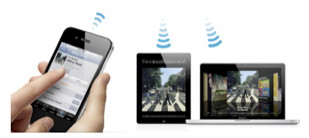
Almost all of the iCloud services are free. The only thing you have to pay for is iTunes Match, which will cost $25 per year. When will iCloud be up and running? Right now, the iTunes in the Cloud feature is available for users in the U.S. only. (Appleʼs calling it a beta, so you can expect some wonkiness.) The rest of the services are expected to roll out with iOS 5 in the fall. Will it work with all iOS devices and Macs? In order to use iCloud, youʼll need iOS 5, which will run on the iPhone 3GS, iPhone 4, third- and fourth-generation iPod touch, original iPad, and iPad 2. On the Mac, youʼll need to be running Lion and iTunes 10.3 or later. For PCs, youʼll need Windows Vista or Windows 7. Iʼm a MobileMe user. What happens now? You will be able to convert your MobileMe account into an iCloud account when the new service launches. Appleʼs MobileMe transition document says "When iCloud becomes available this fall, more details and instructions will be provided on how to make the move." Existing MobileMe services will continue to work until June 30, 2012. Do I get a refund? If youʼve recently purchased a boxed update and havenʼt used the code yet, or have an unused code in your account, you may be eligible for a refund. Apple has posted a support doc detailing how the process works. You can also request a pro-rated refund for the remaining portion of your subscription. For everyone else, Apple has extended your MobileMe subscription until June 30, 2012. After that date, MobileMe dies. What about the e-mail address? Does it stay @me.com or change to something else? According to an e-mail Apple sent out on Monday, when you sign up for iCloud, youʼll be able to keep your MobileMe e-mail address. In addition, everyone eligible for iCloud is now eligible for a free e-mail address ending in @me.com. What will happen to MobileMe features such as Galleries, iDisk, Backup, Back To My Mac, and Find My iPhone? Find My iPhone is one of the features we expect to stick around. 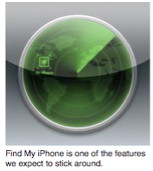
Unknown at this point. When Apple talks about the future of MobileMe and iCloud, none of these features—plus things like syncing Dock items, keychains, preferences, and notes—are mentioned. As mentioned above, iCloud will offer up to 5GB of storage (which doesnʼt include data handled by most of the features weʼve described), but this is less than the 20GB currently offered by MobileMe. As for Find My iPhone, earlier this year Apple made it free for owners of new iOS devices. Apple has recently updated Find My iPhone, so Apple clearly thinks itʼs still worthwhile. We certainly expect it to stick around. And what about iWeb? Apple has devoted very little attention to iWeb in the past few years. Our best guess is that iWeb will disappear from the next version of iLife and that Apple-supported Web hosting as we now know it will be a thing of the past. What are the implications for Time Capsule? Cloud-based storage is attractive for a lot of reasons, not least of which is that your data is safe from "local" events such as your computer equipment being stolen, a house fire, or natural disasters. However, itʼs not fast—uploading and restoring many gigabytes of data can take a long time. And if your ISP has imposed bandwidth caps, it can also be expensive. Storing your most important documents on iCloud makes sense, but itʼs not a good solution for backing up all of your data. For that you need some kind of local storage solution and thatʼs where Time Capsule and other local backup strategies make sense. Why is Apple doing this? When Steve Jobs spoke about iCloud Monday, he said that Apple was going to demote the computer to be "just another device." So, rather than your Mac being the digital hub for your media and personal information, that job would be taken over by online services—specifically, iCloud. Given that now that many of us have not only multiple computers but also one or more mobile computing devices such as the iPhone, iPod touch, and iPad, this makes a lot of sense. Coordinating all your information between these devices has become a chore—particularly when you attempt to do it all from a single computer. The promise of iCloud is that syncing media and data will "just work." Just enter your Apple ID on your various devices and iCloud will make sure that all those devices have the most up-to-date content on them. Of course, money could also be an issue. Having millions of people sign on for iTunes Match at $25-per-year is an attractive notion for Apple (even if Apple ends up sharing some of that cash with the record labels). And thereʼs always the possibility that Apple would add other pay-for services to iCloud—subscription music streaming, for example. Of course, thereʼs also the bigger picture: By creating a system where all your computing devices communicate seamlessly and let you access your media on demand, Apple is making it even more appealing to stay in the Apple ecosystem and to buy even more Apple devices. Click here for complete article. Madly sophisticated Black Jack fontby Kate Godfrey, PCWorld The season of summer soirées is fast approaching. We recommend branding your events like a Madison Avenue mogul with Black Jack (free), a modern brush script by Canadian designer Ronna Penner. Black Jack's style harks back to an era when men were mad and advertising still reveled in hand lettering (among other things). One look at Black Jack and we knew Ms. Penner had a sense of humor, but then her resume includes a stint in the greeting card industry. Her Black Jack is not just a sweet font for sentimental thoughts. There's more whiskey than cola in the dips and changes of stroke from upper to lower case. Cocktail accoutrements cry out for a touch of Black Jack's attitude. Set Sip on a napkin or Smoke on a matchbook and voila, instant party souvenirs. Like Don Draper, Black Jack has a few faults. Even Ms. Penner admits the font is not her favorite companion. Yet its playful curves and bouncy manner can score big if the right task is at hand. Upper and lowercase characters flirt nicely; the numerals pop on the page; and even the limited punctuation helps add a retro touch to book covers, address labels, and yes, the inside of custom greeting cards. By the way, Black Jack can be used commercially, but the font itself is not yours to resell. That honor belongs to Ms. Penner, who holds the copyright. Do not attempt to write your memoir in Black Jack, and stay above 20 points if it's important to be legible. If you drift into the Shift key zone when keyboarding punctuation or numbers, watch your work: The characters @, #, \, and both brackets styles will appear, but in a substitute font. Avoid these items to stay in style. Do you really need them to appear sophisticated? Signing up Black Jack as a party prop may not inspire you to wear a cravat or offer up nibbles of pimento cheese, but we predict your guests will toast you with more than a little envy. Itʼs time to turn on the suave and achieve the perfect pitch. 
Note: This font works fine on the Mac. PCWorldʼs download page (from which this font is available) does not list the Mac OS specifically in its list of compatible operating systems, but Macworld has independently tested this font on a Mac system. Click here for complete article. Apple Issues Quiet Update to Time Capsuleby Ben Bonaccio, smalldog.com 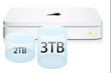
On June 21, 2011 Apple updated its line of Time Capsule wireless routers. Eliminating the previously baseline 1TB model, the higher end 2TB version has taken its place, and a new 3TB capacity has been introduced to the line. Retaining the previously established price points of $299 (2TB) and $499 (3TB), both versions of Time Capsule provide a nearly effortless wireless backup solution while simultaneously offering the robust networking functionality of an AirPort Extreme. Aside from increased hard drive capacities, no additional new features have been introduced with today's update. Curiously, Apple has also updated the store page for the AirPort Extreme even though no additional new features or enhancements seem to have been introduced. The "new" AirPort Extreme retains the price point of $179. Click here for complete article. Cameras that Zoomby Ron Sharp, MAGICI was in a Costco store with a friend recently and we took a few cameras for a spin. I mentioned I was interested in purchasing a camera and Tony told me he uses a Panasonic Lumix and was very pleased with it. After a cruise around the camera table we both decided we didn't like the touch screen displays. For some reason they don't seem convenient on a camera. I liked the Lumix Costco had on display, but what I really wanted in a camera was one with a good optical zoom. So I told my friend I had to wait and do some research. And I did. Two days of research and I had narrowed my choices down to three or four cameras. So if you're in the market for a pocket size camera that zooms here are some great choices. These are in the $240 t0 $340 range. 
For my research I went to a site that was exceptionally great for side by side camera comparisons: dpreview.com. After comparing specifications, I narrowed my choices, then read reviews about each one on a couple other sites: Imaging Resource and Photography Blog. Both of these sites did in depth testing and reviews. But some models that are very new on market may not have complete reviews available. Often some of the better deals can be made via online orders but I made my final choice, however, by going to stores and physically trying the cameras. And I highly recommend it. Sometimes a small thing like the positioning or operation of a button will make the difference. The difficulty was that no store had all four choices and I couldn't find a store at all that had the Nikon S9100. In the end I chose the Panasonic Lumix DCM-ZS8. After using the camera for several days I find that it's many options take time to learn, but the zoom is great and the quick and easy automatic setting does a good job if you don't want to get specific with details and options. Here are samples with the Lumix ZS8 zoom; All taken from my kitchen window, (with the sprinkler on) standard wide angle, then 16x zoom, then the third picture is with "Extended Optical Zoom." According to the manual, this is a 3 megapixel size of the original 14 megapixel enabling it to zoom to 33.8x. There is also the optional digital zoom which I have turned off. I'm fairly amazed that a little pocket size camera can take these zoom shots without changing lens. 
Bugs & Fixes: Mac OS X 10.6.8 bug work-aroundsby Ted Landau, Macworld.com Now that Mac OS X 10.6.8 has been out for a couple of weeks, it's a good time to check in and see what problems, if any, are being commonly reported. There are three issues that appear to have generated the most user complaints:
Click here for complete article. iPhones, iPods, and iPads
Apple's iOS More Secure than Google Androidby Peter Gray, smalldog.com 
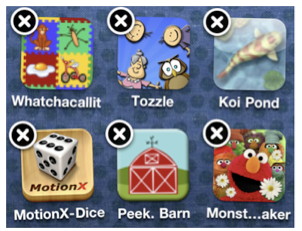
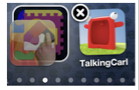
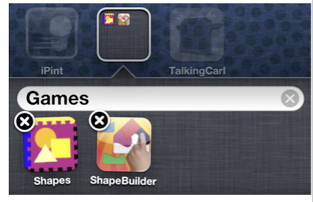
A recent analysis by security experts at Symantec found that both Apple's iOS and Android are inherently more secure than Windows-based PCs. When put head-to-head, Apple topped Google in all but one category. Symantec found that iOS offers superior protection against web-based attacks and malware while protecting your data from unauthorized access and manipulation. It received high marks for built-in data encryption and Apple's highly-regulated App Store scored well for vetting applications in order to protect customer's privacy and data. Only Android's permissions-based model for applications gave it an edge over iOS in the area of application isolation. Google's OS gave users fine-tuned control over how applications interact with other applications and their data. However, this flexibility comes at a cost, since setting these preferences can be more intrusive to the user than Apple's model. Both received very low scores for protecting against social engineering attacks, a form of hacking that involves manipulating people to provide access rather than more technical cracking techniques. The lesson? Guard your passwords well and be sure to utilize Apple's free Find my iDevice service to locate and remotely wipe your device should you ever find it outside your control. The study further confirmed Apple's warnings towards users that jailbreaking their iDevices undermines much of the security they have put in place, making users nearly as vulnerable as traditional PCs. Check out the full study here. Click here for complete article. How to create and organize iOS foldersby Lex Friedman, Macworld.com The very first incarnation of the Mac OS offered folders for organizing files. Not so for the first iteration of the iPhone. It took until June 2010 and the release of iOS 4 for folders to arrive on iOS devices. Whether your iPhone is sparsely loaded with Apple's default apps, your app count totals in the hundreds, or you fall somewhere in between, iOS folders—despite a few limitations—provide a simple way to streamline your home screens. If you're not familiar with folders, we run through the two methods for creating them and organizing them—one you can use directly on your iOS device and the other that you can manage through iTunes. We follow that up with a few folder tips and tricks. And don't worry about whether iOS 5 will render all of this moot when it arrives this fall—from what we've seen of Apple's forthcoming iOS update, the folders feature remains intact. Create folders with your device One folder-creation approach involves using your iPhone (or iPad) directly. To create a folder, you need to drag one app on top of another.
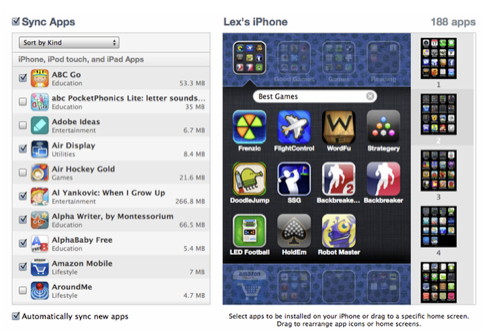
Create folders with iTunes instead
Why bother with folders? If you're living a folder-free existence, you could be wondering why you should go through the effort to group apps together on your iOS device. We think that as you embrace folders, you'll find all sorts of uses for them. For starters, you might choose to group together similarly-themed apps, like a folder of games or of text editors, freeing up screen space and ensuring that related apps are all in one easy-to-find place. You can also create folders to hide those apps you use less frequently—especially Apple's bundled apps (like Stocks and Weather) that you can't otherwise delete. You can also use folders to tuck away apps you use frequently, but whose home screen location you don't feel like memorizing. That's because, as with every other app, iOS apps in folders can be launched quickly via Spotlight, which lives to the left of your first home screen. And don't forget—you can even put folders into your device's Dock, to allow quick access to a full folder's worth of apps from every home screen. One challenge you might encounter: Unlike folders on your Mac, folders on iOS devices can only hold a certain number of icons. iPhone folders are limited to 12 apps; iPad folders get a more generous 20. If you have 28 games to organize, then, the easy solution is to create multiple folders that can live side by side on your device. For example, my second iPhone home screen includes these three folders: Great Games, Good Games, and Games. Many iOS users content themselves to organize apps by using home screens. But if you've milked all the organizational structure you can by placing certain apps on certain screens—or worse, if your apps are just organized haphazardly—perhaps folders can introduce the stability and neatness your iPhone or iPad needs. Click here for complete article. iOS Lock Downby Ben Bonaccio, smalldog.com 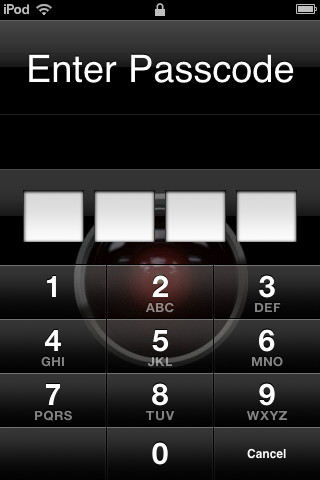
With every successive release of iOS, Apple seems able to devise ways for its mobile devices to make our lives even easier. The trade off, however, is that these devices seem to catalog an ever increasing amount of personal data. Should an iPhone, or other iOS device, be misplaced or picked up by a thief, you'll not only be out a few hundred bucks—the entirety of your personal data as well as that of your contacts could be jeopardized. Clearly aware of the large amounts of personal data being stored on iOS devices, Apple has implemented security measures such as 'Find My iPhone' and a comprehensive passcode system in every iOS device's Settings > General page. The former is a free service and app enabling users with compatible iOS devices to track—and even wipe—devices that go missing. The latter bars access to a device until the proper four digit passcode is entered. While a four digit passcode is the default option most users will select, Apple has built in deeper security for those with especially sensitive data. To change your passcode from a simple four digit scheme to a more complex word or phrase, simply turn 'Simple Passcode' off. You will now have access to your device's QWERTY keyboard to input a text based passcode of your choosing. Below the option to disable Simple Passcode is an option to turn off Voice Dial (iPhone only). Even though a contact's name must be clearly spoken to place a Voice Dial call, this feature technically bypasses lock screen security by allowing calls to be made. Although no additional features are available, some users may choose to toggle this feature off for greater peace of mind. Finally, Apple has included a self destruct mechanism in every iOS device—ok, ok not a Mission Impossible style self destruct, but still pretty cool. The last option in the Passcode Lock menu is dubbed 'Erase Data,' and when enabled, will wipe a device after 10 failed passcode attempts. If you choose to enable this feature, however, you had better remember your passcode as your data will be erased if you botch it 10 times. Using this feature can be re-assuring as even the most determined thieves will be permanently prevented from obtaining personal information after 10 failed attempts. As long as you've kept a current backup of your device on your Mac, restoring is painless should you ever accidentally wipe your own device. Click here for complete article. By The Way
A few words on iCloudby Ron Sharp, MAGIC Here's the basics. Apple thought cloud stuff was cool, or convenient, or something. It started with a service called iDisk, then .Mac, then MobileMe. Now it's iCloud. This time it could prove to be what Apple had imagined it could be. Here are my thoughts on why it hasn't worked. In the past it cost money to store your stuff in the cloud. And to start with we bought computers with all kinds of storage. Then the word was that hard drives occasionally crash and we needed to backup our digital data. So we bought backup drives. They were still cheaper than cloud storage overall. And, a lot of us aren't continually mobile, and when we are we don't really need to be connected with our digital data. Also, we liked our devices and wanted to keep our own stuff. But things change. More of us bought mobile devices, iphones, iPads, and iPod Touch, plural. (It doesn't seem correct to say iPod Touches.) And we are using and storing more digital data, and more apps are written for mobile use, shopping and travel, etc. We are also more often trying to sync our devices and figuring the best way to share all our digital photos. So now iCloud (available this fall) is free for apps, purchased music, books, and photos, plus up to 5 GB for your mail, documents and backup. That's a big change. Second, it will automatically keep all our digital data synced to all our devices. That's a relief and time saver. We will be able to share our photos, and other data, from anywhere, and with any connected device. The only argument left is, we still really like our devices! MAGIC, the Macintosh Appreciation Group of Island County, serves people who use Macintosh computers, software and peripherals. Our goal is to share information and get answers to questions to make us more productive with our use of technology. Our monthly meetings give us a chance to discuss computer problems and share ideas with other Mac users, feature speakers on specific topics, and to keep apprised of Apple news. |