• Introduction with Mike Turnbull
• "Time Machine" with Ron Sharp
Location:
by Zoom online
MAGIC Minutes for January 2026
by Wendy Shimada, Secretary
At 4:04 p.m. President Mike Turnbull welcomed everyone and called the meeting to order with 22 attendees present. Mike noted that this month's Presentation is "Can We Talk" with Gary McIntyre. This will be followed by Q&A.
Before proceeding with the presentation, Mike asked everyone to vote on the three board positions that were coming up for renewal this month: Ron Sharp, as Vice President, Robert Elphick as Director at Large and Wendy Shimada as Secretary. All three were re-elected by members present.
Treasurer Carol Heimgartner is having difficulty logging on for the meeting but had previously provided Mike with a report. The Treasurer's annual report for 2025 shows bank balance of $4,540.25 (after $360 in 2025 expenses; $173.97 Zoom on PayPal expense and donations of $340.00.) Mike thanked members for their continued donations. Carol has also filed the Secretary of State Annual Report for our 501C3 status.
Gary McIntyre then presented a very interesting session on using your iPhone/iPad and computer's microphone to dictate documents, emails and texts. He also explained how to have your computer, iPhone or iPad read your documents and emails to you and how to change the voice to one of your liking.
After the presentation, Robert, Ron and Gary answered a few members' questions. The meeting was adjourned at 5:17 p.m. after Mike reminded everyone that next month's Zoom meeting will be on February 18 at 4 p.m.
[Note - Updated March 5 2026]
MAGIC Musings
Greetings MAGIC members,
This month I was at the Alderwood Apple Store taking an iMac class as I've been using that device instead of my MacBook. I'm glad I took the class because of small differences like "How do I plug in earphones? And how can I put keyboard/Mouse power levels on the home screen"? Answers: There's a 3.5 mm jack on the side of the screen, and highlight the bluetooth indicator on the top bar. I've found that I've grown to like the iMac a lot and surf less because it is a desktop model. Both unforeseen advantages.
This month's presentation is using Time Machine for backups, and how to retrieve data.
The next meeting in March meeting will also be on the 18th.
Cheers,
Mike
MAGIC President
Note: This Software Update section of the newsletter lists the most relevant Apple updates. Not all updates are listed for all products. Additionally, I'll add other pertinent updates on occasion.
Important Software Updates for MacOS Big Sur & Catalina, Older iPhones, iPads, & Apple Watch, Released
by by osxdaily
Apple has released important software updates to a variety of older devices, including older model Macs, iPhones, iPads, and Apple Watch's. These new updates are released as macOS Big Sur 11.7.11 and macOS Catalina Security Update 2026-001 Catalina, iOS 16.7.14, iPadOS 16.7.14, watchOS 10.6.2, watchOS 9.6.4, and watchOS 6.3.1.
According to release notes from Apple, these software updates extend necessary device activation certificates, allowing for services like iMessage and FaceTime to continue working after January 2027. Without installing these updates, device activation, FaceTime, and iMessage services, will stop working. This makes these updates important to install on any eligible device, though there's about 11 months technically before the features stop working.
Specific devices eligible for these updates include many that have not otherwise been updated or supported in quite some time, including:
Apple Watch, as watchOS 10.6.2, watchOS 9.6.4, watchOS 6.3.1: Series 1, Series 2, Series 3, Series 4, and Series 5, Series 6, Series 7, Series 8, SE, SE 2, and Ultra
Mac, as Security Update 2026-001 Catalina and macOS Big Sur 11.7.11
iPhone & iPad, as iOS 16.7.14 and iPadOS 16.7.14 : iPhone 8, iPhone 8 Plus, iPhone X, iPad 5th generation, iPad Pro 9.7-inch, and iPad Pro 12.9-inch 1st generation
The updates included in these new software updates appear to be the same patch that was included in iOS 12.5.8 for the iPhone 5s and iPhone 6 series.
If you have an older model iPhone, iPad, Mac, or Apple Watch, you'll want to check to make sure you don't miss these updates, or those issued the week prior, with the same patch.
How to Download & Install MacOS Big Sur 11.7.1 & macOS Catalina Security Update 2016-001
As always, backup your Mac with Time Machine before starting a software update:
From the Apple menu go to "System Preferences" and then to 'Software Update'
Choose to install "MacOS Big Sur 11.7.1" or "macOS Catalina Security Update 2016-001 Catalina", depending on the version of MacOS you are running
Installing the updates will require MacOS to restart.
How to Download & Install iOS 16.7.14 and iPadOS 16.7.14 Update
Always backup iPhone or iPad to iCloud before starting your software update:
Open "Settings" app on the iPhone or iPad
Go to "General" and then choose "Software Update"
Find iOS 16.7.14 or iPadOS 16.7.14 and and install the update
Updating Apple Watch can be done through the Watch app on the paired iPhone.
Again, no new features or changes are expected in these software updates, they merely make sure that key Apple features including device activation, FaceTime, and iMessage, will continue to work after January 2027.
Apple wants you to know that human creativity still powers its services
by Andrew Orr, appleinsider
A new promotional video for Apple TV shows the human creativity behind its movies and TV shows, pitching it as cutting through the noise of AI slop.
Apple just dropped a short promo video highlighting the talented folks behind Apple TV originals. It shows that human creativity and judgment are still at the heart of its services.
The 46-second video, titled "Humans of Apple TV," is built as a fast-moving montage of behind-the-scenes photographs from Apple TV+ productions. Rather than highlighting plot points or upcoming release dates, the spot lingers on actors, directors, and crew members at work on set.
The imagery covers a variety of Apple TV+ shows, including dramas, comedies, and films. You see familiar faces in candid moments in a "behind the scenes" montage, like the DVD extras in ancient times.
If you come across a live concert recording, a demo track or an indie song that's not already in Apple Music, you can add it to your Apple Music library really easily. It's simple to upload music to Apple Music and, in fact, you don't even need an Apple Music subscription — just a computer and your iPhone.
Adding music to your library manually used to be the only way to listen to music on your computer, way back before the iTunes Music Store made paid downloads popular and Apple Music entered the streaming area. Even after 25-plus years, Apple still supports the feature — and thankfully so, because I use it all the time.
It's the top reason why I don't use Spotify. While Spotify technically supports custom music as well, it's a convoluted and clunky process. On Apple Music, it's dead simple to add your own tracks and only takes minutes. All you need is a Mac or a Windows 10 PC with iTunes.
Here's how it works — keep reading or watch our quick video.
How to upload music to Apple Music
Apple Music's massive catalog contains "over 100 million songs," according to Apple. But it doesn't have everything. You can find tons of live concert recordings on YouTube and archive.org that don't exist in Apple Music's expansive library.
Luckily, adding your own songs to Apple Music is basically as simple as drag-and-drop. You can even fully edit all the metadata and artwork to make it your own. And if you do pay for an Apple Music subscription, the tracks you add will automatically appear on your iPhone, iPad and all your other Apple devices.
How often should you Shut Down and Restart your Mac?
by Shira Stieglitz, intego
There was a time when most Mac users shut down their computers every night. Today, many people simply close the lid or let the screen go dark, trusting macOS to handle sleep mode. But is that the best approach for your Mac's performance, longevity, and security? Modern Macs are engineered for efficiency, yet your restart and shutdown habits can still affect speed, stability, update timing, and even energy costs. Understanding when to restart, when to shut down, and when to let your Mac sleep can help you get the best out of your device without unnecessary wear.
Verdict at a Glance
Restart your Mac if:
You've installed macOS or app updates that require a reboot
Your Mac feels slow, unresponsive, or apps are behaving oddly
You've gone more than 1-2 weeks without a restart
Shut down your Mac if:
You won't use it for several days or longer
You're traveling or storing it for an extended time
You want to fully power down before moving or cleaning it
Otherwise: Let your Mac sleep. Sleep mode is designed to be efficient, safe for long stretches, and ready to resume work instantly. It uses minimal energy while preserving your open apps and documents — ideal for most day-to-day scenarios.
WIZARD SEZ: I still turn of my computer every day. Although UNIX is very good at keeping the memory (RAM) clean, it is not perfect and some software does not clean up as well as it should.
Apple Will Use Google Gemini to Build Smarter, AI-powered Siri
by Wayne G., macsales
Apple and Google just announced a multi-year partnership that makes Google's Gemini models and cloud technology the foundation for the next generation of Apple Foundation Models—technology that will, in turn, help power future Apple Intelligence features, including a more personalized Siri reportedly "coming this year."
"Apple and Google have entered into a multi-year collaboration under which the next generation of Apple Foundation Models will be based on Google's Gemini models and cloud technology. These models will help power future Apple Intelligence features, including a more personalized Siri coming this year.
After careful evaluation, Apple determined that Google's Al technology provides the most capable foundation for Apple Foundation Models and is excited about the innovative new experiences it will unlock for Apple users. Apple Intelligence will continue to run on Apple devices and Private Cloud Compute, while maintaining Apple's industry-leading privacy standards."
Rumors of the move have been circulating for months but the official confirmation remains huge news. Controversy around Apple Intelligence AI features have surrounded the company since its March 2025 announcement that it would delay the more advanced features it announced during WWDC 2024. These delays centered around a more personalized Siri that was smarter and more capable thanks to context-aware AI smarts that would allow you to ask it questions and get assistance inside the apps you use on your devices every day.
What are "Apple Foundation Models?"
Foundation models are the big, general-purpose AI models that can be adapted to lots of tasks: summarizing, generating text, understanding requests, handling multi-step reasoning, and (increasingly) taking actions.
Apple is saying the next generation of the models it builds Apple Intelligence on will be based on Google's Gemini models and cloud tech. Apple won't just be calling on Gemini for answers like it does now with ChatGPT. It's aligning the underlying AI layer—Apple's foundation—with Gemini as the base.
Essentially, the move represents an admission that Apple's own underlying AI technology just wasn't capable enough to implement the features it initially promised back at WWDC 2024. The company is betting Google Gemini is a better foundation to build from in the hopes of starting to deliver those features "later this year," according to CNBC.
Apple Intelligence features will remain privacy-focused
If your immediate reaction is, "Wait—Apple is going to run Siri on Google's cloud?" you're not alone. However, Apple says that though Gemini models and cloud technology will serve as the underlying technology for the new features, Apple Intelligence features will not be running on Google's cloud.
Apple says Apple Intelligence features will continue to run on-device, when possible and will be handed off to Apple's Private Cloud Compute when it needs more horsepower while maintaining Apple's "industry-leading privacy standards."
How to Run iPad Apps Full Screen Again in iPadOS 26
by osxdaily
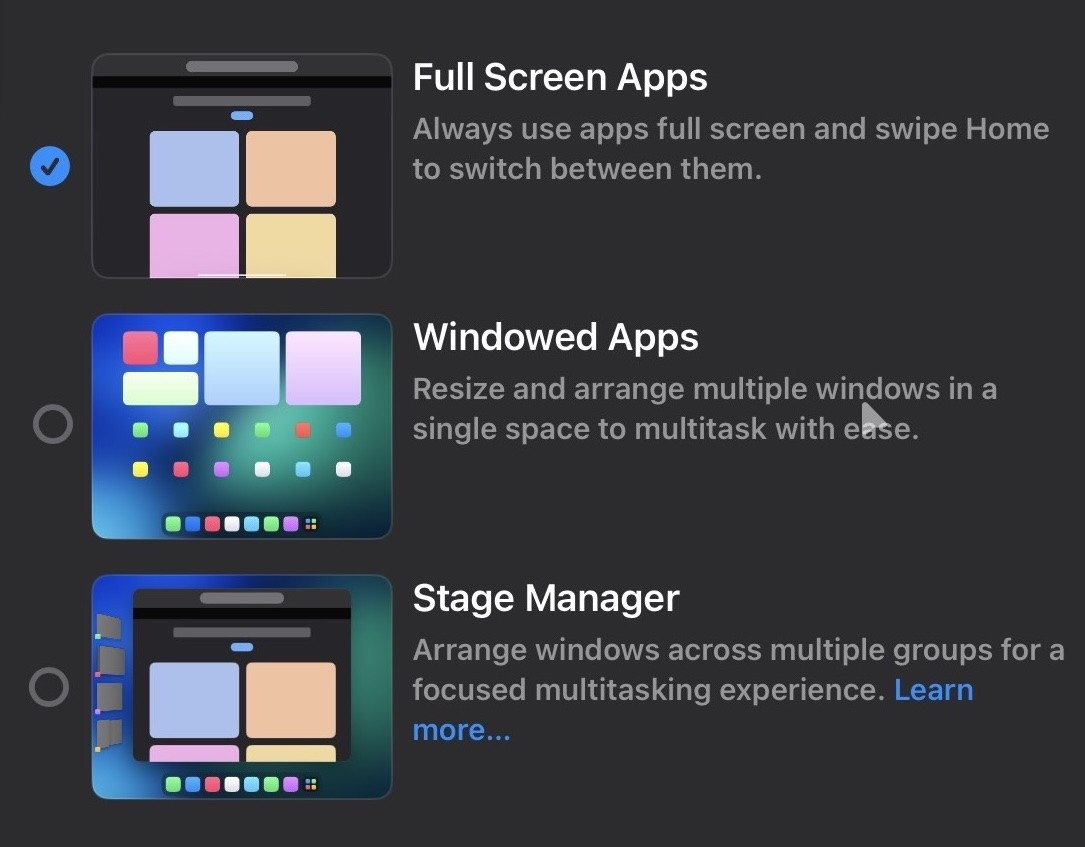
If your iPad is running iPadOS 26, you might have already experimented with Windowed App mode which allows apps to be in self-contained windows, allowing for windowed multitasking more like a desktop operating system interface. That's obviously quite a different experience than the traditional iPad interface, which was more single task oriented with a focused app view of one single app running in full screen.
If you'd like to switch from Windowed app mode or Stage Manager back to Full Screen app mode, read along and your iPad will be running full screen apps again by default in no time.
How to Change iPad to Full Screen App Mode
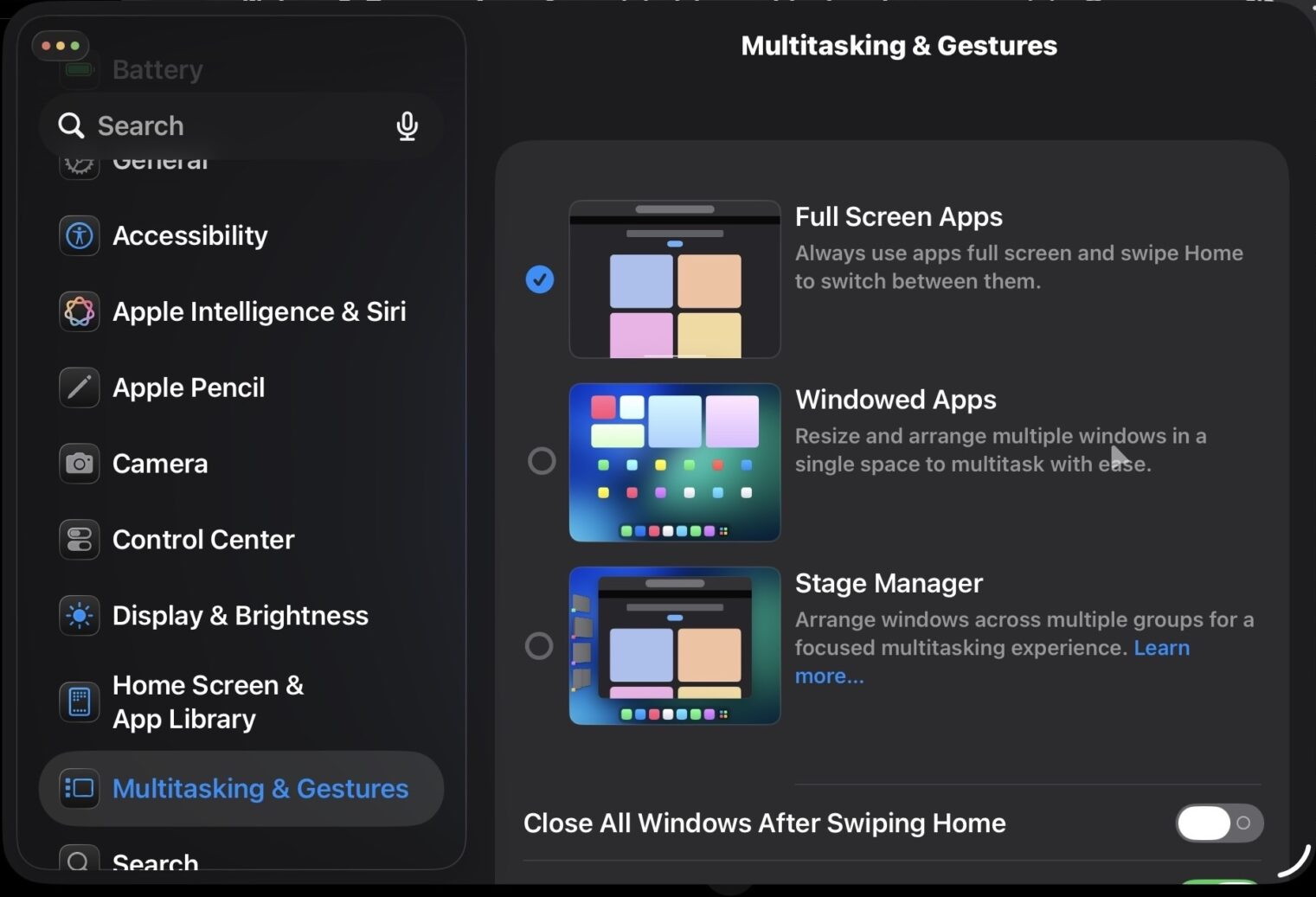
Open the Settings app on iPad
Now go to "Multitasking & Gestures"
Choose "Full Screen Apps" to select it as the default multitasking mode on iPad
Put iPad back into Full Screen Apps mode to focus on a single app again
Now your iPad will default to opening apps into full screen mode again, even in iPadOS 26 if you had previously enabled windowed apps multitasking.
Many iPad users like full screen apps for focus, especially if the iPad is on its own and without a keyboard and mouse. In full screen app mode, you can then use things like swiping gestures, Split View, or Slide Over if you want to use multitasking. Every iPad user is different though, and there are options for all types, so use what works best for you. I personally like to use full screen apps when my iPad is being held in my hands, but I prefer to use windowed app mode when the iPad is connected to the Magic Keyboard with trackpad.
iPhone Lockdown Mode will protect your data, even from the FBI
by William Gallager, appleinsider
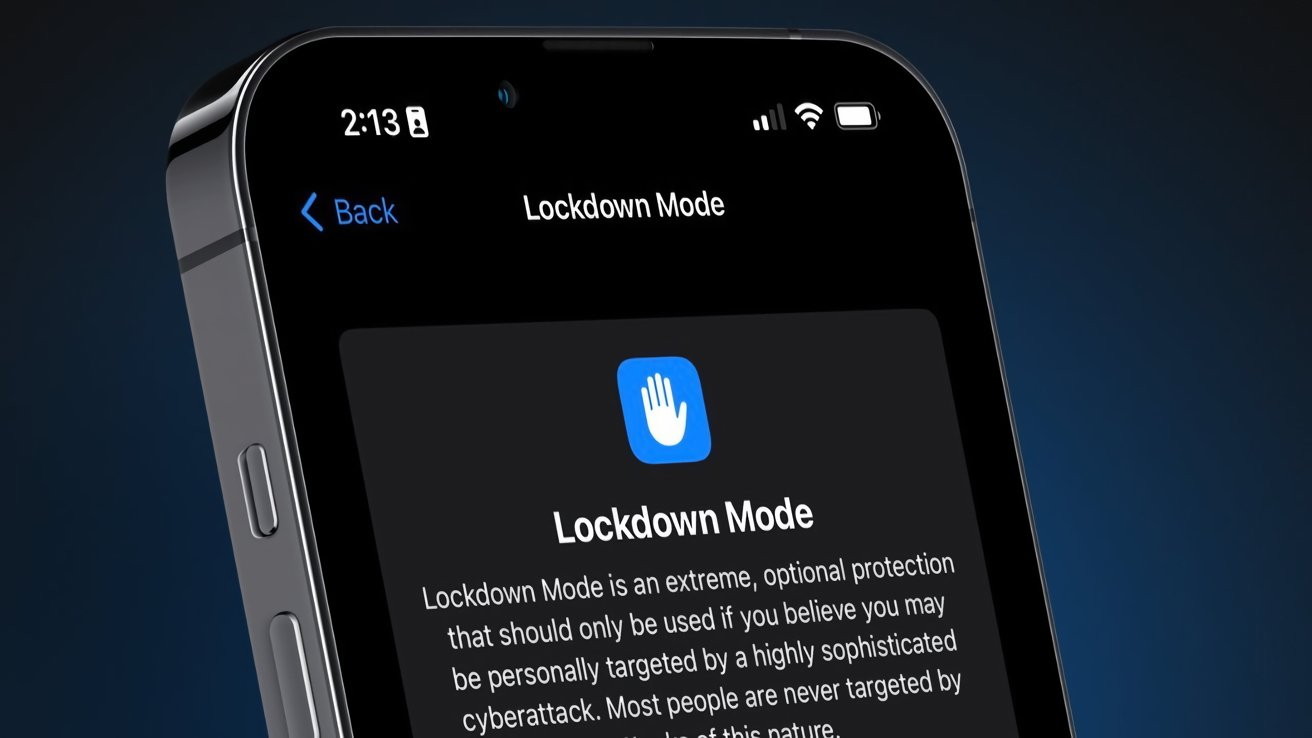
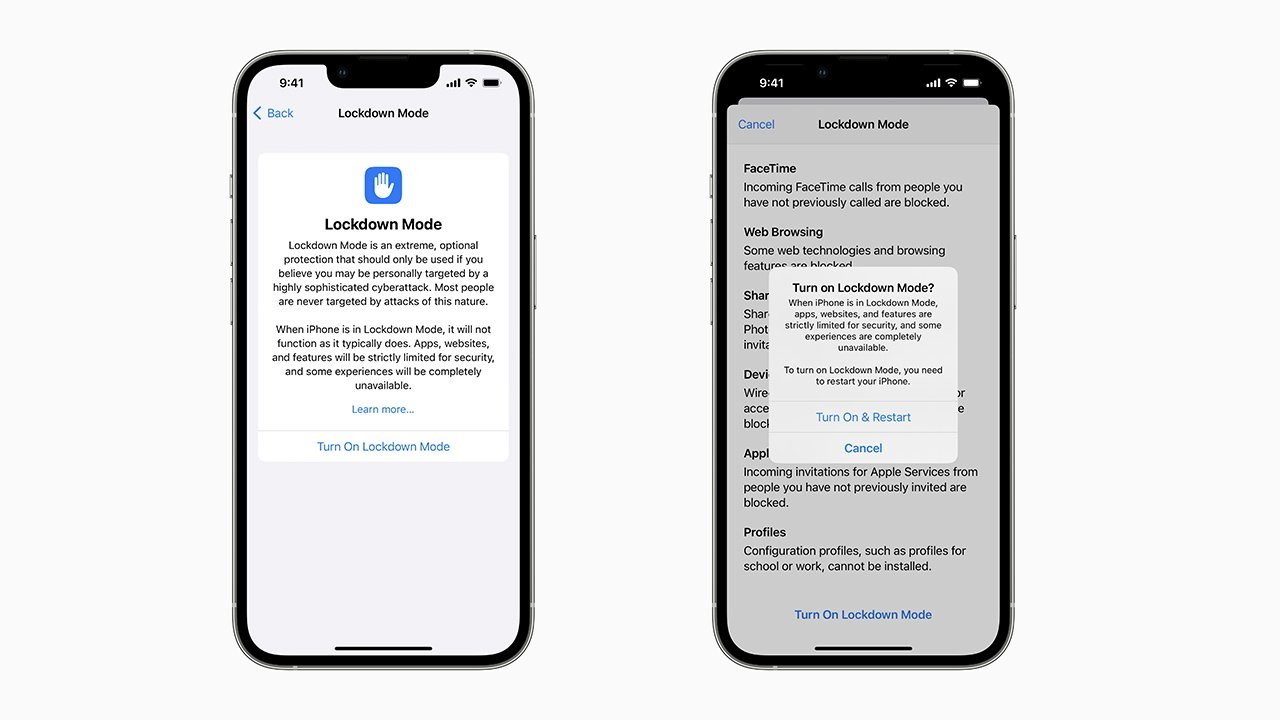
Lockdown Mode on iPhone
Apple's Lockdown Mode is just one of many ways that can keep your iPhone data secure, as the FBI has once more been finding out.
In January 2026, the FBI raided the home of Washington Post journalist Hannah Natanson, and removed devices including an iPhone. Natanson and her newspaper immediately filed a court motion that currently means the FBI isn't allowed to search those devices — but it tried.
The FBI is investigating alleged leaks of classified information to the press. There are constitutional issues over whether the FBI can raid a personal home, though, and can be apparently legally entitled to force Natanson to unlock her MacBook Pro with Touch ID.
"This extraordinary, aggressive action is deeply concerning and raises profound questions and concern around the constitutional protections for our work," the Washington Post executive editor Matt Murray told staff.
But what the court documents show is that during the time the FBI was attempting to search Natanson's devices, they could not get into her iPhone. As spotted by 404media, the FBI's filing opposing the return of Natanson's devices says that:
Because the iPhone was in Lockdown mode, CART [Computer Analysis Response Team] could not extract that device. Similarly, the personal MacBook Pro could not be imaged yet.
Lockdown Mode
Introduced in 2022, Lockdown Mode is an optional feature that Apple has said is for people facing "grave, targeted threats to their digital security." When enabled, Lockdown Mode:
Blocks most message attachment types
Disables technologies such as just-in-time JavaScript compilation
Stops wired data connections
Prevents new configuration profiles being installed
Lockdown Mode is an optional feature that must be set up.
At launch, Apple offered a $2 million bounty for any security researchers who could break it. Apple also said that it would continue to add new protections.
In this specific case, it's not clear what happened at Natanson's home. While the FBI says it couldn't image (or copy) her MacBook Pro, prior reports say that officers forced her to unlock it.
While Natanson is said to have told agents that she does not use biometric authentication, they had her use her finger on the Touch ID button and it unlocked.
With the iPhone, it would appear that Natanson does not use biometrics. Reportedly, the three warrants the FBI held included the right for them to force her to unlock with Face ID.
According to court documents, Natanson was informed at her home that "though she was not compelled to provide her passcodes, the FBI could use her biometrics to open any devices."
It's not clear at all why warrants with that exceptional permission did not also mean she was compelled to give the agents her PIN.
What Apple protects
Lockdown Mode is available to all iPhone owners, although it is not recommended for regular users. That's because Apple calls it "extreme protection" against cyberattacks, and using it means giving up some common iPhone benefits.
As well as features that seem related to security, such as blocking attachments in Messages, Lockdown Mode also disables shared photo albums. Game Center is turned off too, and "Focus and any related status will not work as expected."
But Lockdown Mode isn't Apple's only method of protecting user security. It has what it calls an "inactivity reboot," which is automatically in place for all users.
If a user does not unlock their iPhone after some unknown period of time, then since iOS 18.1 in 2024, the device will reboot itself. Law enforcement officers are not fans.
The idea is that this protects users because it means the iPhone restarts in the "before first unlock" (BFU) state. In this state the iPhone is more secure than after the user has unlocked it.
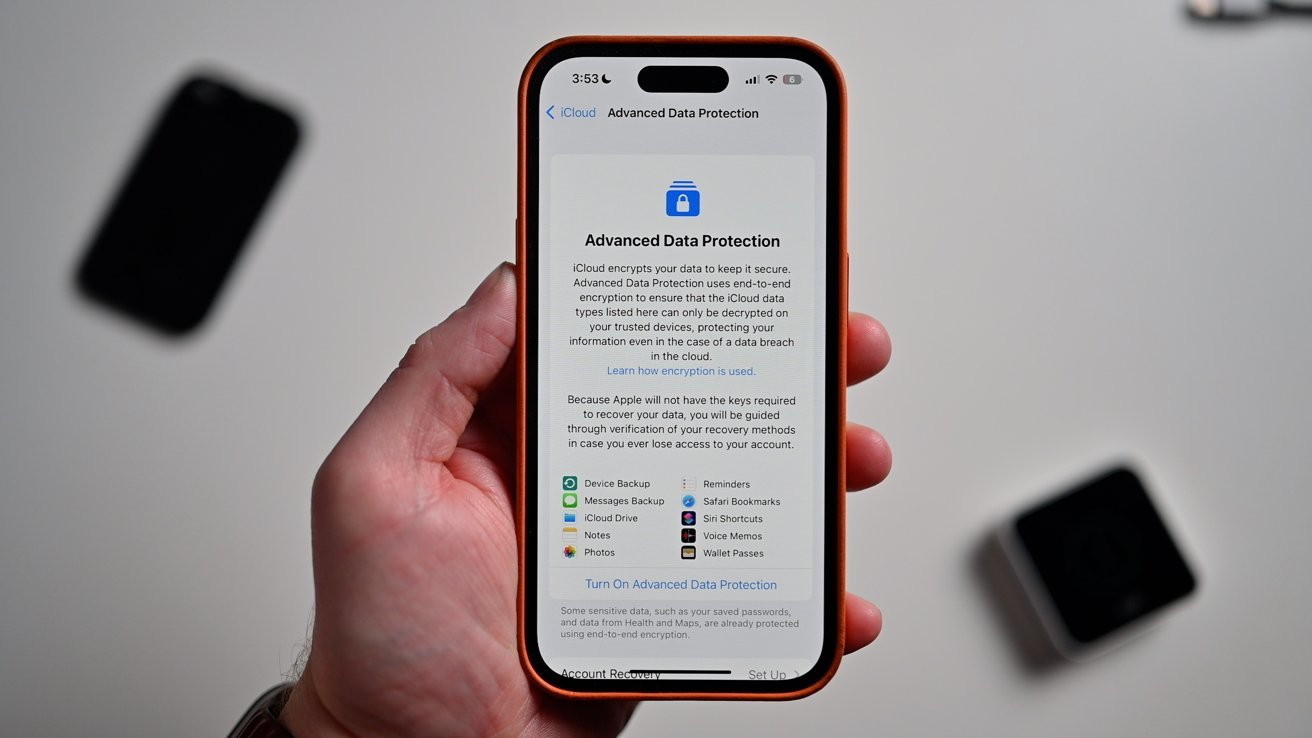
Advanced Data Protection encrypts much of an iPhone user's data
Then all iPhones — except in the UK — now also have Advanced Data Protection. This is for all users, whether or not they are under direct threat, because it secures everything from device backups to Wallet passes with encryption.
What Apple will provide law enforcement
Apple publicly maintains a 21-page, 10,000-word "Legal Process Guidelines" document that details what it will, and what it can, do when it receives a subpoena. The document, and Apple's practices, do get updated, but broadly what it says is that Apple will:
Details of a user's iCloud account
Access to any unencrypted data stored there
That's about it, and especially as most user data is encrypted, there is ultimately little that even Apple can retrieve.
Note, too, that this information is not handed over casually. Requests for the details must be accompanied with a subpoena or even a warrant. But in cases such as the San Bernardino shootings, Apple has provided this detail.
Alternatives to Apple
Back in 2020, the FBI was pressing Apple to unlock certain iPhones, but at the same time had itself been able to crack the encryption on the then-new iPhone 11 Pro Max. Reportedly, the bureau used the third-party GrayKey data forensics tool.
Security and user privacy are constantly at odds with one another, and each side keeps updating their technologies. By November 2024, it was reported that GrayKey was being blocked from any data by iOS 18.1.
Even as that report became public, it was likely that GrayKey had progressed. Now, some 14 months later, it's not known whether the forensic tool is still being blocked effectively.
It would seem that it is, since the FBI did not manage to unlock Natanson's iPhone. However, there's no confirmation that these agents had that tool.
What there is confirmation of is that the bureau is not willing to back down on its seizure of Natanson's devices.
"Ms. Natanson and her employer, the Washington Post, claim the Government's seizure of this evidence violated the First Amendment and that it must be returned to them," says the FBI court filing. "They are wrong."
How to customize your iPhone's Control Center for maximum usability
D. Griffin Jones, cultofmac
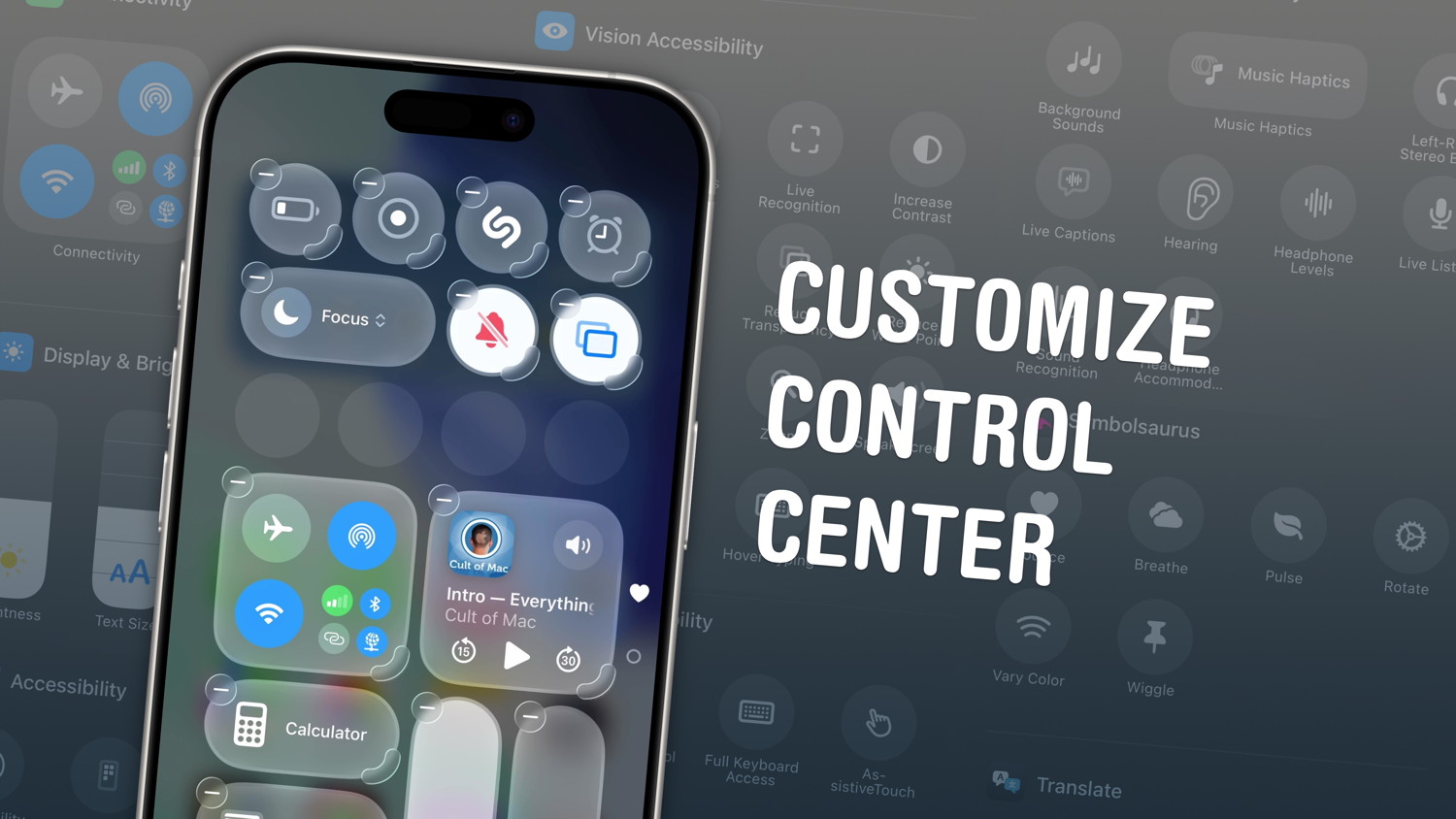
Make Control Center your own with these customization options. Image: D. Griffin Jones/Cult of Mac
If you want to make your iPhone easier to use, you can customize its Control Center to gain faster access to the buttons and toggles you rely upon to perform frequent tasks.
Plus, you can remove all the junk you never touch from the iPhone Contol Center, putting the vital controls you actually use front and center.
Keep reading to find out how and why you should customize the iPhone Control Center to make the device your own.
How to customize the iPhone Control Center
As Apple says, the iPhone's Control Center "gives you instant access to the things you do the most." It puts various toggles and buttons at your fingertip, so you can quickly turn on a Focus mode, adjust your screen brightness, switch on Airplane Mode and more. (See the complete list of available controls on Apple's support page.)
Once you customize the Control Center to your liking, all your favorite iPhone controls will be just a quick downward swipe away.
Things got even better when Apple released iOS 18 in 2024. Now you can change almost everything in the iPhone's Control Center.
You can adjust the size and position of your iPhone's media playback buttons, connectivity controls and more. Also, you can add many more controls than before — and resize them to make them more accessible if you want. You can even organize your buttons across multiple pages.
In iOS 17 and earlier versions, you can customize your iPhone's Control Center, too. However, you will find fewer options. And you must dig into the Settings app to locate them.
Tim Cook revealed standout AI feature for users, and it's rumored to get even better
by Ryan Christoffel, 9to5mac
Tim Cook recently called out one specific AI feature—visual intelligence—as being among the most popular Apple Intelligence capabilities so far. And rumors indicate that later this year, it could get a lot more powerful.
Visual intelligence is an early hit among Apple users, says Tim Cook
Visual intelligence first debuted on the iPhone 16 as part of the Camera Control button.
With all AI-enabled iPhone models, you can long-press Camera Control to enter the visual intelligence mode. Or optionally, set up a Control Center or Lock Screen button to do the same.
Visual intelligence essentially combines your camera with AI to provide new features, such as:
translating a street sign into your native language
adding an event from a flyer to your calendar
seeing restaurant reviews, photos, and more
When iOS 26 launched, it expanded visual intelligence in a big way. No longer is it limited to the camera. Now, anything you see on your iPhone can benefit from AI via screenshots.
Apple Watch blood sugar monitoring a step closer as new tech launches
by Ben Lovejoy, 9to5mac
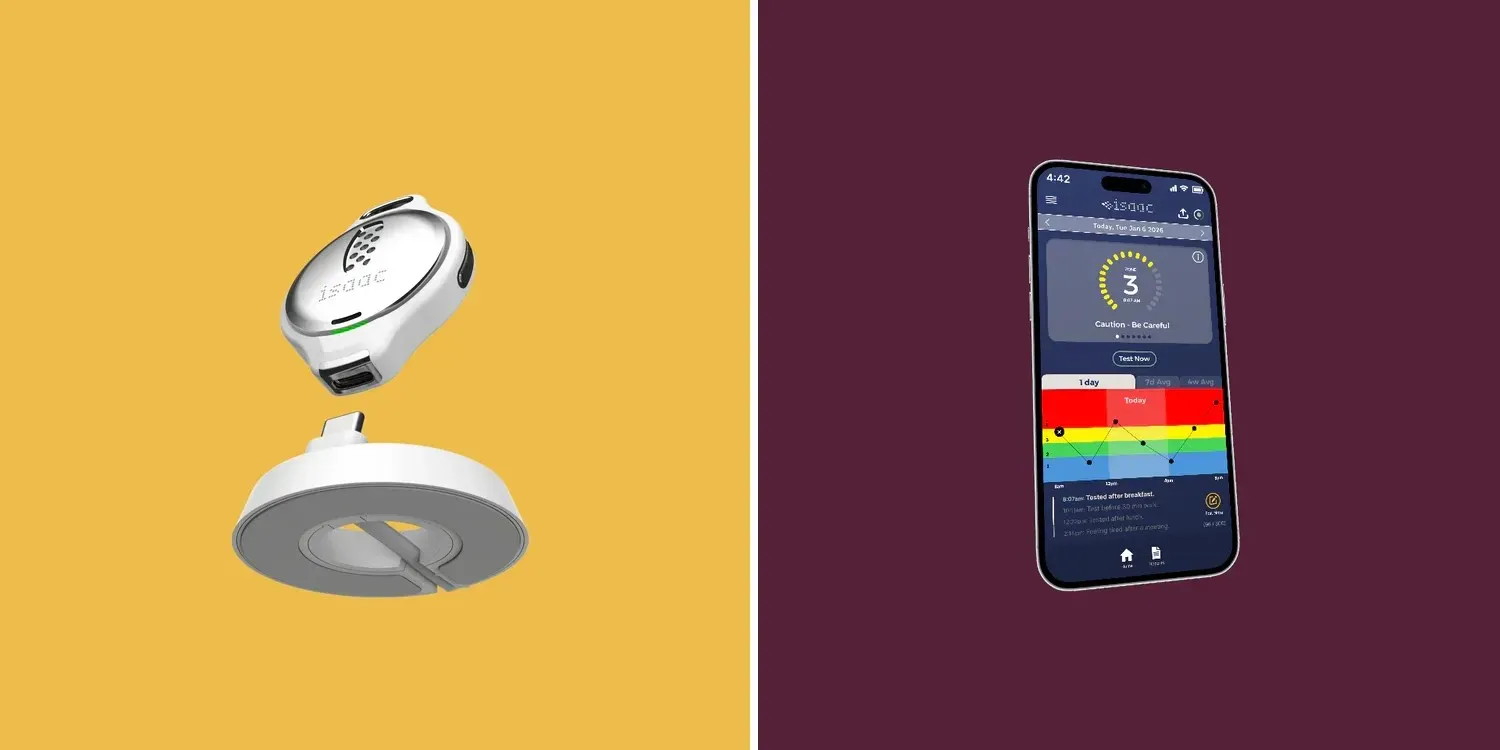
Apple Watch blood sugar monitoring a step closer as new tech launches Isaac pendant shown left with companion app on the right
Apple Watch blood sugar monitoring is something the company reportedly wanted to do right from the start. A report back in 2023 said that the very first Apple Watch was initially intended to launch with non-invasive glucose measurement as a headline feature.
There have been numerous reports since then, a number of them claiming that the health feature would launch in whatever the upcoming Apple Watch was at the time. More than a decade later, it still hasn't happened, but the launch of a new device suggests that we might be getting closer …
Why blood sugar monitoring matters
The International Diabetes Federation estimates that more than 10% of the adult population now has diabetes, and almost half of them don't know it. Diabetes kills millions of people a year, and the risks are particularly acute for those who develop type 2 diabetes before the age of 40.
Early diagnosis saves lives, but existing blood sugar monitoring devices are invasive. That is, they require a small needle to be inserted into the skin. For that reason, only those with a known risk are likely to use the technology.
Non-invasive device in clinical trials
Non-invasive blood sugar monitoring has long been a holy grail in health tech. If the feature could be added to a device worn by millions of people around the world, like an Apple Watch, it has the potential to save a huge number of lives.
The most promising route to non-invasive glucose measurement is via breath. So-called "acetone breath" is a common symptom of diabetes, and Wired reports that a new device utilising this is going through clinical trials and hoping to receive FDA approval at some point this year.
The device in testing takes the form of a pendant worn around the neck.
The Isaac is a small device, about the size of a quarter [that] measures volatile organic compounds in your breath to detect biomarkers like acetone that can be correlated with rising blood glucose levels […]
The device entered active human clinical trials at Indiana University [to compare] Isaac's performance with monitoring blood sugar levels as compared to traditional blood sugar monitoring, starting with adolescents with type 1 diabetes and then expanding to adults with type 2 diabetes.
The trials are being conducted with an eye toward regulatory review by the US Food and Drug Administration in the upcoming year.
This tech could potentially be used in an Apple Watch
The way the device works is you hold it up to your mouth and breathe out. This means it doesn't offer continuous measurement but be used on a daily basis, each test taking just a few seconds.
This is potentially technology that could be included in an Apple Watch. The biggest challenge appears to be miniaturization as the Isaac is currently almost the same size as an Apple Watch on its own. But if this device does indeed achieve FDA approval this year, then it's an extremely encouraging sign for an approach which could later be adopted by Apple.
Apple hosts Apple TV media event, here's everything that's been announced
by Ryan Christoffel, 9to5mac
Apple hosted a special media event on Tuesday called the '2026 Apple TV Press Day.' Here's everything that was announced at the event.
Apple unveils new original TV shows and movies coming soon
This week in Santa Monica, California, Apple hosted a major invite-only media event focused on its streaming service.
In attendance were a variety of current and future Apple TV stars, such as Jon Hamm, Anya Taylor-Joy, Kurt Russell, Jennifer Garner, Keanu Reeves, James Marsden, and more.
'2026 Apple TV Press Day' brought unveilings of several new original TV shows and movies.
Here's everything that was announced by the streamer:
Lucky is coming to Apple TV on July 15, a limited series starring Anya Taylor-Joy and based on the bestselling novel
Outcome is a new dark comedy film starring Keanu Reeves that's premiering April 10
Monarch: Legacy of Monsters debuted its season 2 trailer ahead of the show's February 27 return
Cape Fear was unveiled with a June 5 release, a psychological thriller executive produced by Martin Scorsese and Steven Spielberg
Maximum Pleasure Guaranteed, a comedic thrilller starring Tatiana Maslany, set a May 20 debut
Your Friends & Neighbors season 2's trailer was shown as Apple touted its early season 3 renewal
New 'Humans of Apple TV' ad showcases never-been-seen stills from Apple productions
Imperfect Women got a new teaser trailer ahead of its March 18 premiere
The Dink is a new comedy starring Jake Johnson and Mary Steenburgen, set to debut on July 24
Matchbox The Movie, an action-adventure film starring John Cena, Jessica Biel, Sam Richardson, Teyonah Parris and Arturo Castro, premieres October 9
Margo's Got Money Troubles had its first look and teaser revealed, it will debut on April 15
Way of the Warrior Kid is an Apple Original film starring Chris Pratt, Linda Cardellini, and Jude Hill, premiering November 20
Widow's Bay, a new series coming April 29 starring Matthew Rhys, got its first teaser
Mayday, a film starring Ryan Reynolds and Kenneth Branagh, was revealed ahead of its September 4 debut
Which upcoming Apple TV shows and movies are you most excited about? Let us know in the comments.
Apple TV is available for $12.99 per month, or you can get it discounted through the Apple One bundle.
Apple TV has new comedy coming soon starring Keanu Reeves
by Ryan Christoffel, 9to5mac
Apple TV is holding a major press event today, offering a sneak peek at what's coming next to the streamer. After unveiling a highly-anticipated series earlier today, Apple TV has just announced a new dark comedy—Outcome—that's premiering soon with star Keanu Reeves.
'Outcome' hits Apple TV this April starring Keanu Reeves, Cameron Diaz, and Jonah Hill
Apple Original Films has announced a new comedy premiering this spring.
Outcome hits Apple TV on Friday, April 10.
The movie is directed by Jonah Hill, who is also part of the cast alongside Keanu Reeves, Cameron Diaz, and Matt Bomer.
Here's the plot summary:
"Outcome" is a dark comedy that centers on Reef Hawk (Reeves), a beloved Hollywood star who must dive into the depths of his hidden demons after he is extorted with a mysterious video that's sure to shatter his image and end his career. With the support of his lifelong besties, Kyle (Diaz) and Xander (Bomer), along with his crisis lawyer, Ira (Hill), Reef embarks on a soul-searching journey to make amends with anyone he could have possibly wronged in hopes of identifying the blackmailer.
Apple's press release says that Hill, who co-wrote the film in addition to directing, brings a "unique lens" to Reeves' character's "spiritually cleansing, nostalgic and eye-opening trip down memory lane, where confronting his past might be the only way to rescue his future."
Beyond the four lead actors, Outcome also has a strong supporting cast that inclues Martin Scorsese, Susan Lucci, Laverne Cox, David Spade, Atsuko Okatsuka, Roy Wood Jr., Kaia Gerber, Ivy Wolk, and more.
If you're interested in other upcoming Apple movies, the next one scheduled to premiere is Eternity, starring Elizabeth Olsen. It arrives next week on February 13—right before Valentine's Day.
Apple TV is available for $12.99 per month, or you can get it discounted through the Apple One bundle.
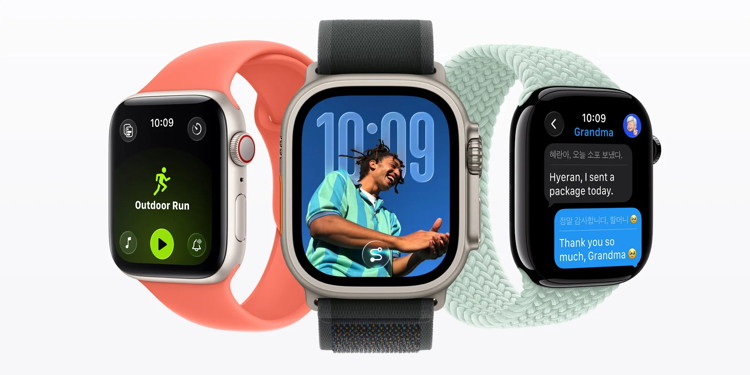
watchOS 26 added a new Apple Watch trick that I've been loving
by Ryan Christoffel, 9to5mac
watchOS 26 brought a variety of big and small updates to the Apple Watch, but one I've been increasingly loving is the new wrist flick gesture. Here's how it works and what I've been using it for.
Wrist flick joins double tap in enabling Apple Watch hands-free use.
In recent years, watchOS has added two new gestures that are intended to make hands-free Apple Watch use more of a thing.
Double tap
Wrist flick
Double tap first debuted in 2023 with Apple Watch Series 9. But wrist flick is brand new.
I've historically had some reliability struggles with double tap, though it's gotten better.
Wrist flick, however, has become one of my favorite additions in watchOS 26. The new gesture lets you quickly dismiss all kinds of content with a simple trick.
Flick your wrist back then forward again quickly, and you can dismiss:
notifications
apps
phone calls
timers
alarms
That's five different types of fairly common content you can dismiss or silence with a hands-free gesture.
How I've been using wrist flick in watchOS 26
With both wrist flick and double tap, it can take a little time to build habits of using them.
But the more I've tried to intentionally remember to use wrist flick, the more natural and common it's become.
I've gotten very used to dismissing notifications via wrist flick, but only recently did I realize it can close apps too. Historically that's required clicking the Digital Crown, but now I can close apps and return to my watch face quickly and hands-free.
Silencing timers and alarms with wrist flick has been really nice too. Timers especially will often go off when my hands are tied up—like in the middle of washing dishes or my hands.
If you haven't used wrist flick much in watchOS 26, I encourage you to keep it in mind the next time you're ready to close an app, dismiss a notification, or silence a timer. It's a great little trick that makes the Apple Watch experience feel a bit more seamless.
Wrist flick is available with Apple Watch Ultra 3 and 2, Apple Watch Series 11, 10, and 9, and Apple Watch SE 3.
Have you been using wrist flick in watchOS 26? Let us know in the comments.
I spilled my coffee all over my Macbook...
...Now it won't go to sleep.
Apple users are being targeted by a coordinated Apple Pay phishing campaign
by Andrew Orr, appleinsider
Phishing emails posing as Apple fraud warnings are leveraging large dollar amounts and urgent language to pressure users into calling malicious phone numbers.
The messages claim an Apple Pay transaction was blocked, an appointment was scheduled, or suspicious activity was detected on an Apple ID. The intent is to create urgency and move the victim into a fake support flow controlled by scammers.
These emails are not coming from Apple, despite logos, formatting, and sender names crafted to look convincing.
How the scam works
The phishing emails typically impersonate Apple billing or fraud teams and warn of a high dollar Apple Pay purchase at a physical Apple Store. They often include a case ID, timestamp, and technical sounding details to appear legitimate.
The messages tell you to call a number right away or show up for an appointment to fix a problem. But when you call, you'll end up talking to scammers pretending to be Apple Support, trying to get your Apple ID, verification codes, or payment info.
Apple doesn't set up fraud appointments through email. The company also doesn't ask users to fix billing problems by calling numbers in random messages.
Red flags in the phishing email
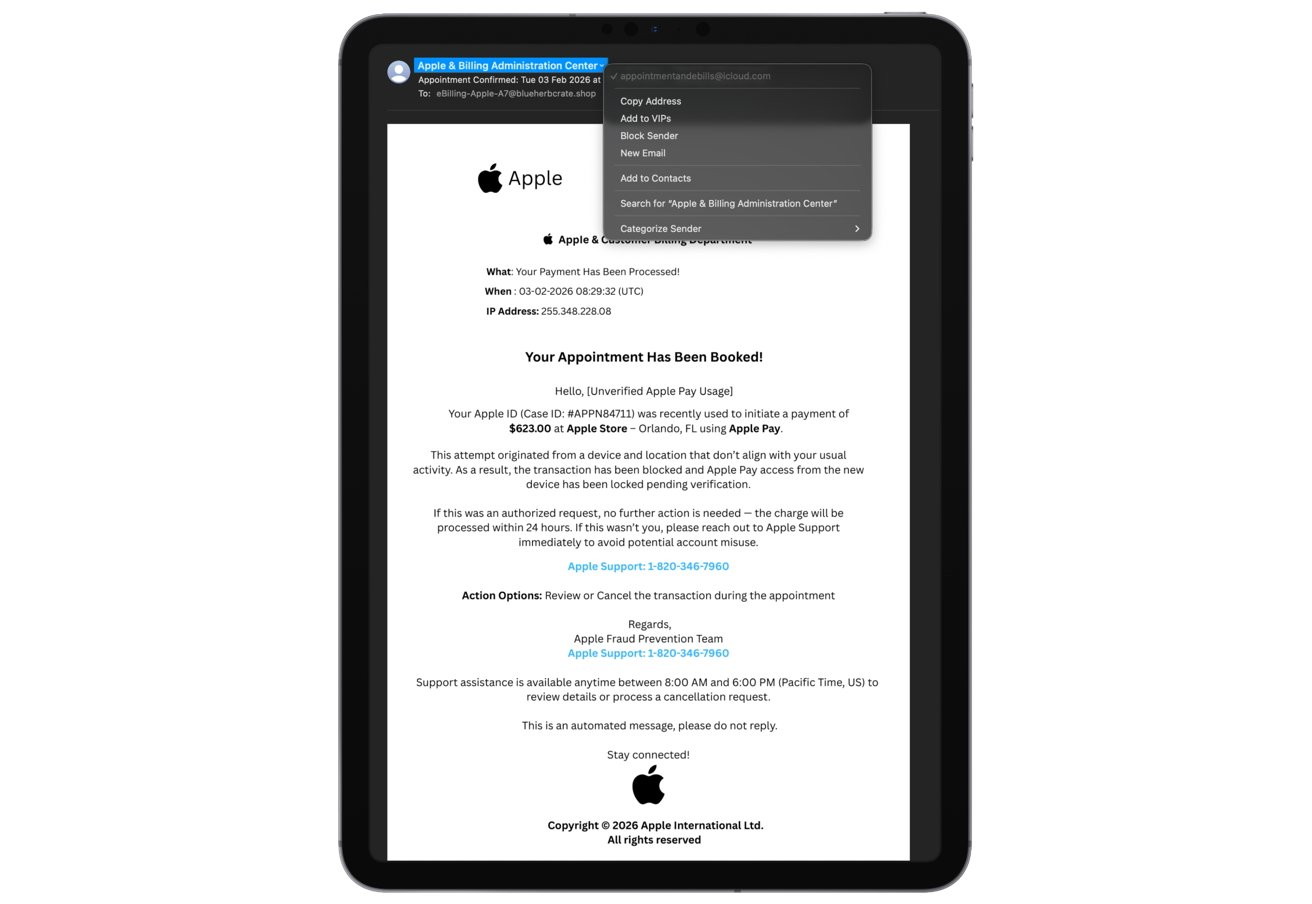
Several inconsistencies quickly reveal the messages as fraudulent. The sender's address doesn't come from an official Apple domain, even if the display name makes it seem like it does.
You'll often notice technical details like impossible IP addresses and awkward phrasing such as "Hello {Name}."
Tablet screen showing a fraudulent-looking Apple payment confirmation email about a $623 Apple Pay charge and booked appointment, with sender information options menu opened at the top.
A phishing email that some Apple users have reported receiving
The phone number in the email is another red flag. When you search it online, you get unrelated and incorrect results, like links to public health or addiction support pages instead of Apple support.
The mismatch strongly suggests the number is part of a broader scam operation rather than a legitimate Apple contact channel. Apple support numbers always lead to Apple-owned domains and official help pages, not generic or unrelated search results.
The emails also rely heavily on urgency, warning that action is required immediately to prevent account misuse. Apple's real communications do not threaten sudden account lockouts or pressure users into rapid responses.
Apple's massive user base and strong brand trust make it a prime target for impersonation. Scammers know that Apple Pay fraud warnings trigger fear, especially when large dollar amounts are involved.
Attackers are always after the money, and phishing works because it targets our natural instincts instead of technical weaknesses. It's a sneaky way to get what they want.
How to stay safe
If you get an email from Apple that you didn't ask for, don't click on any links, call any numbers, or download any attachments. Instead, just open the Settings app on your device or go straight to Apple's official website by typing the address yourself.
Check your Apple ID purchase history and Apple Pay transactions manually. If there is a real issue, it will appear there without requiring an email prompt.
Report suspicious emails by forwarding them to Apple's abuse address, then delete the message. Using two factor authentication, strong unique passwords, and a default assumption that urgent billing emails are fake remains the most effective defense.
When in doubt, assume the message is fraudulent and verify everything through official Apple channels you access on your own terms.
Here are some tips if you do respond to a scam email. Call your bank. Put a stop payment on your charge card if it is involved. Change your account password for whatever accounts are involved. If it's a PayPal account, log into that account and change the password. If you use a bank account online change that password. You can also set up email "rules" to block email from the sender if their email address shows. If you use Apples Mail app you'll find the "Rules" options in the Mail app Settings. You should also change the password to your email account that the scam email came to.
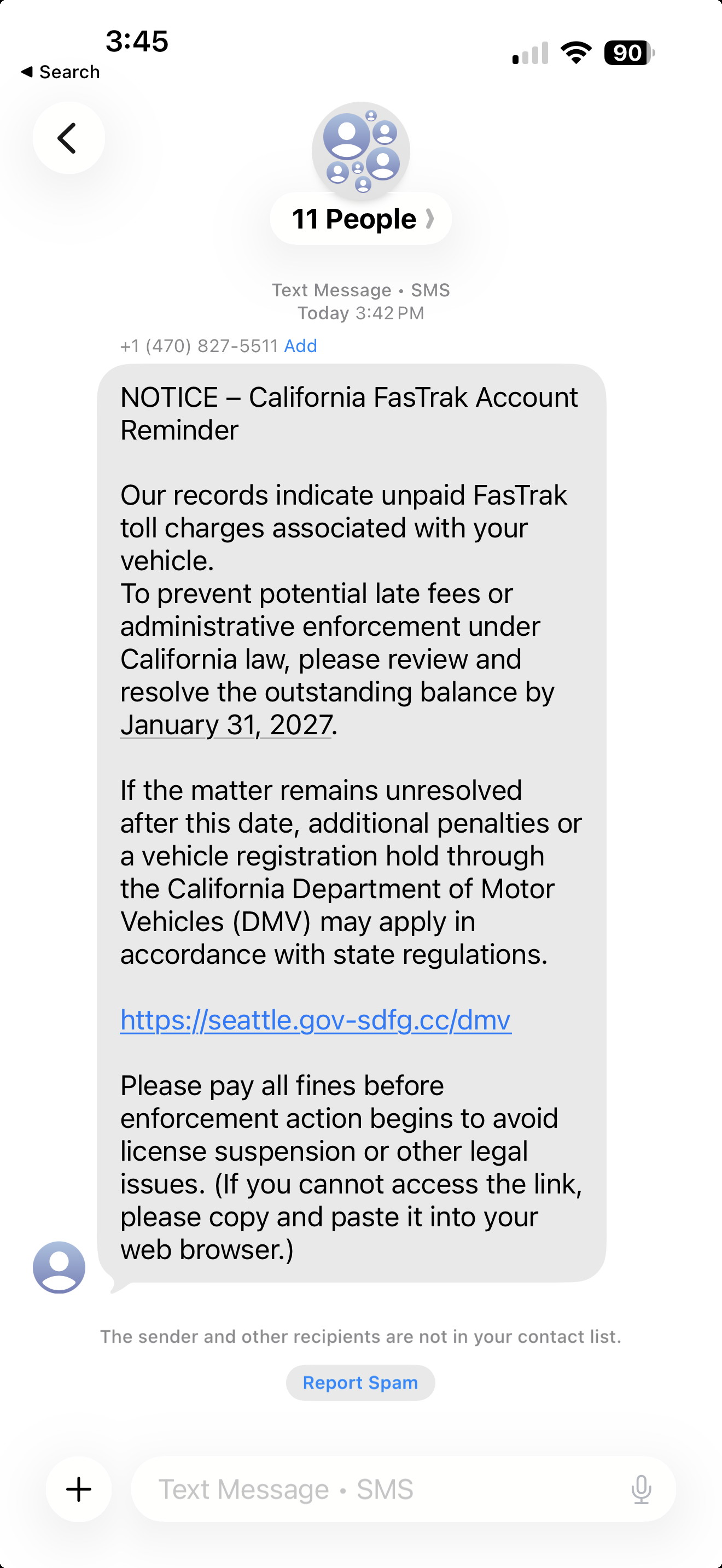
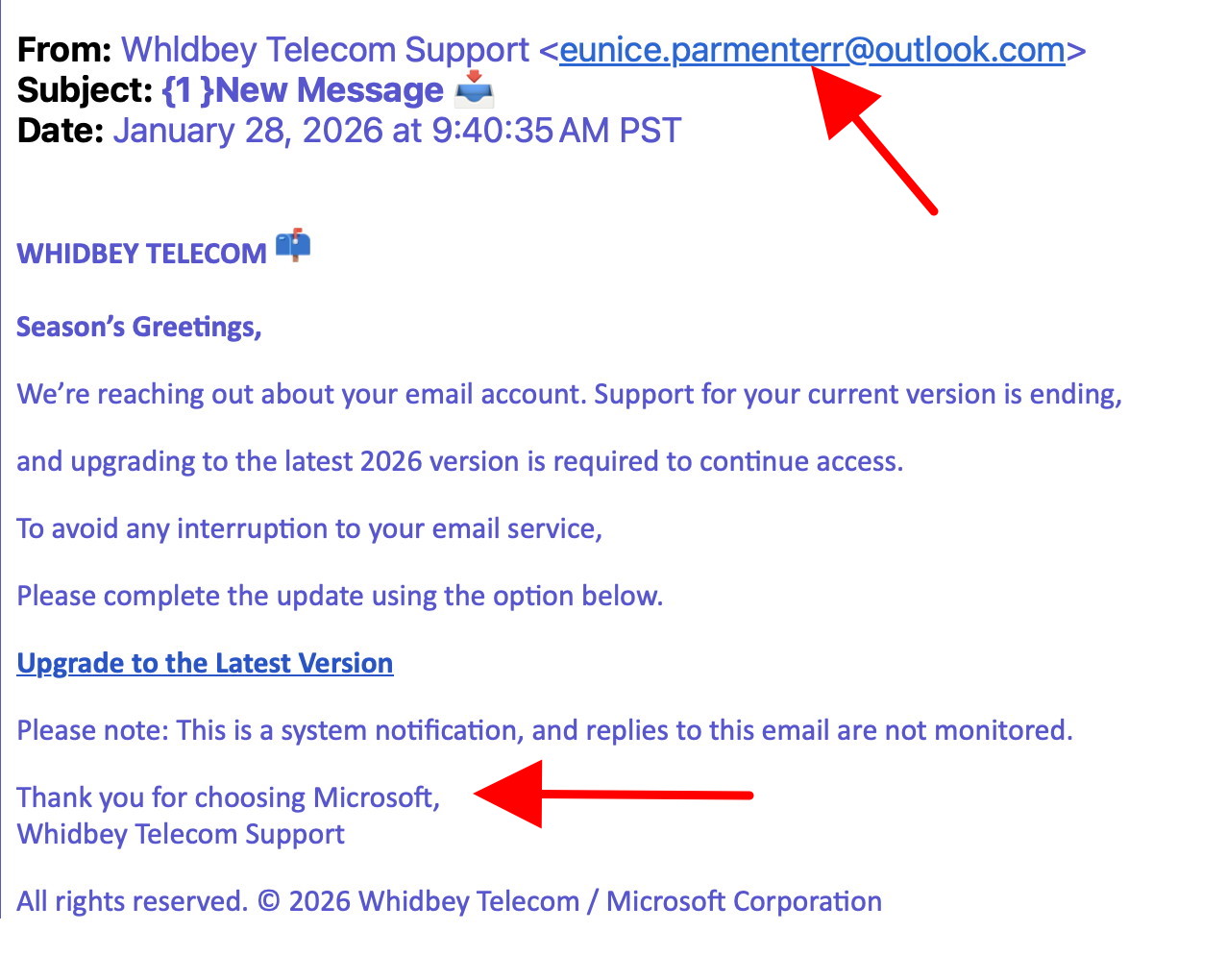
An iPhone email (left) and after clicking on "From" (right) These are NOT from Whidbey Tel They are Phishing to get your personal details DO NOT CONTACT.
SCAM They are Phishing to get your personal details DO NOT CONTACT.
SCAM - Note the from address (red arrow) Also note the reference to Microsoft! DO NOT CLICK.
SCAM - Not from WhidbeyTel DO NOT CLICK.
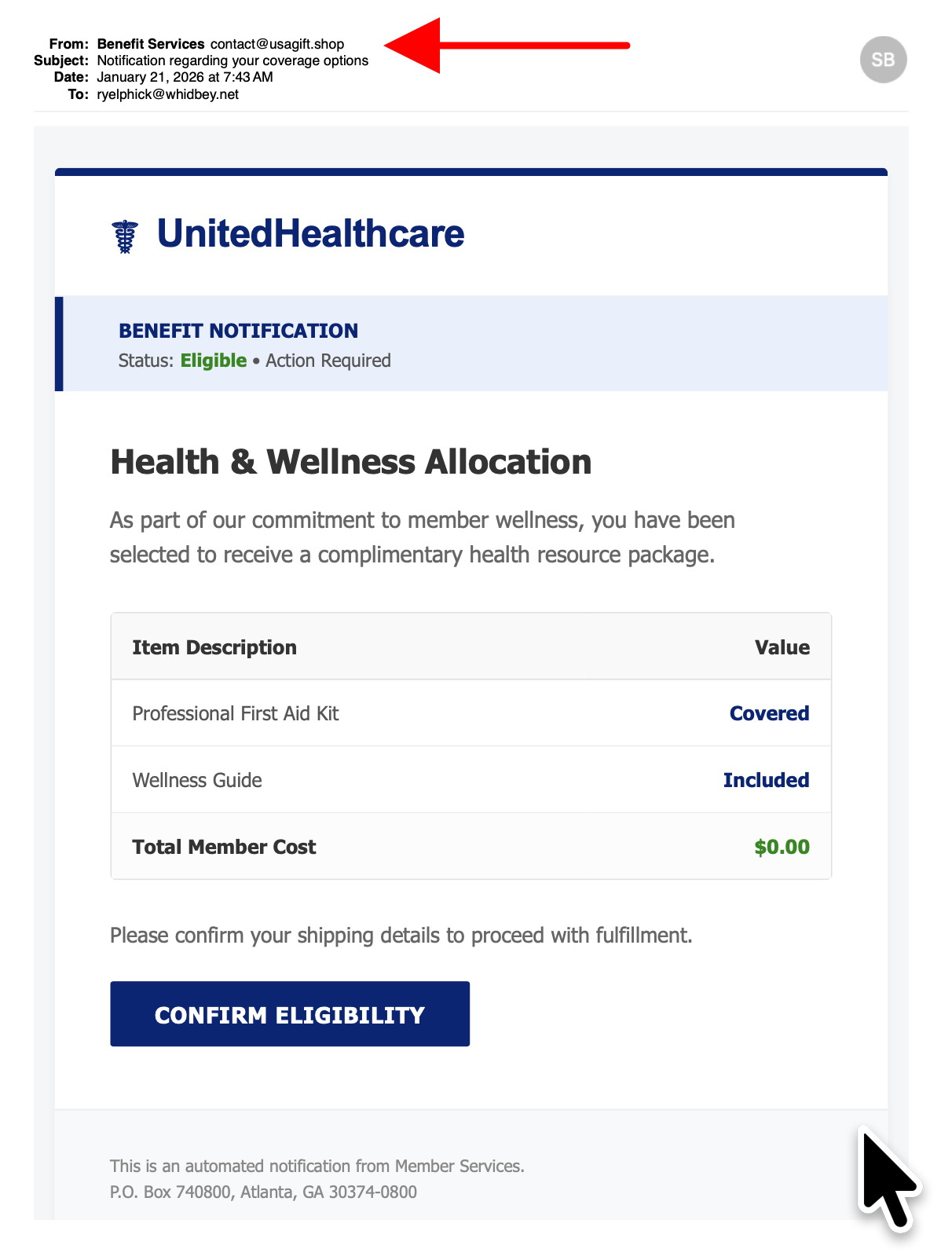
SCAM - Note the from address (red arrow) Any address that ends in ".shop" is suspect. DO NOT CLICK.
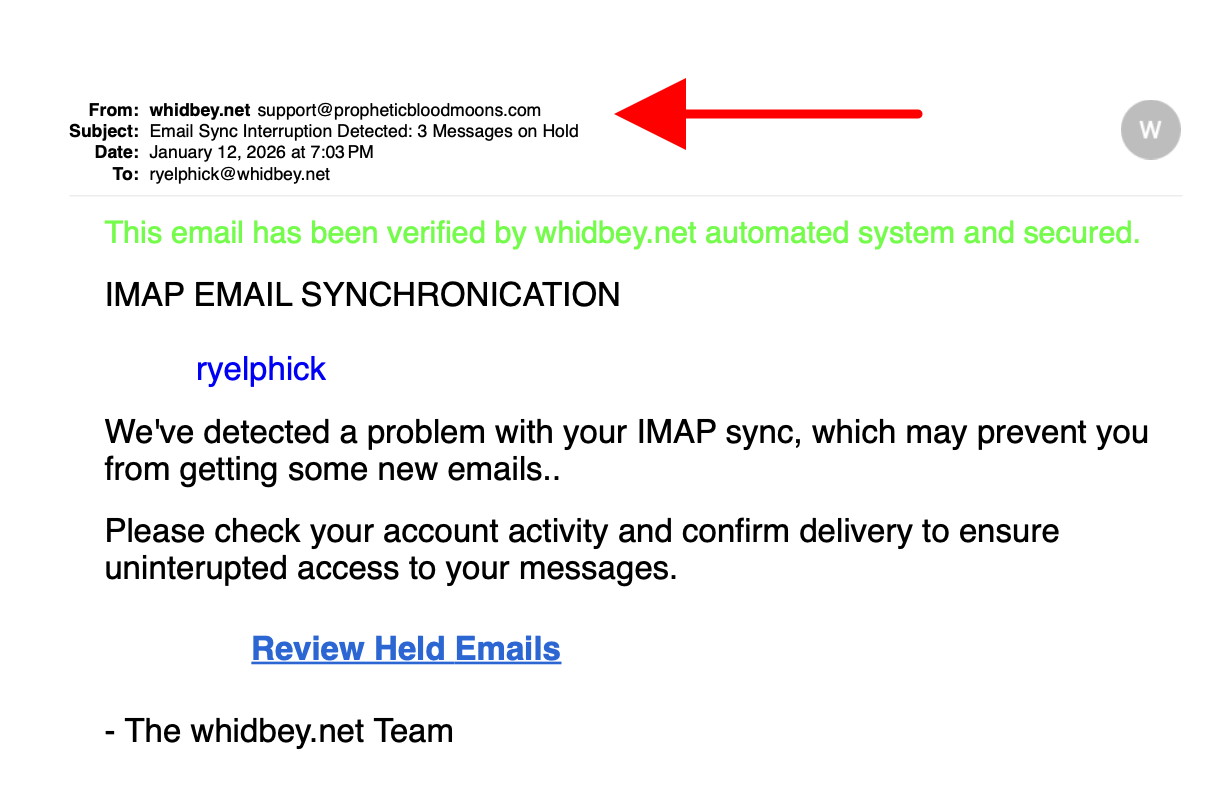
SCAM - Note the from address (red arrow) I love the green text that assures me that it is secure!!! DO NOT CLICK.
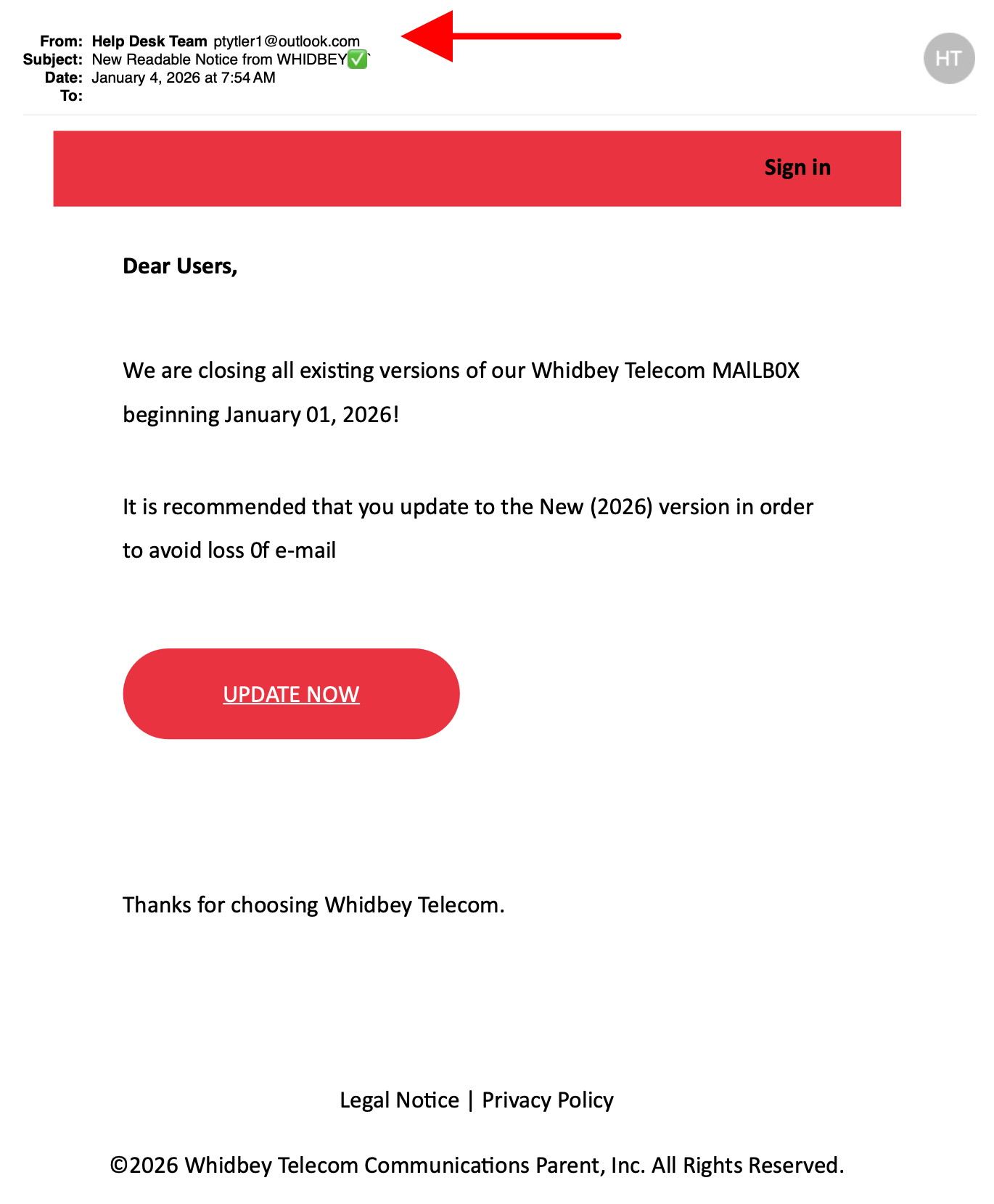
SCAM - Note the from address (red arrow) DO NOT CLICK.
Internet Crime
Any one bothered by internet criminal activity should report it to the Federal Bureau of Investigation Internet Crime Complaint Center (IC3) at this web page. This includes phishing, malware, spoofing, any demand for money.
Sell or Swap
by MAGIC
Got something you would like to sell or give away? Need something second hand or out of date? Contact MAGIC at this email .
The contacts app is really a pretty handy useful app. Some people don't even realize it's there because it works so seamlessly in the background. Like when you start typing an email address into a new email message it suggests addresses that you can just click on to select.
And when you get a email address, phone number or street address in an email it allows you to automatically add it to a current contact card, or create a new card.
It also syncs via iCloud to any Apple device that you want, like between your Mac and your iPhone. So your contact list always stays updated.
The Contacts app is also very confusing. That is when setting up an image or look of a contact card. When looking at a contact card on the Mac, you see a box that says "Contact Photo & Poster" with an arrow. So you might think clicking on it you can set a Contact Photo and a Poster background image. But that is not the case. You can only set up one image that is used for the Poster and the icon is just used in the list of contacts.
Then on the iPhone the Contacts app gets even more confusing. It again looks like you can set up a Contact photo and a background image. However, if you try it, it may not work like you expect. And once you click on the button to make a change, it starts using the term Avatar instead of contact photo. Then it seems that it won't save the Avatar and only uses the poster image. So at first I thought it would only set up one image, weather you choose Poster or Avatar. But I've discovered that the Avatar is again only used as the tiny icon in the list of contacts next to a name. The Poster is the image that shows on the card itself.
So I am not able to set the background poster with an Avatar image like my old Contacts show. No matter how I try I can't duplicate the look of some of my older contact cards. Apparently that is the way the Contacts app is going to work with the latest operating system. Apple seems have complicated the set up and made it more frustrating to use.
Of course, most of you aren't going to worry about the look of the contact card. I have been concerned about it because I have used the Avatars and Posters to identify contacts at a glance. I have a specific Avatar I use for my group of Mac users. When the phone rings, at a glance I can see if it is someone from one of my groups or a personal contact. So now that's gotten a bit more complicated. Thanks Apple.
MAGIC, the Macintosh Appreciation Group of Island County, serves people who use Macintosh computers, software and peripherals. Our goal is to share information and get answers to questions to make us more productive with our use of technology. Our monthly meetings give us a chance to discuss computer problems and share ideas with other Mac users, feature speakers on specific topics, and to keep apprised of Apple news.