Mac Appreciation Group of Island County
Newsletter
October 2026
In This Issue:
- MAGIC MUG News
- Software Updates
- News, Information and Stories (Mac OS)
- iPhones, iPods, iPads, AirPods
- Apple Watch, Apple TV, HomePod, AirTag, AR Headset, Vision Pro
- Humor
- Malware and Mischief
- Sell or Swap
- By The Way
* Indicates author is a member of MAGIC

Meeting information
| Date |
21 October 2026 |
| Time |
4:00 - 5:00 p.m. |
| Presentation: |
• Introduction with Mike Turnbull
• "Safari" with Ron Sharp |
| Location: |
by Zoom online |
MAGIC Minutes for 16 September, 2026
by Wendy Shimada, MAGIC Secretary
At 4:03 p.m. President Mike Turnbull welcomed everyone and called the meeting to order with 16 attendees present within a few minutes. The presentation is on VPN (Virtual Private Network) with Robert. Before turning the meeting over to Carol Heimgartner for the Treasurer's report, Mike reminded everyone that there would be a brief Board meeting following this meeting, to discuss the remaining presentation topics of the year. He asked everyone to think of some topics they'd like and after today's presentation, they can share their ideas.
Treasurer Carol Heimgartner noted that members might notice that this month's Treasurer's report has the exact same balance as last month's: $4054.60, which was due to the timing of the monthly Whidbey Telecom bill for website hosting.
Robert Elphick provided an interesting presentation on VPN, and members' questions focused on determining the difference between VPN and Safari's or Duck Duck Go's private browsing. Robert and Ron Sharp answered a few other questions from attendees before the discussion turned to what subjects members would like to learn more about. Attendees made several suggestions: AI; Safari Savvy/Using bookmarks and folders for better organization; cleaning out cookies, the new iOS 27 Apple; operational maintenance to keep devices running smoothly.
The meeting ended about 5:15, and a short board members meeting followed.
MAGIC Musings
Greetings Magic Members,
It's already October, one of the best months of the year. The Whidbey weather is still nice outside, but events are moving indoors. MAGIC's own indoor event, our monthly Zoom meeting is Wednesday, October 21st at 4:00 p.m. Ron will discuss Apple's Web Browser App "Safari" and give us the details on its use. MAGIC hopes to see you there.
MAGIC's final meeting of 2026 in November is scheduled for November 18th at 4:00 p.m.
Cheers,
Mike
MAGIC President
Note: This Software Update section of the newsletter lists the most relevant Apple updates. Not all updates are listed for all products. Additionally, I'll add other pertinent updates on occasion.
How to update your Apple TV and install tvOS 17
by Karen Haslam, macworld
Here's how to update your Apple TV to take advantage of the latest tvOS software, and how to address any issues you might encounter with the update process.
Once a year Apple rolls out a major update to tvOS, the operating system software that runs on the 2015 and later Apple TV models. These (free) full-version updates introduce new features, as well as tweaking the interface and fixing bugs. The latest of these is tvOS 17, and it will be available to install from September 18, 2023!
In between the yearly updates, smaller point updates roll out, such as (in the near future) tvOS 17.1. These tend to have fewer eye-catching features but they are important too, because they often include security fixes. It's a good idea to keep your Apple TV up to date with the latest tvOS updates.
In this article, we explain how to update tvOS on your Apple TV - which, as of today, means installing tvOS 17. (If you'd like to try out forthcoming versions of the software before they launch, you need to install a tvOS beta.) We also address any issues you might encounter with the update process.
How to update tvOS on Apple TV: Settings
If you have a newer Apple TV - one launched since 2015 - this is how to update its software.
- Go to Settings > System > Software Updates > Update Software
- Click on Download and Install to download the update
- Click on Update Now
The Apple TV may restart during the process, and you'll be presented with a progress bar indicating the status of the update.
Once the Apple TV update has been completed, the Apple TV will restart running the most up-to-date software.
Click for article.
How to install macOS 27 Golden Gate on your Mac
by Karen Haslam, macworld
Table of Contents
- When did macOS Golden Gate come out?
- Should I update my Mac to Golden Gate?
- How to install macOS Golden Gate on your Mac
- Step 1: Find the macOS Golden Gate Update
- Step 2: Download the macOS update
- Step 3: Install the macOS update
- What to do if your Mac won't update macOS
- How long will the macOS update take?
- How to revert to an older version of macOS
Apple releases a major update to macOS, the operating system that runs on Macs, every year, bringing new features and other improvements. The latest version, macOS 27 Golden Gate, was released on September 14, 2026.
In this article, we'll explain how to download and install macOS 27 Golden Gate. We'll also cover how to update an older version of macOS and what to do if you encounter problems installing an update. Also see: Fixes for Macs that won't update macOS.
Updating your Mac is easy, free and generally straightforward, but there are a few things we recommend doing first. See our guide to how to get your Mac ready for a macOS update before you begin.
Not every Mac can run Golden Gate. macOS 27 no longer supports Intel-powered Macs, so if you have an older Mac you may need to install or continue using an earlier version of macOS instead.
Continue reading....
iOS 27.0.1 is out now to fix iPhone 18 Pro restart bug
by Jason Cross, macworld
The frustrating problem with Apple's new iPhones is quickly addressed.
It's not uncommon for new iPhones to experience some weird and annoying little bugs upon release. Despite rigorous testing, new problems are discovered once they get into the hands of millions of customers.
This is quickly followed by a small iOS update to address these problems, and that's exactly what iOS 27.0.1 is. It fixes a probably where a Face ID failure can cause the iPhone 18 Pro and Pro Max to restart, a weird color artifact for the camera on those models, and a global iOS 27 bug for all iPhones that happens when you try to open Notification Center and Control Center at the same time.
iOS 27.0.1 release notes
The release notes for iOS 27.0.1 are as follows:
This update provides bug fixes for your iPhone, including fixes for the following issues:
- iPhone 18 Pro and iPhone 18 Pro Max may unexpectedly restart when Face ID fails to authenticate
- A color artifact may appear on photos captured at 2x under certain lighting conditions at f/1.48 on a small number of iPhone 18 Pro and iPhone 18 Pro Max devices
- Opening Notification Center and Control Center simultaneously may cause the touchscreen to become unresponsive
How to update to iOS 27.0.1
To update your iPhone or iPad, follow these simple steps:
- Open Settings.
- Tap General.
- Tap Software Update.
- Follow the on-screen instructions
Click for article.
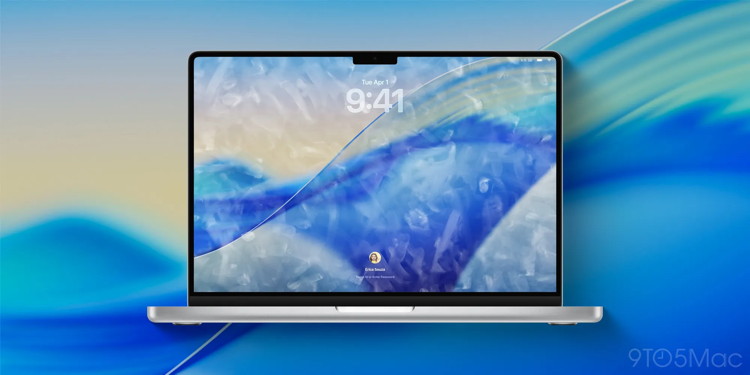
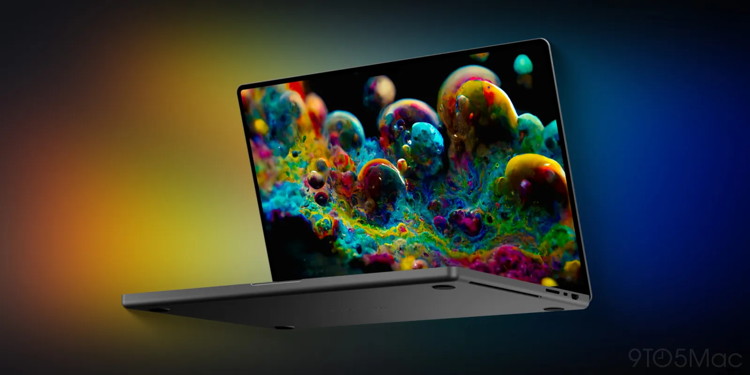
Apple's MacBook Pro overhaul is coming soon, here's what to expect
by Chance Miller, 9to5mac
Apple just released a MacBook Pro update in March, but there's more coming soon. Apple is expected to debut one of its biggest MacBook Pro updates ever as soon as later this year. Here's everything we know so far … including details on a surprising recent twist.
Continue reading....
Apple will launch 7+ new products in October, here's what's coming
by Ryan Christoffel, 9to5mac
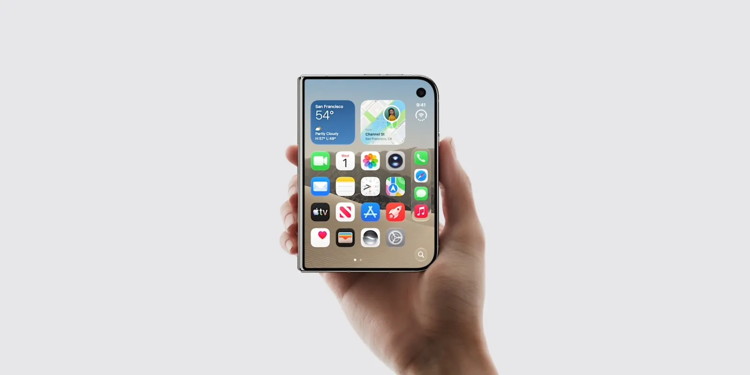
iPhone Duo is launching later this month, but Apple reportedly has many other new products set to debut in October too, with the first unveilings coming next week. Here's what to expect.
Apple Home product upgrades with Siri AI
Apple's long-awaited overhaul and expansion of its Home products lineup is reportedly coming next week on Tuesday, October 13.
Apple Home upgrades are expected to center around Siri AI and other Apple Intelligence features that are exclusive to new hardware. Here's what's rumored:
- New Apple TV 4K: A19 or A19 Pro chip, Siri AI, new Siri Remote
- HomePad: Home hub with built-in touchscreen
- HomePod mini 2: More powerful chip, audio upgrades, more
New Macs, including high-end MacBook Pro redesign with touchscreen
It's been a big year for the Mac already, with MacBook Neo, the M5 MacBook Air, and high-end M5 MacBook Pros launching in the spring, followed by the recent Mac mini and Mac Studio debuts.
But Apple has more new models coming, including its first ever touchscreen MacBook. Three rumored Macs include:
- New MacBook Pro/Ultra: All-new design for high-end MacBook with touch, OLED, more
- M6 MacBook Pro: Update for 14-inch base MacBook Pro
- M6 iMac: Powerful chip and new color options
iPhone Duo and new iPad mini
iPhone Duo arrives in users' hands this month. Pre-orders open October 16 ahead of the first deliveries October 23. And per Bloomberg, an upgraded iPad mini could launch around the same time too.
- iPhone Duo: Apple's first ever foldable iPhone
- New iPad mini: OLED display, A20 Pro chip, thinner bezels
Click for article.
New tool removes Apple Intelligence from macOS 27 to reclaim storage
by Anurag Chawake, cultofmac
A new open-source tool lets Mac users remove Apple Intelligence from macOS 27 and regain 12GB of storage or more. Named RemoveMacAI, the tool runs from Terminal.
Apple took away the Apple Intelligence master switch in macOS 27. Now, if you turn off individual features, the AI models still sit on your drive. On a Mac with a small SSD, that's a lot of dead weight.
How to remove Apple Intelligence with RemoveMacAI
Apple Intelligence takes up gigabytes of storage on a Mac because many of its AI models run locally rather than sending everything to Apple's servers. This helps protect users' privacy while speeding up tasks.
macOS stores these models on the Mac so features such as Writing Tools, Image Playground, etc., can work without constantly uploading your data to the cloud. But, understandably, anyone not interested in macOS 27's AI capabilities might want those gigabytes of storage back. And RemoveMacAIdoes the job.
It's free and is available on GitHub under the MIT license. It requires macOS 27 and a Mac with Apple silicon. You can either install it with one-line curl command or through Homebrew.
Once launched, the tool displays the current state and asks you to confirm. It then opens System Settings so you can approve a configuration profile. macOS requires you to do that, so the tool can't skip it. After that, the tool removes the models from your drive.
If you want to play it safe, run the dry-run option first. Doing so shows the changes without applying them. You can also tell RemoveMacAI to leave certain features switched on, with a reverse command undoing everything.
What RemoveMacAI changes under the hood
The configuration profile applies Apple's own restriction keys for Apple Intelligence. The AI models are then removed using Apple's asset service. But System Integrity Protection stays on, so nothing under /System is edited directly.
To keep the models from coming back, the profile sends each model's download to a closed local port. That way, the fetch simply fails. The developer claims the profile persists across macOS updates, with the tool making no network requests and collecting no data.
What stops working after the cleanup
If you remove Apple Intelligence, a lot of features stop working. Siri goes away, and so does the "Hey Siri" wake word. Writing Tools, Genmoji and Image Playground also vanish. So do the ChatGPT extension and summaries in Mail, Messages, Safari, Notes and notifications.
Mail smart replies, inline text predictions, Spatial Photos and Photos Clean Up also stop working. The same goes for predictive code completion in Xcode. Apps that make use of Apple's on-device models, like the Use Model action Shortcuts, also go away. Visual Intelligence and natural-language editing in Calendar disappear as well. But Dictation still works, since it uses a separate setting.
How much space you get back
The developer says using RemoveMacAI will restore around 12GB of storage. That sits right within Apple's own range. Apple lists up to 14GB of Macs with M3 or newer and at least 12GB of memory.
Some Macs show far more in System Settings. Some users have reported reading above 30GB on macOS 27. Apple's own support page doesn't explain why some machines report larger figures.
If you run RemoveMacAI, don't panic if System Settings still shows the old number for a while. The developer says macOS deletes the files on its own schedule, meaning the storage readout might lag.
Risks to weigh before you run RemoveMacAI
This is a third-party script that changes system settings. Read the code first, and use the dry-run option to be on the safer side. Also remember that you're trusting a stranger's repo.
Then there's the durability catch. The developer reportedly warns that some restriction keys the tool relies on were deprecated in macOS 26.4. They might still work in macOS 27.0.1, but a future update could change that.
If you never touch Apple Intelligence, it's definitely tempting to remove all those stored models from your Mac. However, if you lean on Siri or Writing Tools, think twice.
Click for article.
Apple may have to officially support easy Apple Intelligence removal on Macs
by Ben Lovejoy, 9to5mac
You only have to read some of the comments right here to see that there's a vocal minority of people rejecting all AI tools, including Apple Intelligence. That's led to an unofficial tool enabling people to turn off the feature on their Macs and remove all downloaded Siri AI models.
We warned yesterday that this could be a risky thing to do, but it's now being suggested that Apple may have to officially support an AI removal feature in order to protect hardware sales …
There's been growing pushback against generative AI in general, with opponents citing reasons ranging from fearing for the survival of the human species down to simply not wanting unwanted AI features to take up storage space on their devices.
The latest Apple Intelligence models can require up to 14GB of storage, so there's a significant hit to 256GB machines if you don't want the features. That led indie developer Om Lahore to create a project called RemoveMacAI.
We warned yesterday that using this is not without risks. Given how deeply Apple Intelligence is embedded into macOS 27, it could have unwanted impact on even quite basic functionality.
But some are arguing that Apple may have to introduce an official way to remove Apple Intelligence from Macs. Daring Fireball's John Gruber points to organizations banning the installation of AI tools.
There are institutional groups that have rules against AI — these places aren't allowing Golden Gate at all until and unless Apple Intelligence can be removed. And that means not buying new Mac hardware that only runs Golden Gate.
To be clear, Apple does offer a great many controls to organizations using device management. Currently, Apple says they can "restrict the use" of certain Apple Intelligence features, and there are individual toggles to enable or disable features one at a time. What's currently lacking is a single switch to disable all Apple Intelligence features in one hit, together with the option to remove the downloaded models.
It's not a live issue yet, but as future generations of Macs start dropping support for older versions of macOS, failing to allow the easy removal of AI models could start to hit Apple's hardware sales.
Click for article.
Touchscreen MacBook is set to launch on October 27
by Ryan Christoffel, 9to5mac
Apple also plans to announce the M6 iMac and MacBook Pro, and a new iPad mini.
October is shaping up to be chock full o' treats. Besides Apple's "Welcome Home" smart home event next week, Apple is going to have another round of product releases on October 27, according to Bloomberg's Mark Gurman. This later event will feature the touchscreen MacBook as well as an M6 iMac, M6 MacBook Pro, and a new iPad mini.
Gurman reports that the October 27 launch "will include an online video presentation and in-person component for the press." It's not clear if the October 27 event will be similar to an iPhone presentation or more like the MacBook Neo "experience" earlier this year. iPhone presentations are scheduled with a lengthy video presentation on Apple's website, Apple TV, and YouTube. The MacBook Neo experience included videos that were posted to YouTube and other social media outlets; they weren't presented on a schedule at Apple venues.
The touchscreen MacBook is a product many thought would never happen, mostly because Steve Jobs wasn't a fan. The new apprach comes during the 20th anniversary of the release of the first MacBook. The new laptop is rumored to have a thinner and lighter design than the current MacBook Pro, and to have M5 Pro and M5 Max chips. Learn more about the touchscreen MacBook.
The M6 iMac and MacBook Pro come about a month after the M6 Mac mini started shipping. These are expected to be chip upgrades, with no other hardware changes. However, it's possible that the prices could go up again, following the price increases from June. Apple is expected to offer new iMac colors, and the M6 MacBook Pro is expected to have the same design as the M5 MacBook Pro it will replace.
Click for article.
iPhone Alarm Volume Too Low? The Setting Most People Miss
from applemagazine
iPhone alarm volume can seem unexpectedly low even when media is loud. Here's which setting controls alarms and what else can make them quieter.
An iPhone alarm volume that seems far too quiet can be especially confusing when music, videos, calls, and other audio all sound perfectly normal. Turning up the volume while watching a video may appear to solve the problem, only for the next morning's alarm to remain much quieter than expected.
That happens because iPhone does not treat every type of audio as one shared volume level. Media has its own volume, while regular alarms created in the Clock app are tied to the Ringtone and Alerts level in Settings.
There is another complication: a wake-up alarm connected to a Sleep Schedule can have its own alarm volume control. That means two alarms on the same iPhone can behave differently even when they are scheduled only minutes apart.
Understanding which type of alarm is being used is often more useful than repeatedly pressing the volume-up button.
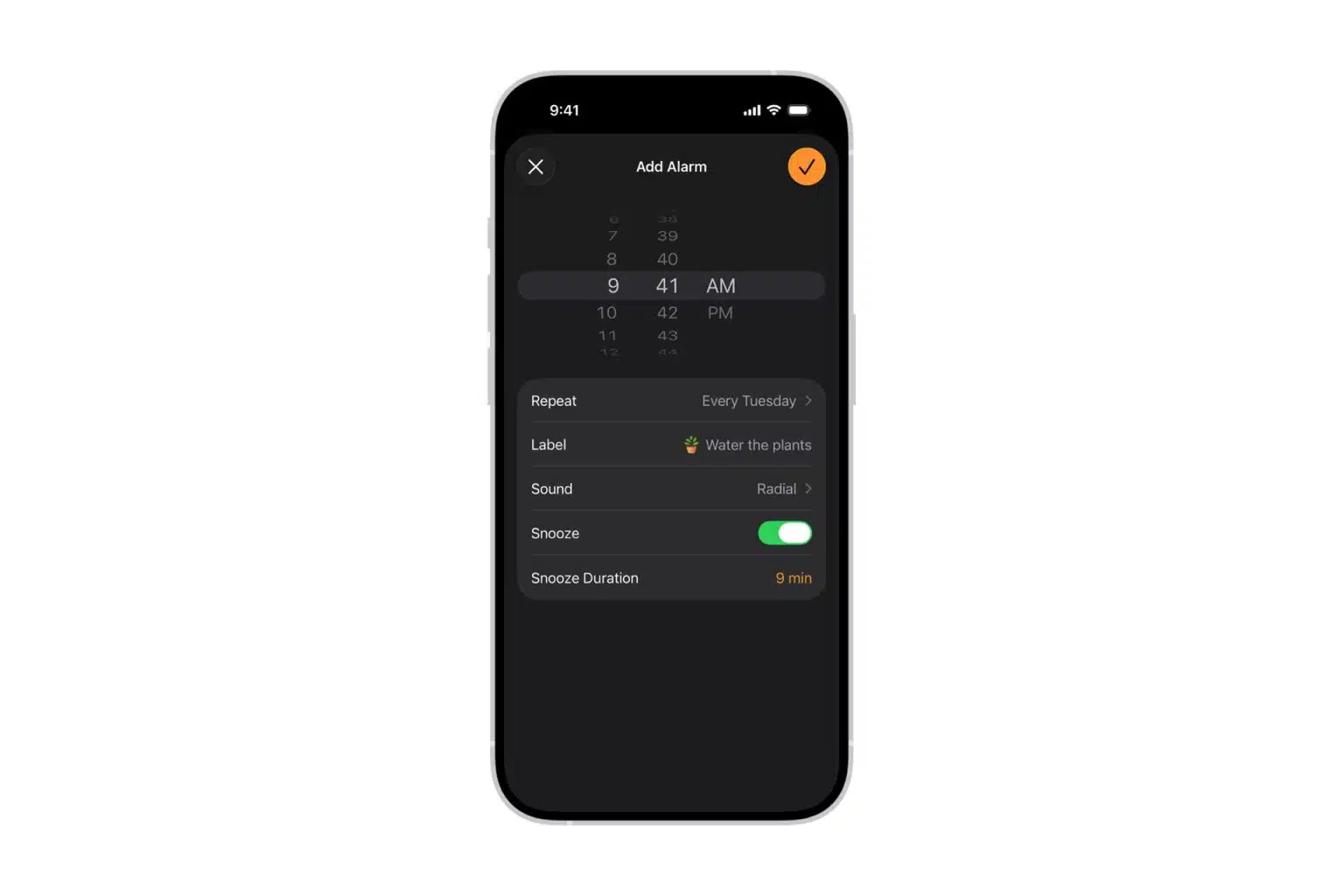 An iPhone screen displays an alarm set for 9:41 AM with the label "Water the plants," sound "Radar," snooze enabled, and snooze duration 9 minutes. The iPhone Alarm Volume can be adjusted before saving, and the checkmark to save is highlighted.
Image Credit: Apple Inc.
An iPhone screen displays an alarm set for 9:41 AM with the label "Water the plants," sound "Radar," snooze enabled, and snooze duration 9 minutes. The iPhone Alarm Volume can be adjusted before saving, and the checkmark to save is highlighted.
Image Credit: Apple Inc.
iPhone Alarm Volume Uses Ringtone and Alerts
For ordinary alarms created from the Alarms tab in the Clock app, the main volume control is under Sounds & Haptics.
To check the volume used by regular Clock alarms:
Settings > Sounds & Haptics > Ringtone and Alerts
Moving the slider produces a preview sound, making it possible to judge the level before relying on an alarm overnight.
The setting is easy to overlook because many people naturally expect the physical volume buttons or Control Center volume slider to control every sound from the iPhone. They do not always do that.
When music, a video, a podcast, or another form of media is playing, the volume buttons adjust media playback. Raising that level does not necessarily raise the Ringtone and Alerts setting that a standard alarm uses.
The Change with Buttons option adds another variable.
When Change with Buttons is enabled, the physical volume buttons can adjust the ringtone and alert level when media is not playing. That can be convenient, but it also means the alarm level can be lowered unintentionally during the day.
Someone reducing the ringtone before a meeting, for example, may also be reducing the level used by the next Clock alarm.
Users who want a more consistent alarm volume can leave Change with Buttons disabled and set Ringtone and Alerts manually. The volume buttons can then be used for everyday media without as easily changing that alert level.
To prevent the buttons from changing the ringtone and alert setting:
Settings > Sounds & Haptics > Change with Buttons
Sleep Schedule Alarms Have Their Own Volume
Not every morning alarm follows the same rule.
A wake-up alarm created as part of a Sleep Schedule in the Health app includes a separate Alarm Volume slider. This is independent enough to be worth checking when a wake-up alarm seems unexpectedly soft even though Ringtone and Alerts is set high.
The next scheduled wake-up alarm can be reviewed directly from Clock:
Clock > Alarms > Change > Alarm Options > Alarm Volume
The recurring schedule can also be edited through the Health app.
This difference explains why a regular 7 a.m. Clock alarm and a 7:05 a.m. Sleep Schedule alarm may not sound equally loud. They are configured through different alarm systems.
The alarm sound itself can also affect how noticeable an alarm seems. A softer tone with a gradual or less aggressive character may be easier to sleep through than a sharper sound at the same general volume setting.
If a standard Clock alarm vibrates but produces no audible sound, its Sound option should also be checked. An alarm configured with its sound set to None will not suddenly become audible simply because the Ringtone and Alerts slider is turned up.
To check an individual alarm sound:
Clock > Alarms > select the alarm > Sound
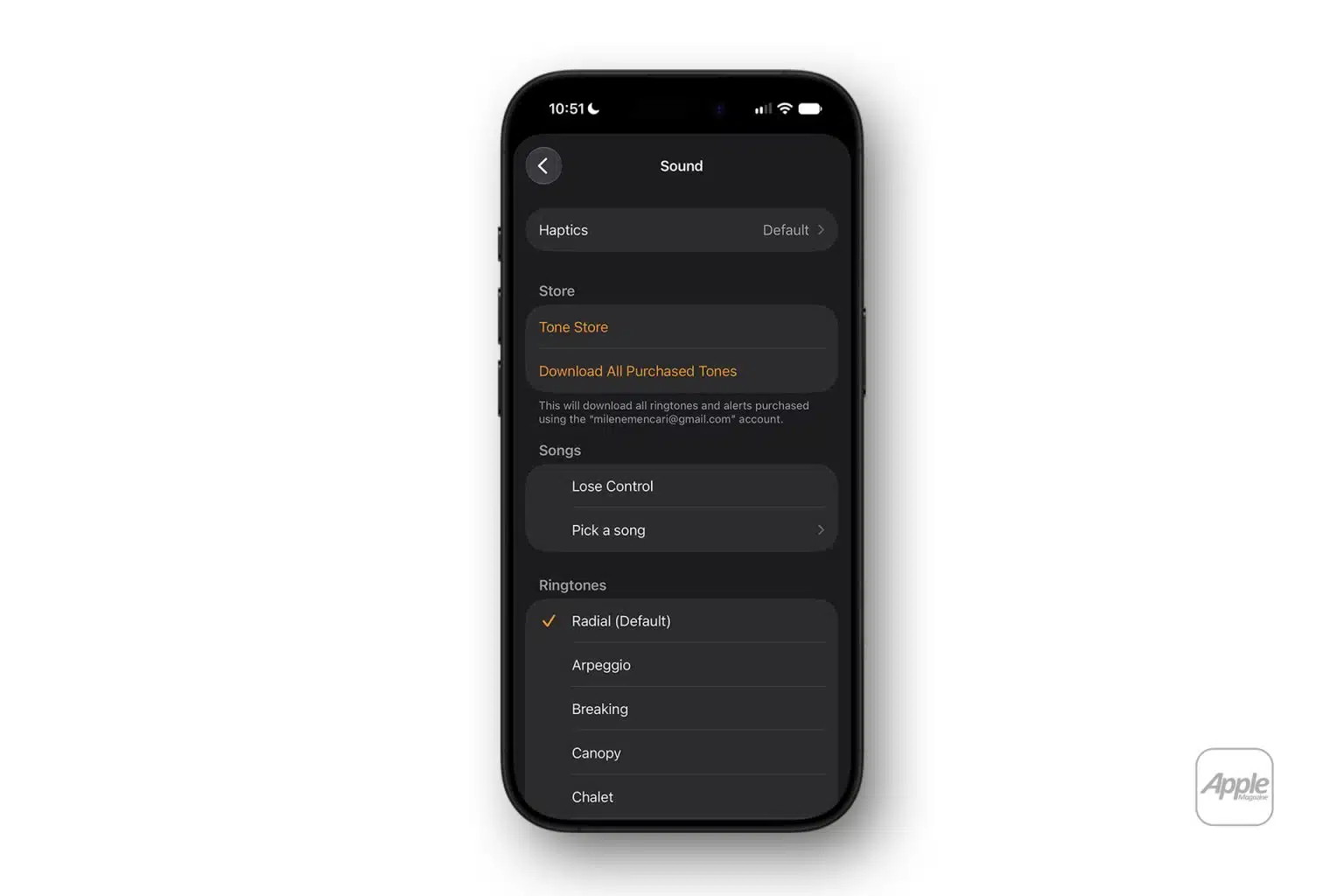 An iPhone displays the Sound settings screen in dark mode, showcasing options for Haptics, Tone Store, downloading purchased tones, song selection, and ringtone choices. iPhone Alarm Volume can also be adjusted from this menu. - Image Credit: AppleMagazine
Silent Mode and Focus Usually Aren't the Problem
Silent mode is an obvious suspect when an alarm does not behave as expected, but Apple specifically states that alarms created in Clock continue to sound while the iPhone is in Silent mode.
The same applies to Do Not Disturb and other Focus modes. These features can suppress calls, notifications, and other interruptions, but they do not normally silence a Clock alarm.
That distinction is useful because troubleshooting an alarm by repeatedly changing Focus settings may leave the actual volume problem untouched.
Headphones do not provide a simple explanation either. Apple says alarms can play through the iPhone's built-in speakers as well as connected wired or wireless headphones.
StandBy has one behavior worth knowing about. When iPhone is being used in StandBy, haptics for alarms are disabled. Users who depend heavily on vibration should therefore make sure the alarm also has an audible sound selected.
Attention Aware Features can introduce additional confusion on Face ID-equipped iPhones. Apple says the feature can lower the volume of alerts when the TrueDepth camera detects that the user is looking at the device.
Apple's support documentation does not describe standard Clock alarms specifically in that explanation, so Attention Aware should not be the first assumption when an alarm is consistently too quiet. If an alert begins loudly and then seems to become quieter while the screen is being viewed, however, the setting can be worth testing.
Attention Aware can be reviewed here:
Settings > Face ID & Passcode > Attention Aware Features
Check the Alarm You Actually Depend On
The simplest way to diagnose a quiet alarm is to identify whether it is a regular Clock alarm or a Sleep Schedule wake-up alarm before changing settings.
For a normal Clock alarm, check Ringtone and Alerts first, followed by Change with Buttons and the alarm's selected sound. For a Sleep Schedule alarm, open its Alarm Options and inspect its dedicated volume slider.
It is also worth creating a temporary alarm one or two minutes ahead while testing. That provides a much better indication of the real alarm level than relying on music playback or assuming that the volume shown in Control Center represents every sound the iPhone will produce.
Once the test is finished, the temporary alarm can be deleted without changing the morning schedule that prompted the problem in the first place.
Continue reading for instructions....
How to use filtering in Messages on iOS 27
by Amber Neely, appleinsider
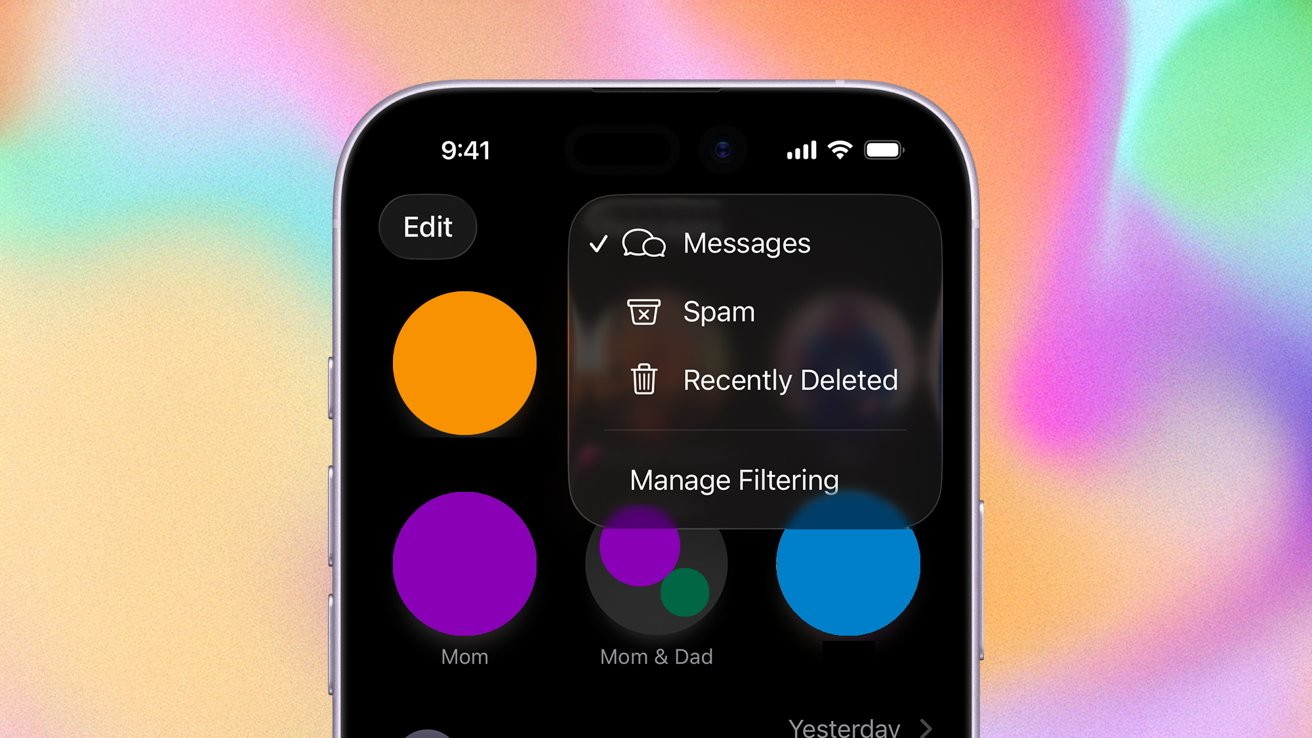 Learn how to filter, report, and block messages on iPhone
If your Messages inbox is catching a lot of stray, unwanted messages, we'll show you how to filter, report, and block spam messages on iOS 27.
At WWDC 2025, Apple announced that it would be bringing enhanced message filtering capabilities to Messages. As promised, they rolled out as part of iOS 26, released in September 2025. They continue to be available in iOS 27.
The new features are designed to help manage the onslaught of texts everyone seems to get these days. Here's how to do it.
How to screen messages from unknown senders on iPhone
- Open Messages
- Tap the Hamburger Menu in the top right corner, which looks like three horizontal lines
- Tap Managing Filtering
- Toggle on Screen Unknown Senders
If you'd like to allow notifications from some unknown senders — and AppleInsider suggests that you do — you can tap Allow Notifications. In this subsection, you can toggle on notifications for time-sensitive texts, meaning that you'll still get those verification codes.
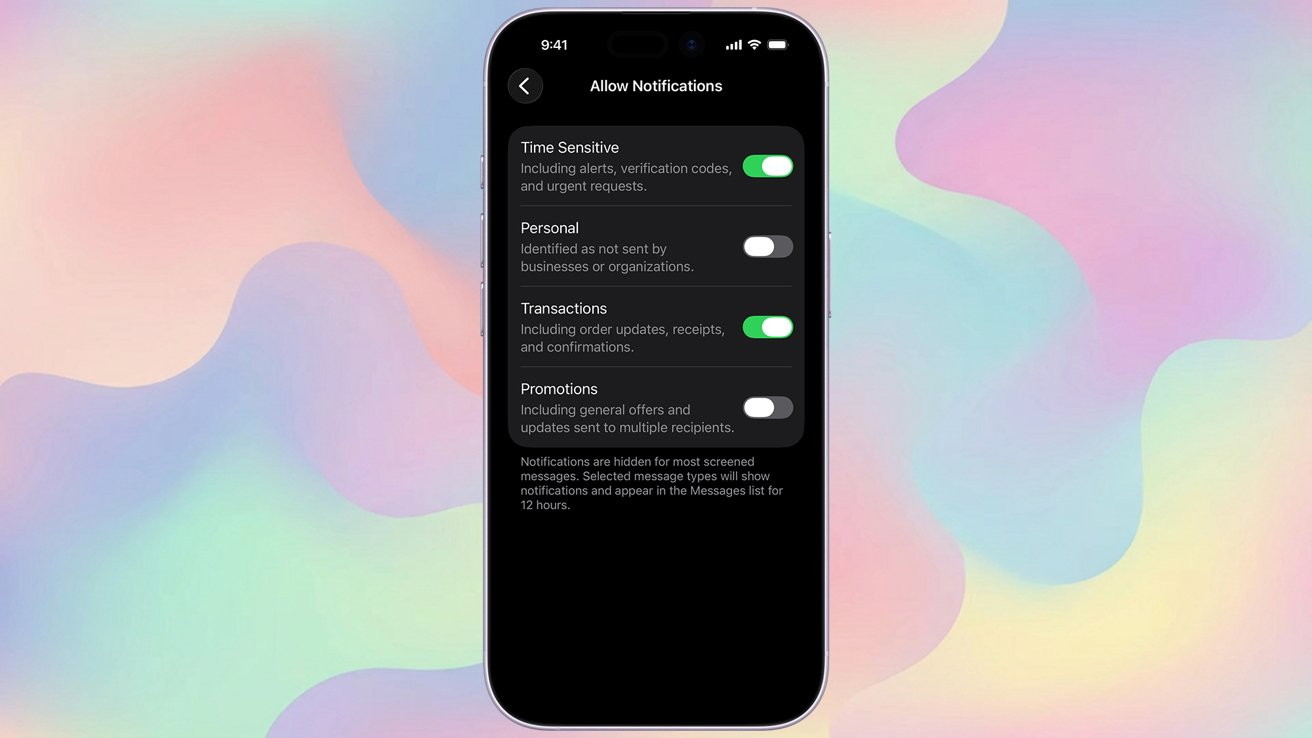 Smartphone screen showing notification settings with toggles: Time Sensitive and Transactions enabled, Personal and Promotions disabled, against a soft pastel multicolor abstract background.
Allowing time-sensitive notifications ensures you'll still get two-factor authentication texts and time-sensitive delivery alerts
To review the messages, you'll need to tap the Hamburger Menu in the top right corner of the Messages app. Then, tap Unknown Senders to be taken to a list of unknown senders.
How to make an unknown sender known
There will be, inevitably, times in which you'll need to make an unknown sender into a known one. Fortunately, this can be done in just a few taps.
- Open Messages
- Tap the Hamburger Menu in the top right corner, which looks like three horizontal lines
- Tap Unknown Senders
- Tap the message from the sender, then tap Mark as Known
- You can also add the sender to your contacts, which will automatically mark them as known, too.
How to filter SMS, MMS, and RCS messages
You can detect and filter non-iMessage-based texts, such as SMS, MMS, and RCS messages. However, you will need to install a text message filter, which is a third-party app with message filtering extensions.
These are highly variable based on your location and your carrier. AppleInsider suggests you research which third-party apps and extensions are designed to work with your carrier in your region.
How to report spam
Reporting spam via Messages is pretty easy, too. Most of the time, your iPhone will accurately detect if a message is spam and will move it to your spam folder.
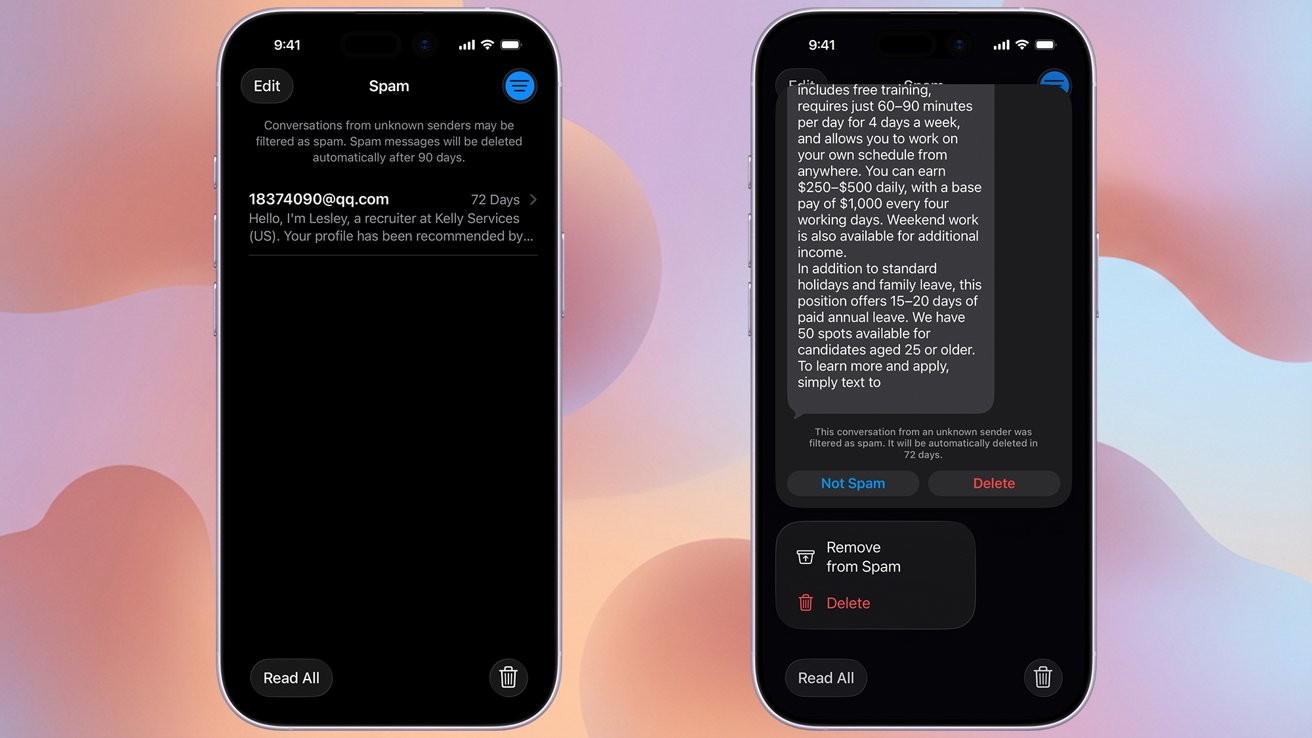 Two iPhones showing a dark-mode Messages spam folder and a detailed scam text about a job offer, with options to mark not spam, remove from spam, or delete.
Managing spam is easy with the Messages app filter.
Two iPhones showing a dark-mode Messages spam folder and a detailed scam text about a job offer, with options to mark not spam, remove from spam, or delete.
Managing spam is easy with the Messages app filter.
If it hasn't, though, you can mark the message as spam manually by following the steps below.
- Open Messages
- If you haven't opened the message, you can swipe left, tap the trash icon and then tap Delete & Report Spam
- If you've already opened the message, at the bottom there will be a "report spam" button
- Alternatively, you can tap and hold a message to bring up a report spam window
How to recover messages sent to the Spam folder
Occasionally, a message will get marked as spam, even when it isn't. Here's how you can recover an erroneously tossed message.
- Open Messages
- Tap the Hamburger Menu in the top right corner, which looks like three horizontal lines
- Tap the message you wish to recover
- Tap Not Spam
- Tap Move to Messages
- Tap the Hamburger Menu
- Tap Messages
If Messages is a crucial part of your life, knowing how to deal with spam and unwanted senders will mean it remains useful and fun, instead of becoming a chore to handle.
Click for article.
Editors Note: This is a very helpful filter for your massages if you are overwhelmed with political messages. You just have to remember to check the filtered messages for ones you might want to get and then use the "Mark as Known" button.
AirPods Pro 3 vs AirPods Pro 2: Three reasons to upgrade
by Chance Miller, 9to5mac
Apple released AirPods Pro 3 last year, bringing several big updates to its in-ear headphones. If you're currently using AirPods Pro 2, there are three key reasons to consider upgrading, based on my experience using them over the past year.
Buy AirPods Pro 3: $179 (Reg. $249)
Improved ANC (Active Noise Cancellation)
One of the best things about AirPods Pro is Active Noise Cancellation, or ANC. They offer stellar noise cancellation capabilities, blocking out the world around you and creating an immersive listening experience.
Apple says that AirPods Pro 3 offer ANC that is up to 2x more effective than AirPods Pro 2. It's hard to quantify that claim, but in my review of AirPods Pro 3 last year, I called out the "definitive improvement" in ANC in the real world.
Heart rate monitoring
The other flagship change for AirPods Pro 3 is the addition of a heart rate monitor. During a workout, AirPods Pro 3 can monitor your heart rate and display additional metrics in the Fitness app on your iPhone. You can start more than 50 workout types in the Fitness app, and a Live Activity pops up to help you track that workout.
From a hardware perspective, AirPods Pro 3 feature a heart rate sensor in each earbud. It shines invisible infrared light, pulsed 256 times per second.
This feature improved further in iOS 27, which brought GymKit to the iPhone for the first time. This means you can use your iPhone and AirPods Pro 3 to get an Apple Watch-style workout experience, without actually wearing a watch.
And if you do wear an Apple Watch, AirPods Pro 3 work alongside it to give you the most accurate data possible. For instance, if your Apple Watch shifts into an awkward position on your wrist while lifting weights, the AirPods Pro 3 can step in to ensure your data remains accurate.
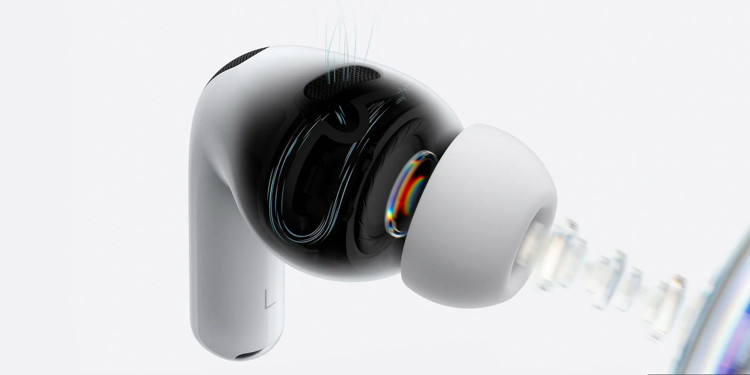 Getting the best fit for your AirPods Pro 3 | Cutaway close-up
Battery life
AirPods Pro 3 offer a notable improvement in battery life over AirPods Pro 2, with up to eight hours of music playback with ANC enabled instead of six.
However, there is an asterisk. AirPods Pro 3 actually offer less overall battery life than AirPods Pro 3.
- AirPods Pro 2, 30 hours total: : 24 hours from the case + 6 hours from the buds
- AirPods Pro 3, 24 hours total: 16 hours from the case + 8 hours from the buds
So, you get more battery life on a single charge from the buds themselves, but you'll have to recharge the case more often.
One warning though …
If you're buying AirPods Pro 3, however, it's important to note that the shape of the earbuds has changed. For me, they are more comfortable than AirPods Pro 2. Some people, however, have found them to be less comfortable:
AirPods Pro 3 after four months: Revisiting fit, comfort, more
Top comment by SF
If I had to choose, I would go back to the AirPods Pro 2. They had a more comfortable fit in the ear, didn't stick out as far, fell out less (because of the previous two reason.), and sounded better overall.
For this reason, I recommend trying AirPods Pro 3 before buying them, or buying them from somewhere with an easy return process.
Wrap up
If you're in the market for AirPods Pro 3, they are currently on sale at Amazon … which is perhaps one of the biggest reasons to consider upgrading right now if you've been holding out:
- AirPods Pro 3: $179 (Reg. $249)
Click for article and see video....
See for yourself the difference the wider aperture of the iPhone 18 Pro makes
by Ben Lovejoy, 9to5mac
Alongside a variable aperture lens, the main camera of the iPhone 18 Pro also opens up to a wider aperture than its predecessors. Apple has been promoting this as enabling a shallower depth of field for portraits and similar shots.
The difference, however, is less than a stop, and it's been unclear how much real life difference this would make on such a small sensor, so I set out to put it to the test …
Portraits, not Portrait mode
It's important to draw a distinction between the optical shallow depth of field enabled by a wide aperture lens and the artificial effect enabled by Portrait mode.
With the latter, Apple uses computational photography and the LiDAR sensor to work out where the subject ends and the background begins in order to apply an artificial blur. The quality of this has improved dramatically over the years, but that's not what we're testing here. All of the background blur seen in the sample photos was achieved optically by using the widest possible aperture of f/1.48.
The simple testing method
The iPhone 17 Pro had a widest aperture of f/1.78. This is essentially indistinguishable from f/1.8, which is the second-widest aperture available on the iPhone 18 Pro. What I've done here is to use the new manual controls available to take the same photo twice, once at f/1.8 and again at f/1.48, in order to compare the difference.
There are, however, three other optical factors affecting the amount of background blur of any photo:
- The focal length of the lens
- The distance between the subject and the background
- How close the subject is to the camera
To eliminate these variables, all of the photos are taken at the same focal length (the main camera, which is the only one with a variable aperture), the same framing (ie. same background), and at the same distance. There's a few seconds gap between the photos as I adjust the aperture, so they are not 100% identical, but both myself and my subject stood still to ensure both were taken at exactly the same distance even if he turned his head between shots.
With these controls in place, any difference in background blur is due entirely to the aperture.
Continue reading and see all the examples....
Call Screening has made a big difference to my iPhone experience
by Ben Lovejoy, 9to5mac
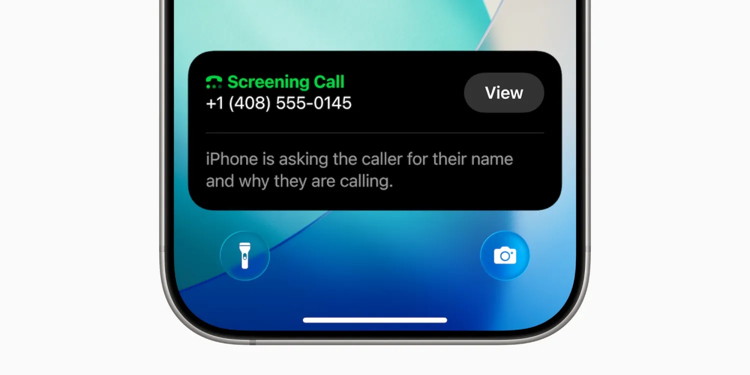 Call Screening has made a big difference to my iPhone experience | Screengrab shows screening in progress.
iOS 27 has brought a lot of new features to the iPhone, but one of the things that has made the biggest difference to my experience of the device as a phone actually dates back a year earlier.
Apple introduced Call Screening to the Phone app in iOS 26, but I only started using it a few months ago - and the feature has protected me from a growing number of spam and spam calls …
I've tried to be reasonably protective of my phone number, only providing it when it is not only demanded by an organization, but where I accept that it will be useful for them to have it. In many cases where a web form insists on it, I've used a fictitious number.
The UK's telecoms regulator actually provides a range of 1,000 mobile numbers that have never been allocated so I can be sure my fake number won't lead to someone else being spammed.
However, I've owned my mobile number for literally decades now, so it's unavoidable that it has made its way onto some marketing lists, and there are also companies that use robocallers to dial random numbers. I haven't been bothered by many of these historically, but for some reason there was a significant uptick earlier this year.
When Apple introduced the call screening feature last year, I was concerned about missing genuine calls, so didn't immediately enable it. However, I did so earlier this year, selecting the Ask Reason for Calling option, and I have to say I highly recommend it.
The main spam/scam calls I received were from companies pretending to be my mobile carrier. I think some are likely third-party resellers hoping to trick me into switching network, while others are either trying to obtain payment details or carry out more general data harvesting. I've never let any of these calls get far enough to find out, but it reached the point where I was getting at least one of these calls every week. I'd also been getting a growing number of job scam calls.
Since switching on the feature, not a single one of these has got through to me. I think in the vast majority of cases, they immediately hang up when they get the automated response, while a few of them have bothered to give me their claimed reason for the call, and it's been immediately obvious that I should reject it.
I also haven't seen any indication of anyone genuine failing to reach me. I've had a number of genuine calls get filtered by the screening feature, but all of these have explained who they are and the reason for the call, and I've then been able to answer it.
If you don't currently have Call Screening enabled, I highly recommend it. Open the Settings app, scroll down to the App section, select Phone, and then scroll down to Screen Unknown Callers.
Click for article.
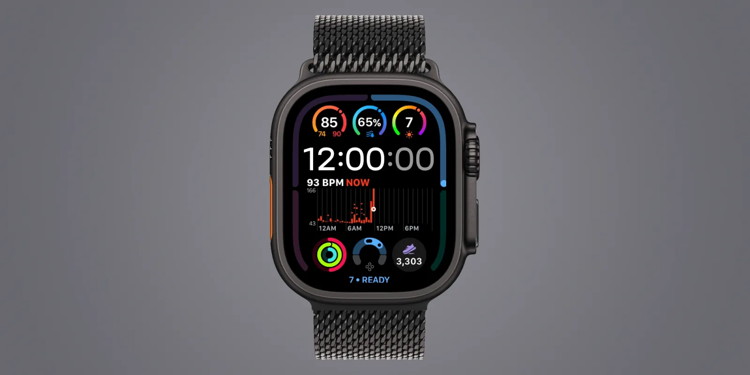
Upgrade to Apple Watch Series 12 or Ultra 4? Here's how to get the most out of it
by Zac Hall, 9to5mac
Upgrade to a new Apple Watch Series 12 or Ultra 4? Apple Watch Series 12 and Ultra 4 bring upgraded performance and new health sensing features.
Still, they can feel like the same watch in day-to-day use unless you know where to look for the changes. From new health complications to automatic Shazam recognition, a few setup changes can help you get more out of your upgrade. Here's what to try.
Continue reading....
Apple TV unveils new series reuniting stars of record-breaking comedy
by Ryan Christoffel, 9to5mac
The Choir is new Apple TV series from Ruth Jones and James Corden, reuniting the 'Gavin & Stacey' duo
Last year reporting indicated that Apple had struck a deal with Ruth Jones and James Corden for a new comedy series.
Now Apple has made it official: Jones and Corden are reuniting for The Choir, a new Apple TV series coming in 2027.
The duo might not be as well known to US viewers (though Corden has an established US track record), but they starred together in the massively popular UK sitcom Gavin & Stacey. For context, its series finale in 2024 became the UK's most watched scripted show ever.
Here's the official series summary for The Choir:
Brother and sister Ben (Corden) and Lisa (Jones) haven't seen each other for several years. Ben has been living abroad, while Lisa has carried on in their small English town, where nothing ever happens. But when events take a sorry turn, Ben is forced to return to a life he never wanted, a town he never liked and a family from which he's estranged. Can the unlikely healing of a rift with his big sister come in the form of a struggling local choir and the ensemble who sing their hearts out each week?
Guest stars include Hannah Waddingham, James McAvoy, and Jim Broadbent, and there's a strong supporting cast too.
Apple describes the show as being a comedic drama about "family, friendship, love and music," with a seemingly similar heartwarming feel to that of Gavin & Stacey.
Are you a fan of Gavin & Stacey? Is The Choir of interest to you? Let us know in the comments.
Apple TV is available for $14.99 per month, or you can get it discounted through the Apple One bundle.
Click for article.
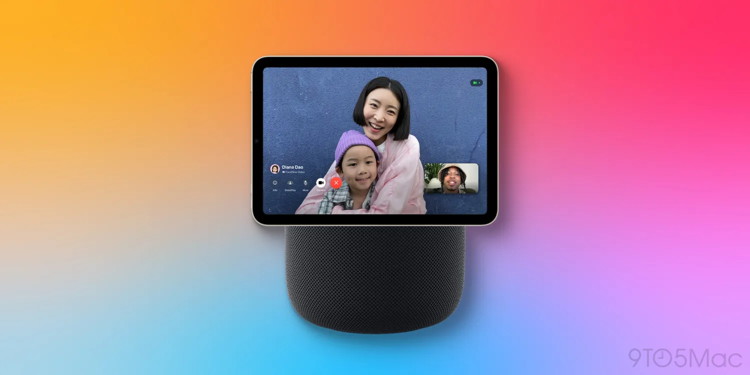
Apple's new 'HomePad' is my most wanted product that's coming soon
by Ryan Christoffel, 9to5mac
Apple has a brand new Home product—potentially called 'HomePad' or 'HomePod Touch'—that's reportedly launching this spring. And out of the many products Apple has coming in the next few months, HomePad is easily the one I want most.
My journey toward expanding my Apple Home setup
I recently moved out of a small New York City apartment and into a house in the suburbs.
A growing family and rising city prices were two big factors in the change. But that's a story for another time.
Now that I'm in a house where I hope to stay for a long time, I've been very interested in upping my smart home game. I'm planning to expand the lineup of Apple Home-compatible accessories I'm using, and am excited to see if the rumored Apple-made security camera and video doorbell come to fruition.
However, there's one Home product I want more than anything else: a 'HomePad.'
For a quick refresher, Apple's HomePad is expected to feature a 7-inch square display, support the new Siri and Apple Intelligence, run homeOS and Apple-made apps, have a built-in camera, and more.
The long-rumored HomePod with a screen was first detailed in depth by Mark Gurman back in November 2024. I wrote at the time that it sounded like exactly what I wanted in a home device.
That hasn't changed. And since moving, I now keep thinking of more and more reasons why I want the HomePad.
How I plan to use the new 'HomePad' in my everyday life
Here's how I've been imagining using the HomePad in everyday life.
Playing music will be a key feature for any HomePod-style product. And while I can do that with my existing HomePods, I can't wait to stream music through the HomePad for one reason: lyrics.
It seems near-certain that Apple's Music app will support showing lyrics on-screen while the HomePad is playing music.
My family members and I like to sing along with what we're listening to, but without visible lyrics that can be hard to do. I don't want to pull out my iPhone to find the lyrics, as that would take me out of the moment. Instead, I want those lyrics to appear passively on the HomePad, easy to glance at when I need them.
I'm also excited for Apple Photos support on the HomePad. I love the idea of a digital photo frame, but have never bought one because I don't want to deal with manually uploading photos.
With the HomePad, I expect I'll be able to set up a Photos screensaver or widget that cycles through some favorite memories with no action required on my part.
I also expect that the built-in HomePad camera could make a great security camera and/or baby monitor. Add in HomeKit Secure Video support, and the camera will be a compelling reason to add HomePads to several rooms of the house.
The new Siri with AI powers is another key feature I'm excited about. Siri on my current HomePods can do some basic things fine, but it still has eye-rolling flubs all the time. Having Siri work reliably, with new intelligence, and the ability to show visuals sounds wonderful.
These are just a few HomePad features I expect to use often. But there's likely a lot more the product will be able to do. That's why, more than any other product launching soon, I'm most excited for the HomePad.
Click for article.
by Penny Holland, MAGIC*

New macOS malware masquerades as Zoom installer
by Roman Loyola, macworld
Dubbed CloudSyncD, the malware attacks both M-series and Intel Macs.
Jamf Threat Labs has posted a report on new malware that attacks macOS. The malware installer presents itself as a Zoom installer that actually installs the app, but it also installs an infostealer dubbed CloudSyncD that works in the background to capture data and send it to the attacker.
The installation is presented as an app icon that is dragged to the macOS Applications folder, a common method of installation. However, because the malware lacks the proper signatures, macOS's Gatekeeper will not allow it to run. To bypass Gatekeeper, the installer window has a background image with instructions for the user on how to override Gatekeeper.
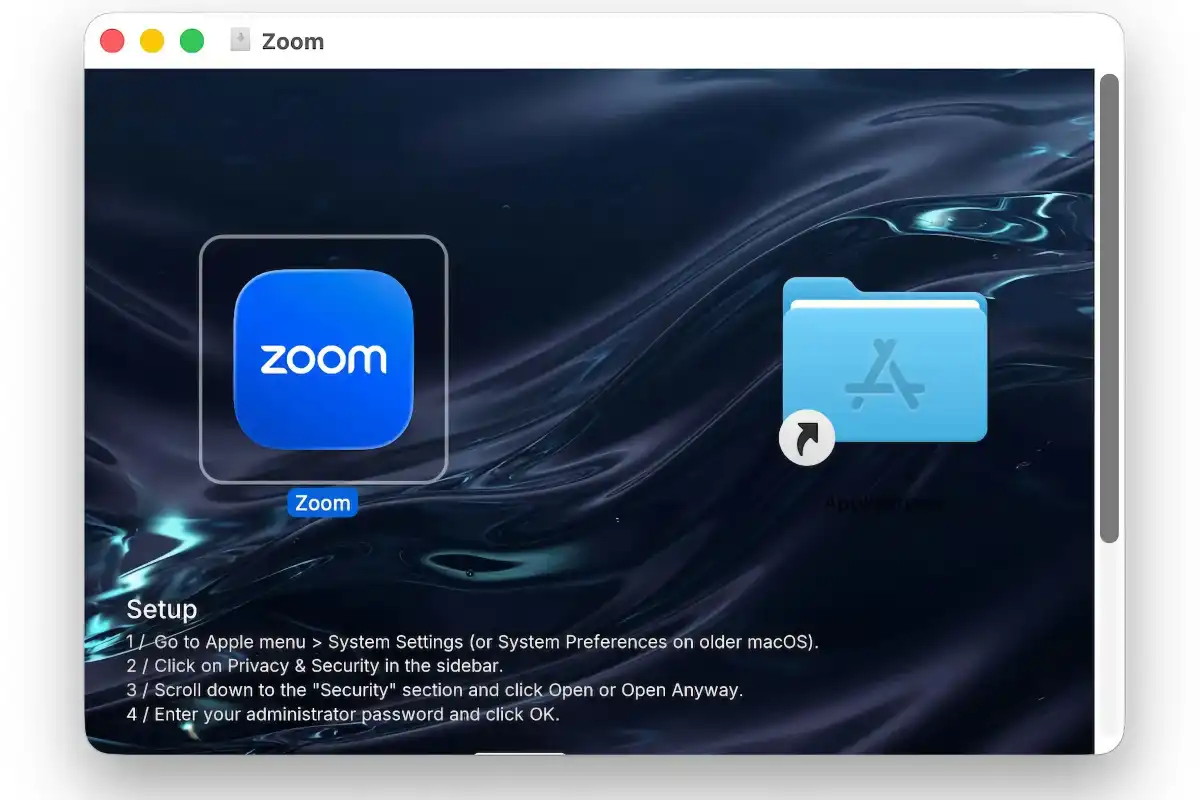 Courtesy: Jamf Threat Labs
The installation of the app appears legitimate and mounts as a disk image named Zoom laid out to look like any ordinary Mac installer with the application icon on the left and an alias to the Applications folder on the right. However, it also includes user instructions to bypass macOS' Gatekeeper security,
If CloudSyncD is installed, it monitors and records data that the user has entered. It can send reports to the attackers as frequently as every 8 seconds. CloudSyncD can also be used be the attacker to remotely execute commands.
How to protect yourself from malware
The easiest way to protect yourself from malware is to avoid downloading software from unfamiliar repositories. Apple has vetted software in the Mac App Store, and it is the safest way to get apps. If you prefer not to patronize the Mac App Store, then buy software directly from the developer and their website. If you insist on using cracked software, you will always risk malware exposure.
Never open links in emails or texts you receive from unknown and unexpected sources. If you get a message that looks like it is from an entity that you do business with, check the sender's email address and inspect the URL carefully. If you see a link or button, you can Control-click it, select Copy Link Address, and then paste it into a text editor to see the actual URL and check it.
Click for article.
Researchers uncover new DarkSword spyware variant affecting unpatched iPhones
by Marcus Mendes, 9to5mac
iVerify released a report today detailing P7 DarkSword, a new variant of the malware associated with the DarkSword iPhone exploit chain uncovered earlier this year. Here are the details.
A bit of context
Earlier this year, Google and iVerify revealed two sophisticated iPhone hacking tools known as Coruna and DarkSword, both of which chained multiple iOS vulnerabilities to compromise devices running outdated system versions.
In DarkSword's case, once an iPhone was compromised, attackers could deploy additional malware with access to sensitive data.
Coruna targeted devices running iOS 13 through iOS 17.2.1, while DarkSword affected iPhones running iOS 18.4 through iOS 18.7.
This led Apple to release system updates for the affected older iOS versions, including iOS 15.8.7, iOS 16.7.15, and iOS 18.7.7. Apple went as far as to take the unusual step of making iOS 18.7.7 available to devices that could install iOS 26, so users who elected not to update to the latest system version would also remain protected against DarkSword.
At the time, Google said DarkSword was being used by multiple commercial surveillance vendors and suspected state-sponsored actors, with attacks observed against targets in Saudi Arabia, Turkey, Malaysia, and Ukraine.
New DarkSword variant found in the wild
Today, iVerify announced the discovery of P7 DarkSword, a previously unseen variant it found while investigating an infection on the iPhone of an employee at a financial institution just two months ago.
In additional details shared with 9to5Mac, iVerify noted that the P7 expands compatibility to iOS 18.7, up from iOS 18.6 in the earlier variant it had been tracking. Other DarkSword deployments observed by Google had already supported iOS 18.7.
The company also said the threat actor behind P7 is distributing it through malicious ads as part of watering-hole attacks, meaning victims do not necessarily appear to be individually targeted. Instead, users can be caught in broader campaigns simply by encountering malicious or compromised web content.
From the report:
In August 2026 we investigated a DarkSword infection that turned out to be a previously unseen variant, which we call P7 DarkSword. The name P7 comes from the threat actor's use of the p7_ variable prefix in modifications to original DarkSword's code. Compared with the variants we usually observe, P7 reduces its on-device footprint, adds on-device keychain and crypto-wallet theft, and adds two way C2 communication with the attacker's infrastructure. This post describes the investigation, the variant's capabilities, and the indicators that can be used to detect it._
The report says that P7 DarkSword improves on earlier variants in three main areas: stealth, stability, and functionality. The new variant reduces logging and the number of process injections it performs, uses browser storage to avoid repeatedly exploiting the same device, and expands its data-stealing capabilities.
iVerify also told 9to5Mac that the changes appear to reflect substantial work by the operators rather than simple AI-assisted modifications. The company says P7 is much better at hiding itself and cleaning up its behavior, so previous indicators of compromise (IOCs) are no longer valid.
Most notably, iVerify says P7 can extract Keychain data directly on the iPhone before sending it to the attackers, instead of copying the entire Keychain database for processing elsewhere.
P7 DarkSword can also target crypto-wallet data, and introduces more advanced two-way communication with the attackers' command-and-control infrastructure.
That two-way communication also gives attackers considerably more control over an infected device. According to iVerify, P7 can receive commands to retrieve arbitrary files, upload photos, inventory installed apps, access Apple Notes databases, collect data from individual app containers, and scan the device's filesystem.
y default, the spyware checks in with the attackers' command-and-control server every 15 seconds for new instructions, although that interval can be changed remotely.
It's worth noting that P7 is not a new iOS vulnerability, but rather a new version of the malware deployed after a successful DarkSword compromise. iVerify does not say which iOS version was running on the device where P7 was discovered in August.
To read iVerify's full report, which includes technical details on how P7 operates, follow this link.
Click for article.
Malware Examples *
by Ron Sharp and Robert Elphick, MAGIC *
Here are some tips if you do respond to a scam email. Call your bank. Put a stop payment on your charge card if it is involved. Change your account password for whatever accounts are involved. If it's a PayPal account, log into that account and change the password. If you use a bank account online change that password. You can also set up email "rules" to block email from the sender if their email address shows. If you use Apples Mail app you'll find the "Rules" options in the Mail app Settings. You should also change the password to your email account that the scam email came to.
 The "From" says that I sent this! (arrow)
I did not! DO NOT RESPOND.
 From address is not from State Farm (arrow)
DO NOT RESPOND.
 From address is not from Unitedhealthcare (arrow)
DO NOT RESPOND.
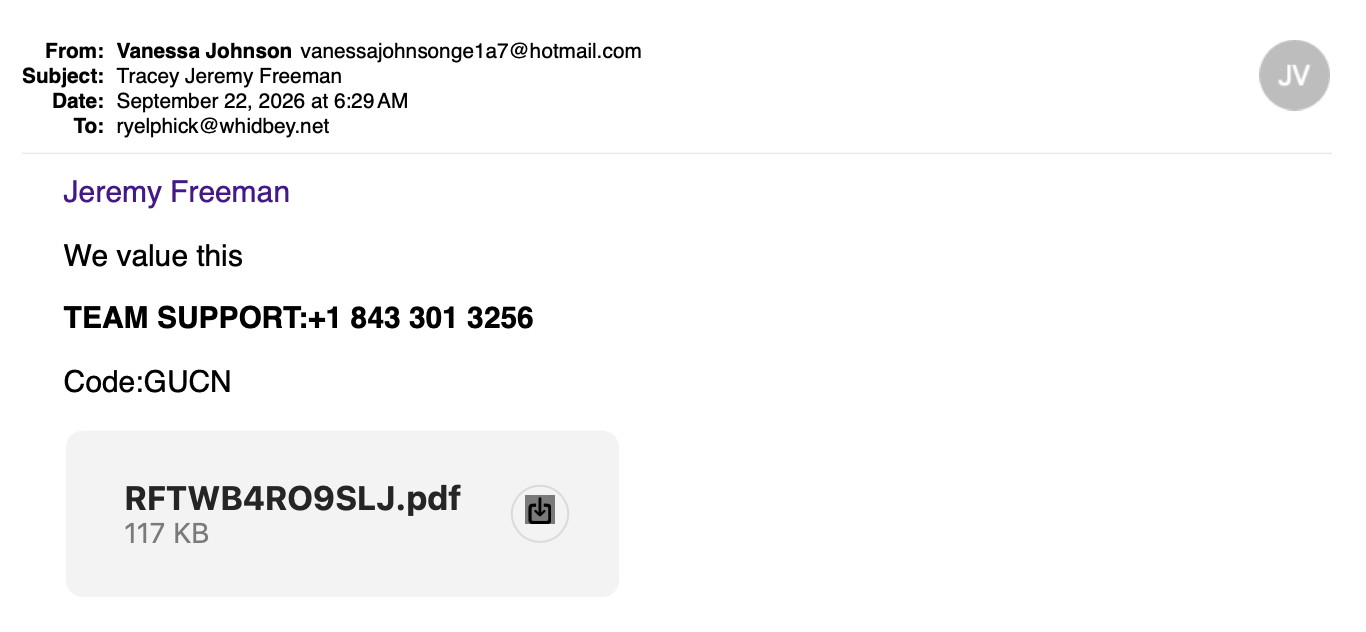 From an unknown sender
NEVER open a file from an unknown sender.
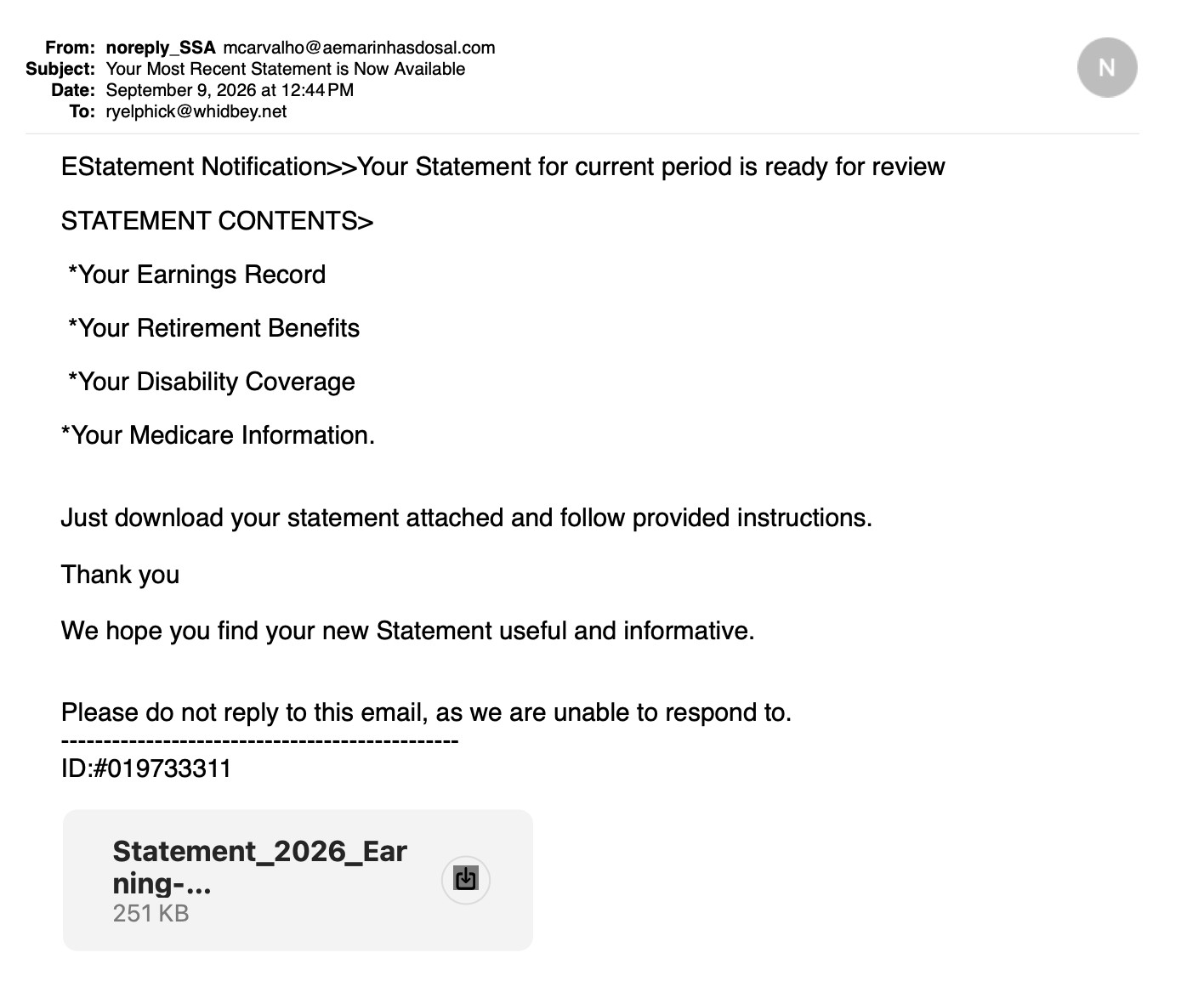 From an unknown sender
NEVER open a file from an unknown sender.
 Not from GEEKSQUAD (red arrow)
MALWARE - DO NOT RESPOND
Internet Crime
Any one bothered by internet criminal activity should report it to the Federal Bureau of Investigation Internet Crime Complaint Center (IC3) at this web page. This includes phishing, malware, spoofing, any demand for money.

Sell or Swap
by MAGIC
Got something you would like to sell or give away? Need something second hand or out of date? Contact MAGIC at this email .
Nothing this month.

My iPhone has never done that before
by Ron Sharp, MAGIC
The other morning I grabbed my iPhone off the bedside table and tapped the screen. It didn't wake up so I tapped again, and again. Hmm. What's going on? I pressed the sleep/wake power button and nothing happened. What's happening? My iPhone 14 Pro was not turning on. It had plenty of battery remaining last night.
So I went through all the steps to try to recover life to my iPhone, like click the volume up button, then the volume down button, then hold the power button while standing on my head with one eye closed! Nothing worked. After a period of disbelief, I moved to the next step of figuring out where to buy a new phone.
I called my service provider, T-Mobile, but they wouldn't give me prices over the phone. I also never know if the deals they offer on a new phone are financially worth the plans. Like start a new line and get a free phone and only pay an extra $30 a month for 360 months, or whatever.
So I decided to order from the Apple store. I made all my choices on the webpage but then it said it would be delivered in 4 or 5 days. Wait, 4 or 5 days without my iPhone is like a half century! It's only been 12 hours and I'm already experiencing withdrawal symptoms. So the next day I drove to the Apple store.
I walked in to a store full of people, like I should have expected. But I rather though it would take no time just buy a phone. The wait time was 45 minutes. And it was confusing and not clear, with the number of people standing around the iPhone table, if there was any organization. Some customers thought it was a line around the table. Oh no, I wasn't aware of a line. Later one Apple tech said, no, there is no line. You just stand around the table and we'll get to you. But then when I got close to being helped, another person was expecting to be next. We didn't know who got there first. Luckily I got to go next. Then it finally came time to pay.
I wanted to pay with my Apple credit card and save $30 with their 3% cash when purchasing Apple products. But my Apple card is in the Wallet app on my dead phone. Can't use it. Well, at least they offered to recycle my old phone for no charge. No charge, although I'm paying as much for last years model standard phone as I payed for the newest top of line iPhone Pro a few years ago! And, not to mention the trade in value of my phone would have been $285 if it turned on. But now- nada, zip. Oh well. Everything cost more these days. Especially anything with memory chips and processors thanks to AI Data Centers.
I was relieved to finally be back home with new phone in hand. I was able to restore my data from my iPhone backup. Now I just needed to activate the phone cell service. I went through the many steps on T-Mobiles web page only to come to the verification step. They texted me a verification code. But my phone is not activated yet, how can I get a text message? They didn't offer another way to verify. So I had to call up and get past the automated assistant to talk to someone who could activate my phone. Okay. Finally got it done.
Then… the first call I get on the new phone…"Potential Scam."
Fun or Informative Videos *
by Ron Sharp, MAGIC
Apple TV Trailer: Stick- Season 2, "Comeback"
Funny Acting/Actor clip.
MAGIC, the Macintosh Appreciation Group of Island County, serves people who use Macintosh computers, software and peripherals. Our goal is to share information and get answers to questions to make us more productive with our use of technology. Our monthly meetings give us a chance to discuss computer problems and share ideas with other Mac users, feature speakers on specific topics, and to keep apprised of Apple news.