

Trouble shooting
MAGIC highly recommends that you print this web page and keep is handy just in case your computer dies and you do not know what to do.
CONTENTS
- Mac will not start
- Mac freezed at login
- Mac is really slow
- Devices do not work properly
- How to use Disk First Aid and Recovery

Mac will not start
Try:
- Press and hold the power button for ten seconds, wait ten seconds, and then press the power button normally.
- If your Mac still doesn't start, check the obvious things first.
- Unplug any connected accessories and make sure your external display, if you use one, is connected and switched on.
- If your Mac is a laptop you may have a flat battery; connect the charger and try again in several minutes.
- For desktop Macs, check your power cable to ensure it's properly connected and plugged in properly; if that all looks fine try a different power cable. If the power supply's on an extension lead, try another.
If none of these work then seek professional help from MAGIC or Apple.
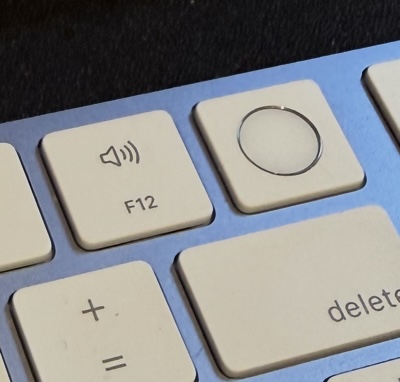
Mac freezed at login
If your Mac freezes when you first loq in, the problem is likely to be an app or extension that loads at startup; a restart should fix it. Press and hold the power button for 10 seconds to shut down your Mac.
For startup freezes, shut down your Mac then press and hold the power button until you see Loading startup options. Choose the volume where macOS lives, then hold down Shift to load macOS in safe mode. If that works, go to Settings > General › Login Items and disable the items in Open At Login. Restart your Mac.
If none of this works then seek professional help from MAGIC or Apple.
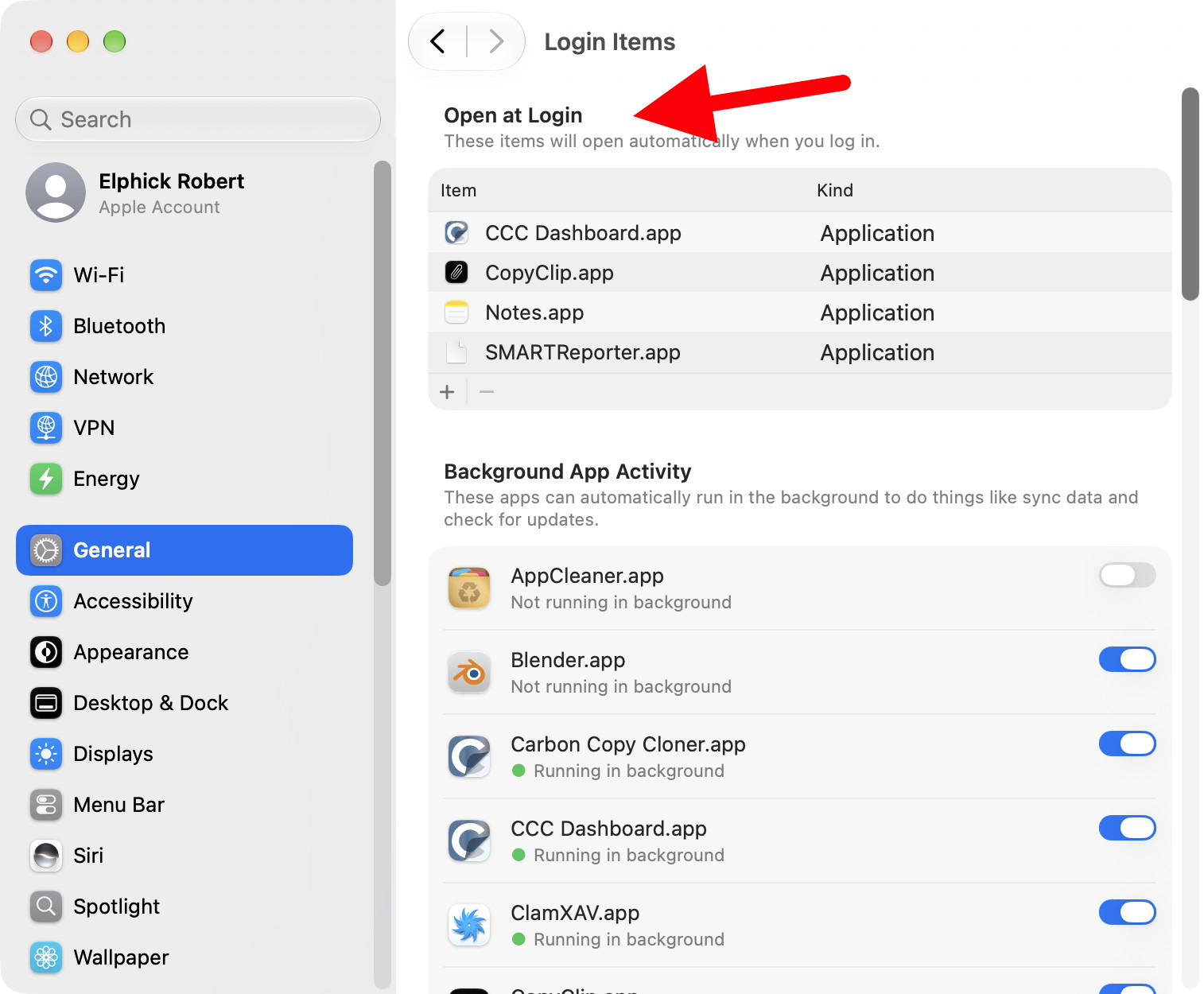
Login items in the System Settings
Mac is really slow
Macs are speedy machines, so if you start to notice a slowdown it's usually a simple fix. The first thing to do is to check you don't have a bunch of unnecessary apps running, which you can see by looking at the Dock to check what's active. Check Settings › General › Login Items and remove any unnecessary apps from that too, and while you're there see if anything unnecessary is in App Background Activity. Use Activity Monitor (it is in the Utilities folder inside the Aplications folder) to see if any apps are using abnormal amounts of data (web browsers can be bad for this) and restart any offenders.
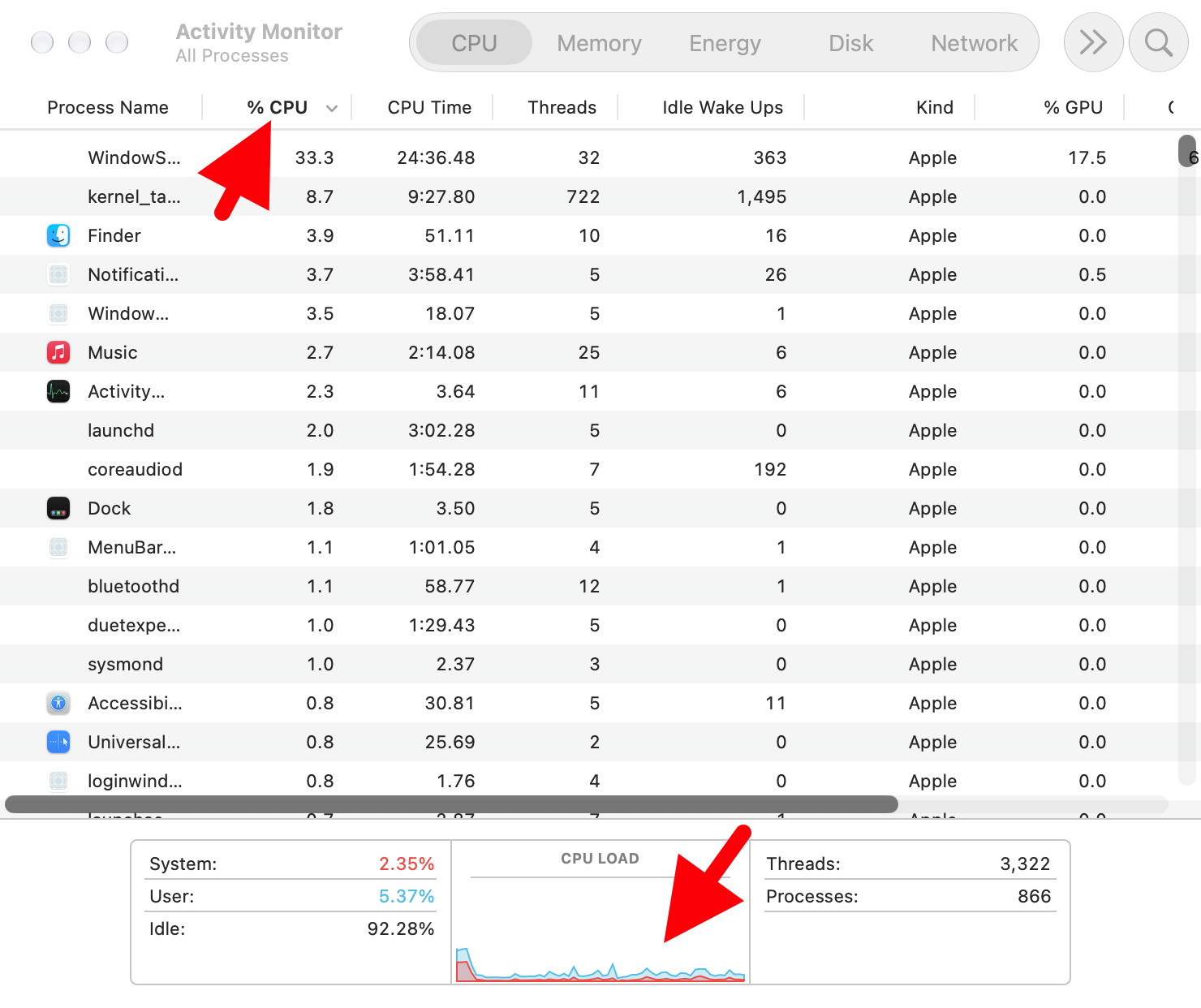
Check for unusually high % cpu (top arrow)
Check for unusually high cpu load (bottom arrow)
Also, check your Mac's storage. If there isn't enough space on your macOS disk or solid-state drive (SSD) it can slow your system. Use Settings › General > Storage to free up space.
My devices aren't working properly
If you're encountering problems with USB-C such as external drives transferring data very slowly, connection errors, display issues or slow charging, the culprit could well be your cable: while all USB-C cables have the same connectors, their capabilities and speeds can differ dramatically. WhatCable can identify connected cables and tell you how fast they are, how much power they can deliver and whether they're just USB 2.0 with a different connector. It can also show you what speed they're being given via devices such as USB hubs.
How to use Disk First Aid and Recovery
You can access the First Aid feature in two ways: by running Disk Utility inside macoS - it's in your Applications › Utilities folder - or on startup. For the latter on a Mac powered by Apple silicon, you need to go into recovery mode. Shut down your Mac and then press and hold power/Touch ID and wait until you see 'Loading Startup options' or the Options button. Release the power/Touch ID. Click Options, then Continue, then Disk Utility.
Disk First Aid is part of the Disk Utility - Find it in the Utilities folder inside Applications Folder. To use it, select the appropriate volume in the left column, such as Macintosh HD, and choose First Aid.
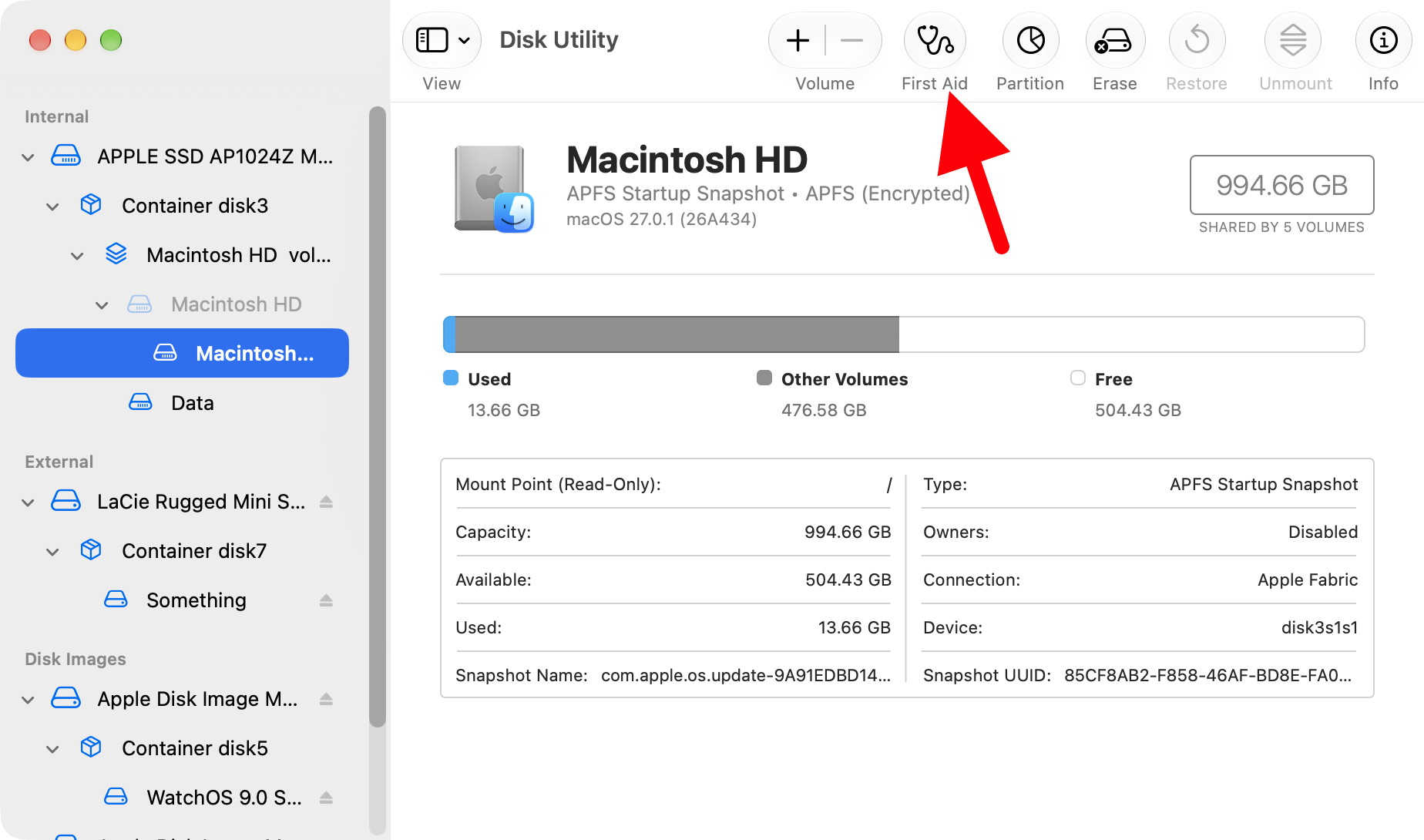
Use First Aid (arrow) to check for disk problems.
It'll then scan for errors and attempt to repair any formatting and structural errors that it finds on the selected volume. Those errors can be the cause of mysterious macOS crashes and file problems.

Copyright: ©Macintosh Appreciation Group of Island County (MAGIC) 2013 - 2026
last updated: 5 November 2026