Image editing in QuickLook
QuickLook allows a user to quickly look at an image by selecting it and then hitting the spacebar on the keyboard. It works on all the common formats of image files including:
- jpeg/jpg
- tiff
- gif
- bmp
- png
- heic
- jfif
- webpb
Incidentally it also reads most text formats, PDF files, and most archive files.
Find a graphic file that you would like to edit, select it by clicking on it once only, and then tap on the spacebar.
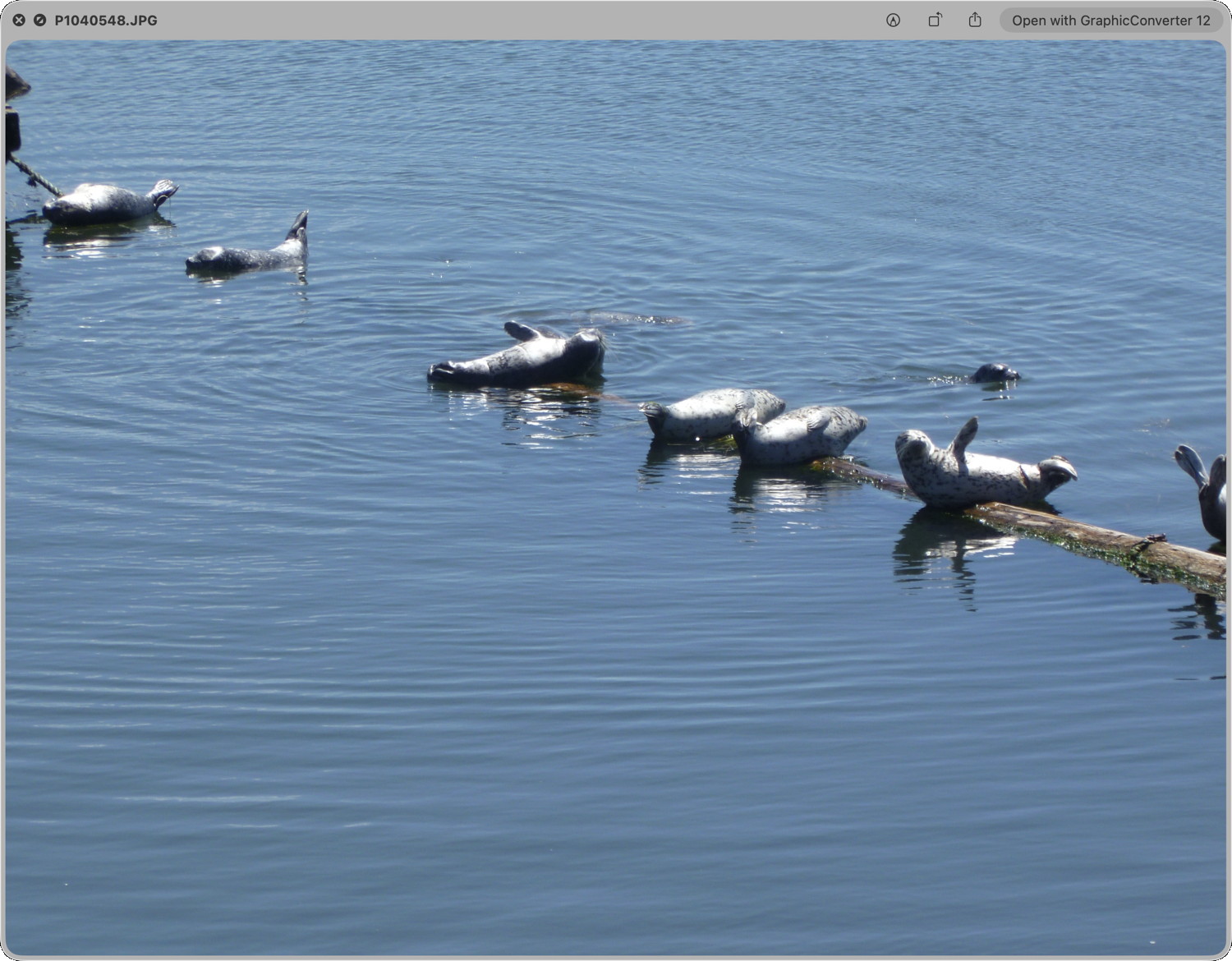
In the top right of the header if the image you will find the edit icon (red arrow below)
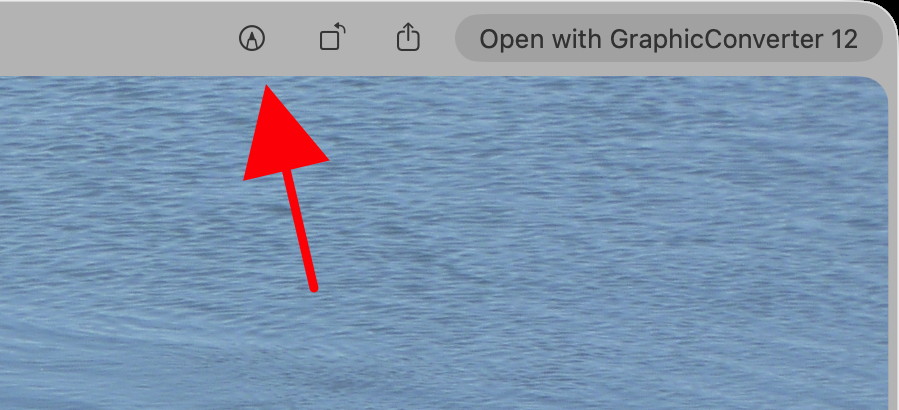
Click on it to get the editor running. The top left of the window will now have the image editing tools:
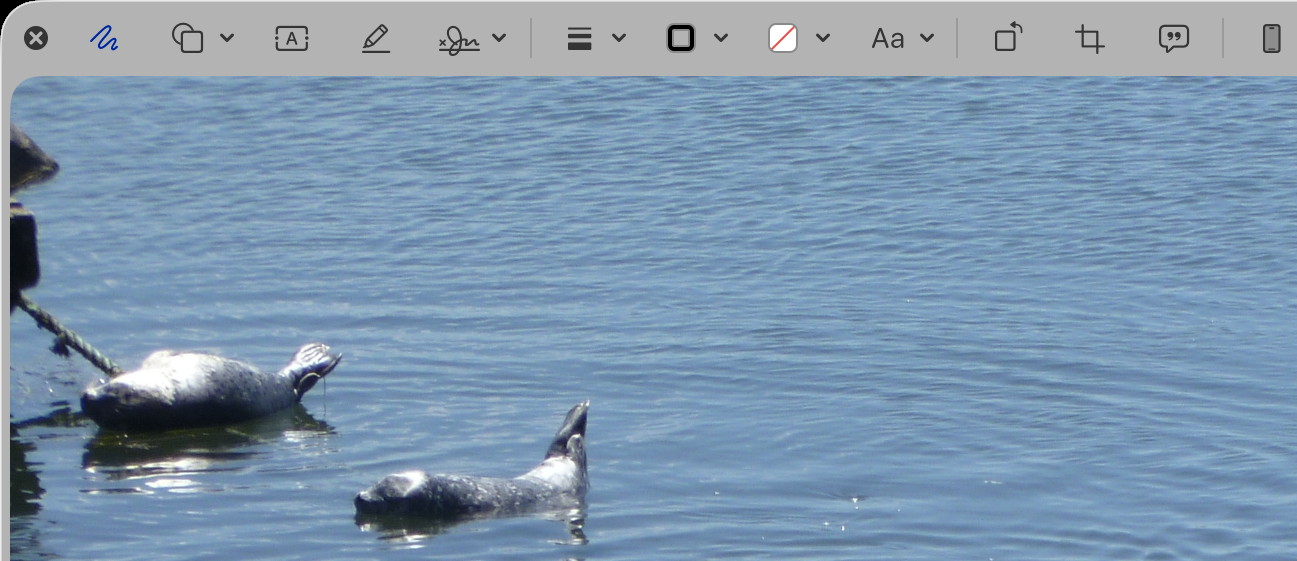
From left to right, here is what each tool does. Note that the ones with a down arrow will open up a sub menu with more options:
| Tool | Description |
|---|---|
 |
Sketch a shape using a single stroke. If your drawing is recognized as a standard shape, it’s replaced by that shape; to use your drawing instead, choose it from the palette that’s shown |
 |
Click a line or a shape, then drag it where you want. To resize the line or shape, use the blue handles. If a shape has green handles, use them to alter the shape |
 |
Type your text, then drag the text box where you want it to be |
 |
Highlight selected text |
 |
Add Signature |
 |
Change the thickness and type of lines used in a shape, and add a shadow |
 |
Change the color of the lines used in a shape |
 |
Change the color that’s used inside a shape |
 |
Change the font or the font style and color |
 |
Rotate the selected object |
 |
Crop. Hide part of an item. Drag the corner handles until just the area you want to keep is shown within the frame’s border. You can also drag the frame to reposition it. When you’re ready, click Crop |
 |
Enter, view, or edit a description of an image. (The tool is highlighted when an image has a description.) Image descriptions can be read by screen readers and are useful for anyone who has difficulty seeing images online. For example, if you’re using VoiceOver, the built-in screen reader on Mac, you can press the VoiceOver command VO-Shift-L to hear a description of the image in the VoiceOver cursor. |