Mac Appreciation Group of Island County
Newsletter
November 2026
In This Issue:
- MAGIC MUG News
- Software Updates
- News, Information and Stories (Mac OS)
- iPhones, iPods, iPads, AirPods
- Apple Watch, Apple TV, HomePod, AirTag, AR Headset, Vision Pro
- Humor
- Malware and Mischief
- Sell or Swap
- By The Way
* Indicates author is a member of MAGIC

Meeting information
| Date |
18 November 2026 |
| Time |
4:00 - 5:00 p.m. |
| Presentation: |
• Introduction with Mike Turnbull
• "Medical Applications" with Gary McIntyre |
| Location: |
by Zoom online |
MAGIC Minutes for 21 October, 2026
by Wendy Shimada, MAGIC Secretary
At 4:02 p.m. President Mike Turnbull welcomed everyone and called the meeting to order with 14 attendees present within a few moments. Several attendees experienced issues again logging in. Mike noted that Zoom seems to be trying some new tactics to encourage users to use the Workplace app, which gives them additional info on zoom users. It's annoying.
This month's presentation will explore Safari with some tricks and tools with Ron Sharp. This will be followed by Q&A.
Treasurer Carol Heimgartner gave the monthly report, explaining that two monthly $30 Whidbey Telecom bills (for website hosting services) were paid during this accounting period, due to the timing of the bills. Carol also filed the annual report to the Washington Secretary of State, which she explained is a very simple form, due to our income. She paid for the $20 filing fee and made that payment her donation to MAGIC, leaving a bank balance of $3994.60. Thank you, Carol!
Ron then presented a very interesting session on Safari, which concluded at 4:40 p.m., after which Ron and Robert answered a few members' questions.
To see previous monthly presentation video tutorials either visit the MAGIC website at https://www.whidbey.com/magicmug/data/zoom.html or just click on the MAGIC logo at the top of the monthly newsletter; it is a direct link to the MAGIC website, which offers many excellent tips and tricks, along with instructional video sessions from past meetings.
Mike reminded everyone that next month's Zoom meeting will be on November 18 with Gary McIntyre providing us an educational session on Medical Applications. As MAGIC does not hold meetings in December, it will be the last meeting of the year. He hopes we can nail down an easier way to allow members to sign in before November's meeting. The meeting was adjourned at 5:02 p.m.
MAGIC Musings
Greetings Magic Members,
It's November and the holiday season is (already) ahead of us. Our next and final 2026 Zoom Meeting is Wednesday, November 18th. Gary will be doing a presentation regarding Apple medical apps on our various devices. This includes Apple Fitness and closing our Fitness "ring," a daily occurrence for me.
If you can't make any of our live presentations, the MAGIC website includes a page with links to the recording of every live Zoom presentation. Please utilize these recordings whenever needed.
There is no December Zoom meeting. However, you will receive a newsletter in December.
Cheers,
Mike
MAGIC President
Note: This Software Update section of the newsletter lists the most relevant Apple updates. Not all updates are listed for all products. Additionally, I'll add other pertinent updates on occasion.
iOS 27.2 adds two new features I've been really loving
by Ryan Christoffel, 9to5mac
iOS 27.2 arrived last week with a variety of new features and changes for iPhone. Here are two new iOS 27.2 features I've been loving lately.
#1: Podcasts introduces 'New Episodes' and 'Continue Playing' sections
I've used Apple Podcasts for the last few years after previously sticking with third-party apps. The native Podcasts app won me over with excellent features like transcripts and automatic chapters.
My main hesitation in recommending the Podcasts app, however, has been its confusing Up Next queue. Thankfully, iOS 27.2 delivers a long-awaited fix.
In iOS 27.2, the Home tab in Apple Podcasts splits Up Next into two separate sections: New Episodes and Continue Playing.
hese new sections offer, in my view, a much better system than what was there before. I no longer lose track of episodes I've previously started, since they're not getting replaced by new episodes in my queue. Instead, there's a clear divide between what's new and what's in-progress.
#2: Apple Photos makes Shared Albums even better
Shared Albums have long been one of my favorite features in Apple Photos. I don't post on social media often, but I do love sharing photos and videos with close family and friends via the Photos app.
iOS 27 brought big upgrades to Shared Albums, the first notable changes in years. And to my surprise, Apple has already introduced even more improvements with iOS 27.2. Per Apple:
Shared Albums in Photos adds the ability to edit captions and comments, to avoid adding duplicate photos, and can display a reminder before albums expire so participants can save important photos and videos
Support for editing captions and comments is long overdue, but a welcome addition. I also love the prompt that helps prevent duplicate photos, because I always find myself needing to double-check if I've shared certain photos already—now I don't have to anymore.
iOS 27.2 honorable mentions: iPhone Duo features, Find My, CarPlay, and more
There are a ton of other great additions in iOS 27.2, which you can read about below:
CarPlay: iOS 27.2 has two CarPlay improvements, here's what's new
iPhone Duo: iPhone Duo just got two new features in iOS 27.2
Find My: iOS 27.2 adds new Find My feature at just the right time
Siri AI: Siri AI keeps getting better, here's what's new in iOS 27.2
Messages: iOS 27.2 adds new Messages feature that's already a favorite
Click for article.
Apple releases new tvOS 27.2 build ahead of updated Apple TV 4K launch
by Marcus Mendes, 9to5mac
Ahead of the new Apple TV 4K's November 13 launch, Apple today released an updated build of tvOS 27.2 exclusively for the fourth-generation model. Here are the details.
New tvOS 27.2 build available for upcoming Apple TV 4K
Last week, Apple released tvOS 27.2, alongside iOS 27.2, iPadOS 27.2, macOS 27.2, watchOS 27.2, and visionOS 27.2.
The update brought a handful of new features to Apple TV 4K users, including a new Shuffle option for screen savers, more control over which photos appear in screen savers, and support for American and British Sign Language in select movies and TV shows.
Today, Apple released a new build of tvOS 27.2 (24K154), specifically for the fourth-generation Apple TV 4K, which is currently available for preorder ahead of its November 13 launch. For reference, last week's build version was 24K122, which means the new hardware is getting a different build of the same software update.
At the time of writing, Apple has yet to detail what, if anything, has changed in the new build. The release notes for tvOS 27.2 remain unchanged, and there are no separate release notes for this specific build.
Likewise, the previous build, 24K122, remains the latest version for existing Apple TV models.
The new Apple TV 4K launches on November 13, starting at $299. Among its biggest upgrades are support for Siri AI, built-in far-field microphones for hands-free voice commands, and a new surround sound feature that lets users pair four compatible HomePods as front and rear speakers.
It also comes with a fourth-generation Siri Remote that supports Precision Finding and can play a sound to help users locate it. The new Siri Remote is backward compatible with previous Apple TV 4K models and the Apple TV HD.
Update, 4:00 p.m. ET: According to @itspdfu on X, the new build enables Siri AI on the fourth-generation Apple TV 4K, a feature that was previously restricted to internal builds. This suggests Apple may soon release an updated build of tvOS 27.2 for existing Apple TV models as well.
Click for article.
Reviewers feel meh about MacBook Pro's touchscreen, love the OLED display
by Ed Hardy, cultofmac
Early reviews of the MacBook Pro with PROLED XDR Display are absolutely gushing with praise for the active OLED screen, the first in an Apple laptop. Reactions to the touchscreen are much more muted, despite how much attention the feature drew before the product's release.
Here's what some reviewers said about the new computer.
It's an OLED MacBook Pro that also has a touchscreen
In the run-up to the launch of the latest MacBook Pro, much of the discussion focused on it being the first Mac with a touchscreen, with the OLED display drawing less attention. Now that the laptop is about to reach customers, there's been a significant shift.
The early reviews of Apple's latest laptop confirm the company's own comments that touch control is a secondary feature, not meant to replace the trackpad and keyboard. macOS has not been redesigned around our fingers.
The Verge:'Keep forgetting'
The reviewer for The Verge is a prime example. "I keep forgetting the MacBook Pro with PROLED XDR Display has a touchscreen," wrote David Pierce.
But he went on to say, "As for the OLED itself, it's gorgeous. It's sharp and contrast-y, gets both very bright (though it only hits peak brightness under very specific conditions) and very dim, and is better even than the very good screens on Apple's other laptops."
Gizmodo: 'Occasionally useful'
Gizmodo reviewer Kyle Barr said much the same. "You're not going to end up using a touch display all too often," Barr wrote. "The touchscreen is occasionally useful. It's not the end-all-be-all. But it sure is handy."
And the same review talks up the "amazing OLED that beats the competition."
TechRadar:'Not its most interesting feature'
The MacBook Pro with PROLED XDR Display review from TechRadar basically said the same thing.
"The touchscreen is arguably not its most interesting feature; it works fine, but macOS is still an operating system built for traditional laptop inputs," wrote Matt Hanson. "Instead, it's the gorgeous tandem OLED screen and industry-leading battery life that should get you excited here."
Tom's Guide: 'Smooth and snappy'
The reviewer from Tom's Guide became a bit of a standout.
"I don't often use touch controls on laptops with touchscreens because they can feel clunky, but I found myself using the MacBook Pro's touch controls more than I expected," wrote Tony Polanco. "Tapping, swiping, and even pinch-to-zoom are as smooth and snappy as on an iPad Pro."
But the look of the screen drew at least as much praise. Polanco said the computer "impresses thanks to its astonishing touchscreen OLED display that's the brightest we've ever seen on a laptop."
Plenty more praise for the MacBook Pro with PROLED XDR Display
Naturally, the reviews didn't spend all their time talking about the screen in the latest MacBook Pro.
The Verge said, "The half-pound weight decrease (more than two-thirds of a pound on the 16-inch model!) is what really impresses me." And the Gizmodo review echoed that opinion: "The 0.5 pounds less heft that you carry around with the 3-pound, 14-inch MacBook Pro with PROLED XDR is massive."
TechRadar found "incredibly long battery life" while Tom's Guide described the battery life as "epic."
Continue reading....
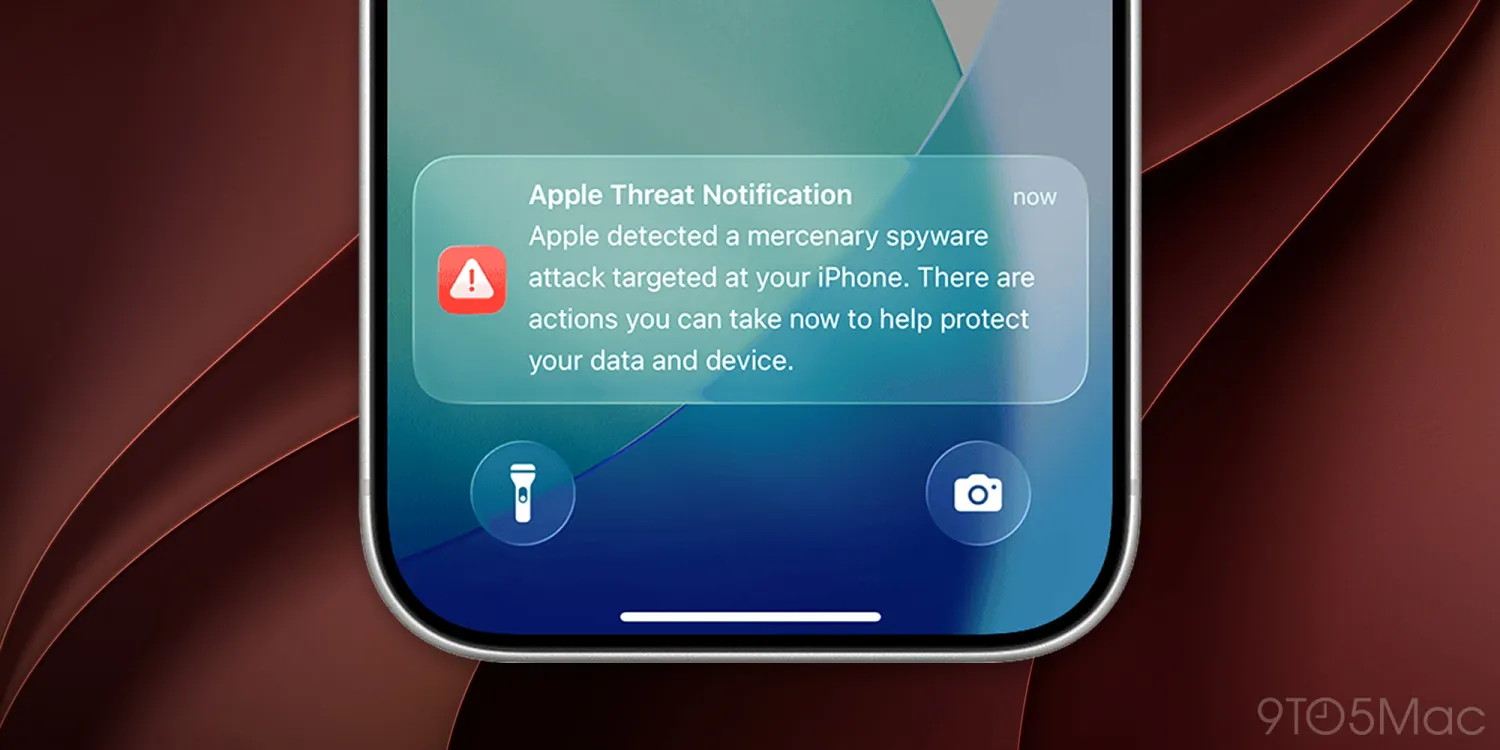
Apple recently notified users in 99 countries of potential mercenary spyware attacks
by Marcus Mendes. 9to5mac
Apple reportedly sent notifications to users in 99 countries warning of potential mercenary spyware attacks, as German authorities investigate reports that lawmakers and government officials may have been targeted. Here are the details.
Apple sends out fresh batch of spyware attack alerts
A couple of reports from The Financial Times and TechCrunch today offer complementary details about a new wave of Apple threat notifications warning users that they may have been targeted by mercenary spyware.
As we've covered before, Apple periodically sends out threat notifications to users it believes may have been targeted by mercenary spyware attacks. The company doesn't disclose who may be behind the attacks or confirm whether a device has been compromised, but advises recipients to take the warnings seriously and seek expert assistance.
You can learn more about Apple's recommendations for protecting against mercenary spyware, including how to enable Lockdown Mode, here.
Back to today's reports, The Financial Times says that German lawmakers and government officials began receiving threat notifications from Apple last Thursday, prompting the country's Federal Office for Information Security to issue an urgent warning over the weekend.
The agency advised recipients to "assume their device is no longer secure," while the German government said it was "taking the incident and the warning very seriously" and "working flat out to investigate the circumstances of the incident."
The FT noted that German government spokesperson Stefan Kornelius declined to say whether Chancellor Friedrich Merz was among those affected, and added that the attacks reportedly exploited a "zero-click" vulnerability, allowing attackers to compromise devices without any interaction.
Knowledge of their targets' phone numbers was all that the hackers needed to carry out the attack.
As it reported on the alerts, TechCrunch noted that "others outside of Germany also received the recent threat alert from Apple," including Radwan Mortada, a Beirut-based filmmaker, who shared his alert on X.
From TechCrunch:
It's unclear who is behind this latest round of spyware attacks, or which government may have orchestrated the targeting. Per the notice received by Mortada, Apple said its latest batch of threat notifications went out to users in 99 countries.
Mortada also noted in his tweet that he had previously been targeted by Pegasus spyware in 2017 and 2021, and that he does not know who was behind the latest attempt or whether it was connected to an investigative documentary he directed.
Click for article.
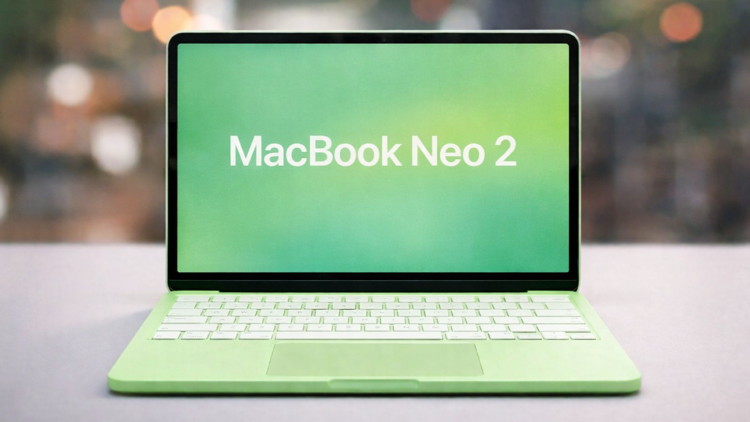
MacBook Neo 2 launch still on course for first half of 2027
by Anurag Chawake, cultofmac
Apple's wallet-friendly MacBook is said to be getting a sequel in the next few months. The MacBook Neo 2 release date is reportedly set for the first half of 2027, and is expected as early as spring.
That would put the successor a year after the original arrived in March. It's drawing attention because the sophomore version will almost certainly address one of Neo's biggest compromises: 8GB of RAM.
The MacBook Neo is Apple's entry-level laptop introduced as a more affordable alternative to the MacBook Air. Starting at $699, the 13-inch laptop offers a lightweight design and a battery designed to last through a full day. Apple kept costs down by using an iPhone-class processor: an A18 Pro chip originally developed for the iPhone 16 Pro.
Bloomberg said on Tuesday Apple is still planning to release a second-generation MacBook Neo sometime in the first half of next year. That window runs all the way from January to June. Although that report didn't get more specific, the most likely launch time is considered to be March 2027.
A welcome jump in RAM
Although the original MacBook Neo quickly proved to be very popular, it did draw criticism for its 8GB of RAM. The second-generation version is widely expected to increase that by 50% based on how Apple sources the processor.
The original uses A18 chips leftover from producing the iPhone 16 Pro and iPhone 16 Pro Max. These were made with 8GB of RAM. The follow-up notebook will need to use A19 chips, and these were all made with 12GB of RAM.
While the MacBook Neo meets the needs of entry-level users with 8GB of RAM, no one will object to a memory bump. The MacBook Air starts at 16GB, which is double what the Neo offers.
Memory costs have already pushed up the Neo's price
Apple originally launched the MacBook Neo with a price tag of $599. It then raised that to $699 in June amid a memory chip shortage. The 512GB model with Touch ID went from $699 to $799.
No pricing details for the Neo 2 have surfaced so far, but don't anticipate it being $599.
The Neo gets some credit for Apple's market-share gain
New data from Counterpoint Research shows Apple's share of worldwide PC shipments increased from 8.7% to 9.8% in the third quarter of 2026. This happened despite overall PC shipments falling 21% to just 57 million units. That means Apple gained share even as Mac shipments fell.
The report identified the Neo as a key contributor to Apple's performance. "The MacBook Neo helped cushion the decline, allowing Apple to outperform the overall market," said Counterpoint's report.
If Bloomberg's timing holds, Apple has until June to deliver MacBook Neo 2 and bring in a new rush of orders. Still, treat the launch window as a target, not a promise.
Click for article.
Watch Apple's new touchscreen MacBook Pro in action with Labrinth's livestream
by Michael Simon, macworld
Apple's new touchscreen MacBook Pro takes the spotlight before its Friday launch.
If you pre-ordered a new MacBook Pro, you're probably counting down the hours until it arrives. While you wait, you can get a look at it in action during a unique livestream from the Downtown LA Apple Store
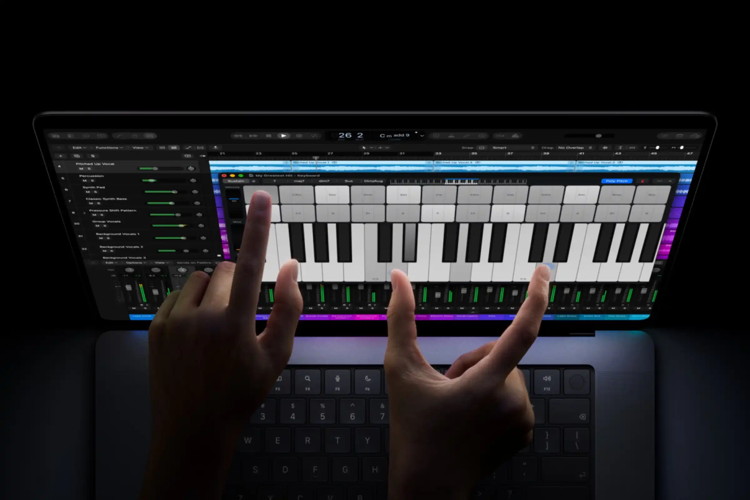
At 11 pm ET, British singer, songwriter, composer, and record producer Labrinth will compose a song from scratch using the new MacBook Pro with PROLED XDR Display and Logic Pro. The whole process will be livestreamed on YouTube directly from the Apple Store, "allowing viewers to watch his creative inspiration unfold in real time and ask him questions as he works."
The YouTube description merely says Labrinth will be "experimenting with some new ways of making music," but it's safe to assume Apple's new touchscreen interface will be the star of the show. At the Pro and Tell experience, which also took place in LA, Apple demoed the new Touch capabilities of Logic, including playing a keyboard on the screen.
You can watch the livestream on Labrinth's YouTube channel below and listen to the completed song next week on Apple Music.
Click for article.
Remove colors from Color Fill
by Robert Elphick, MAGIC
When the color fill window has way too many colors in it and you can no longer find the colors that you want, you can remove them:
- Click and drag one of the color boxes away from its place in the grid and hold still for a moment. All of a sudden the original color box will look like it has been selected. You can let go now.
- Hit Delete
- Click on another box then Delete
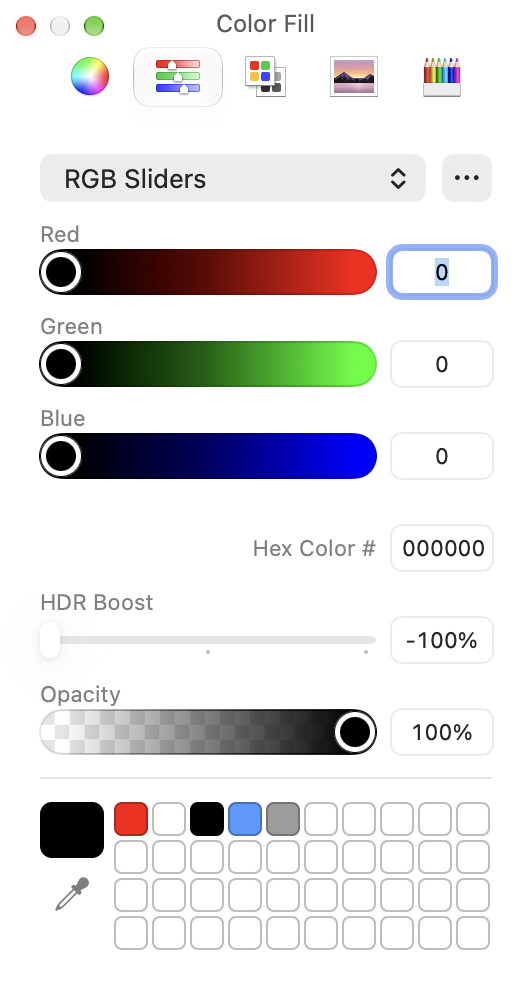 After cleaning out all the accumulated colors
Click for article on MAGIC 'Tips and Tricks' website page.
Trouble Shooting Guide
by Robert Elphick, MAGIC
MAGIC highly recommends that you print this web page and keep is handy just in case your computer dies and you do not know what to do.
CONTENTS
Mac will not start
Try:
- Press and hold the power button for ten seconds, wait ten seconds, and then press the power button normally.
- If your Mac still doesn't start, check the obvious things first.
- Unplug any connected accessories and make sure your external display, if you use one, is connected and switched on.
- If your Mac is a laptop you may have a flat battery; connect the charger and try again in several minutes.
- For desktop Macs, check your power cable to ensure it's properly connected and plugged in properly; if that all looks fine try a different power cable. If the power supply's on an extension lead, try another.
If none of these work then seek professional help from MAGIC or Apple.
Mac freezed at login
If your Mac freezes when you first loq in, the problem is likely to be an app or extension that loads at startup; a restart should fix it. Press and hold the power button for 10 seconds to shut down your Mac.
For startup freezes, shut down your Mac then press and hold the power button until you see Loading startup options. Choose the volume where macOS lives, then hold down Shift to load macOS in safe mode. If that works, go to Settings > General › Login Items and disable the items in Open At Login. Restart your Mac.
If none of this works then seek professional help from MAGIC or Apple.
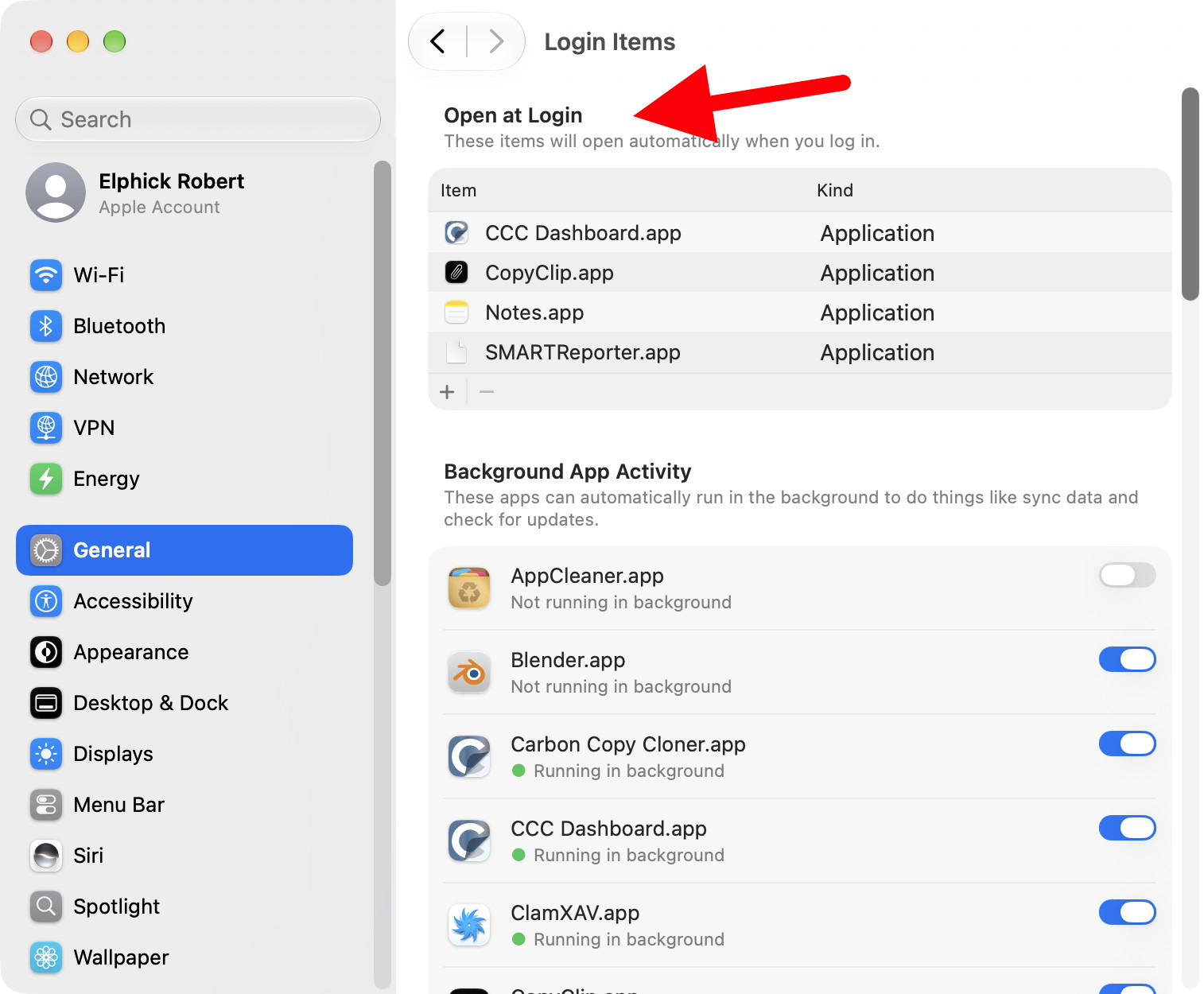 Login items in the System Settings
Mac is really slow
Macs are speedy machines, so if you start to notice a slowdown it's usually a simple fix. The first thing to do is to check you don't have a bunch of unnecessary apps running, which you can see by looking at the Dock to check what's active. Check Settings › General › Login Items and remove any unnecessary apps from that too, and while you're there see if anything unnecessary is in App Background Activity. Use Activity Monitor (it is in the Utilities folder inside the Aplications folder) to see if any apps are using abnormal amounts of data (web browsers can be bad for this) and restart any offenders.
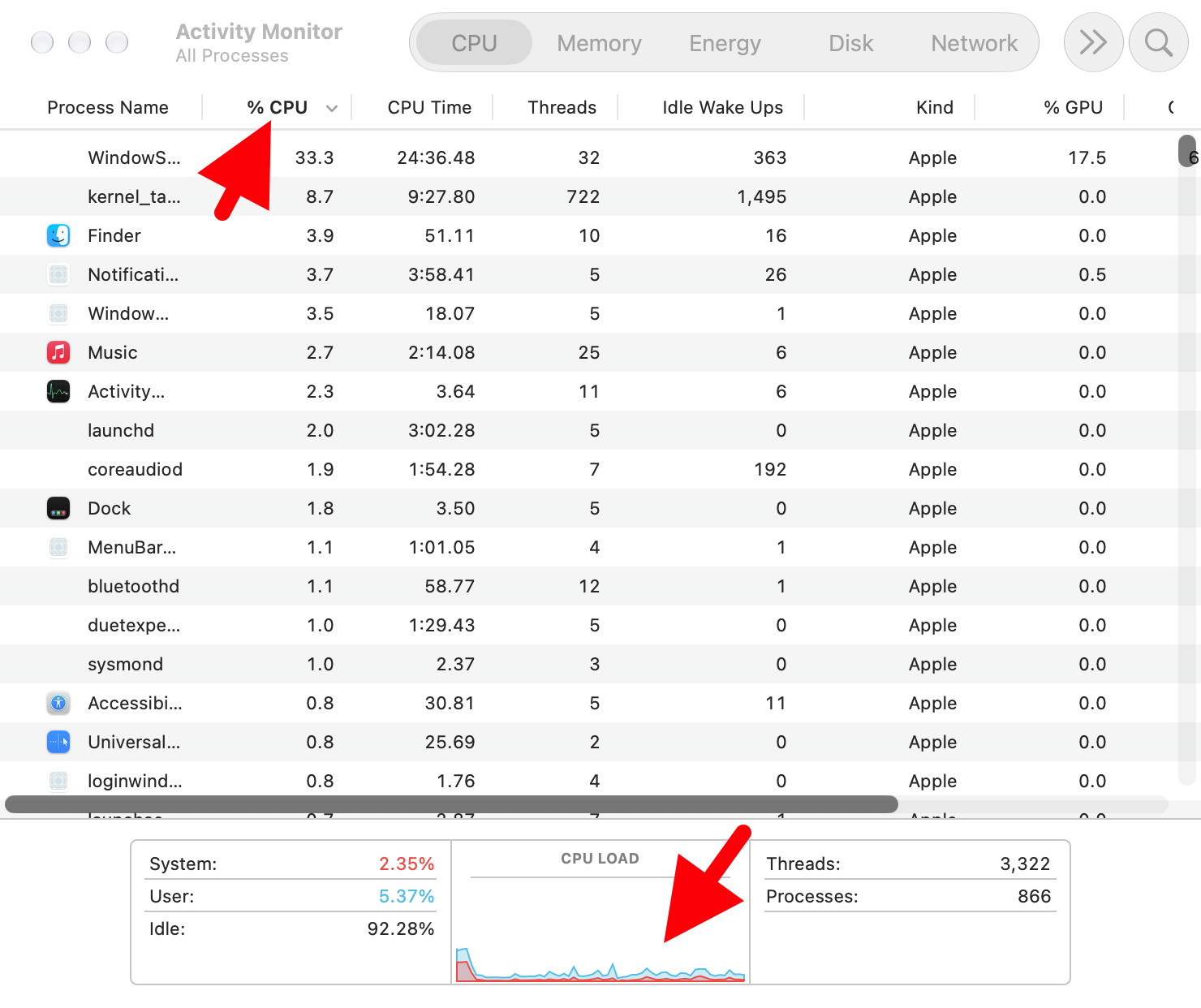 Check for unusually high % cpu (top arrow)
Check for unusually high cpu load (bottom arrow)
Also, check your Mac's storage. If there isn't enough space on your macOS disk or solid-state drive (SSD) it can slow your system. Use Settings › General > Storage to free up space.
My devices aren't working properly
If you're encountering problems with USB-C such as external drives transferring data very slowly, connection errors, display issues or slow charging, the culprit could well be your cable: while all USB-C cables have the same connectors, their capabilities and speeds can differ dramatically. WhatCable can identify connected cables and tell you how fast they are, how much power they can deliver and whether they're just USB 2.0 with a different connector. It can also show you what speed they're being given via devices such as USB hubs.
How to use Disk First Aid and Recovery
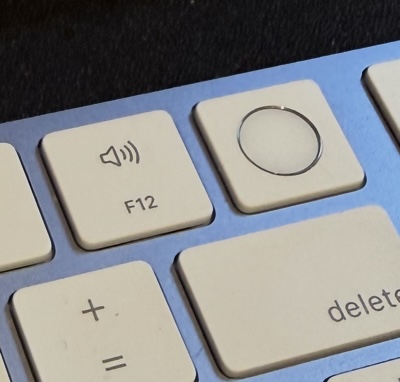
You can access the First Aid feature in two ways: by running Disk Utility inside macoS - it's in your Applications › Utilities folder - or on startup. For the latter on a Mac powered by Apple silicon, you need to go into recovery mode. Shut down your Mac and then press and hold power/Touch ID and wait until you see 'Loading Startup options' or the Options button. Release the power/Touch ID. Click Options, then Continue, then Disk Utility.
Disk First Aid is part of the Disk Utility - Find it in the Utilities folder inside Applications Folder. To use it, select the appropriate volume in the left column, such as Macintosh HD, and choose First Aid.
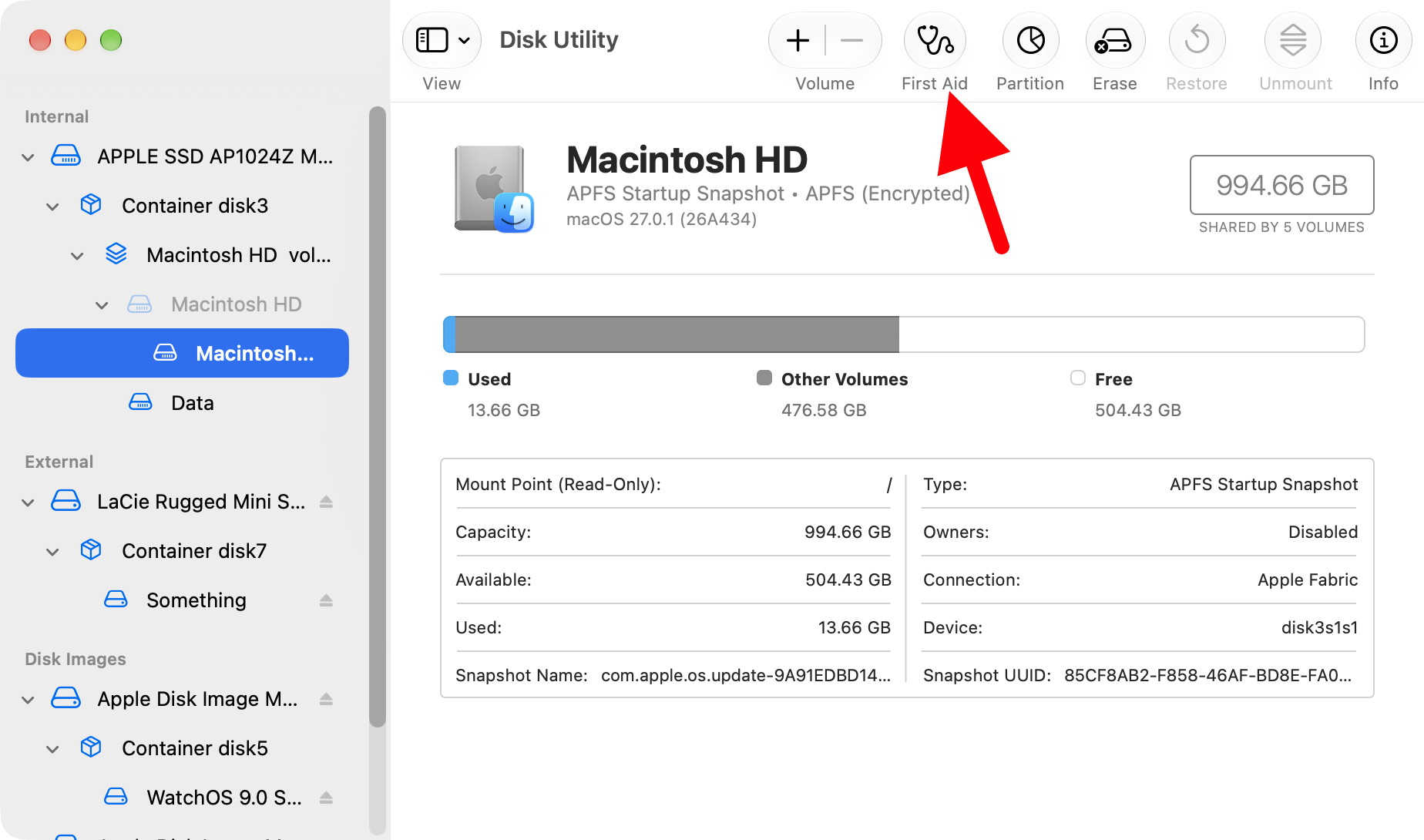 Use First Aid (arrow) to check for disk problems.
It'll then scan for errors and attempt to repair any formatting and structural errors that it finds on the selected volume. Those errors can be the cause of mysterious macOS crashes and file problems.
Click for article on MAGIC 'Tips and Tricks' website page.
WIZARD SEZ: We suggest you click on the above link and then print the article 'Just in Case'.
Turn off Apple Intelligence in macOS 27
by Robert Elphick, MAGIC - based on a feedback in the Apple Community Discussions
As of OS 27.2 Apple have allowed users to remove the Apple Intelligence elements that they do not want. Here is some dialog from the Apple Community. Our thanks to MAGIC board member Adel Brown for bringing this to my attention.
Last modified Nov 4, 2026 12:56 PM
Siri
- You will need to enable Screen Time to block Siri. Go to System Settings > Screen Time > Contents & Privacy.
- Turn off the Contents & Privacy switch at the top of the screen.
- Click Siri.
- Change Siri to Siri Classic or even Don't allow Siri.
- Go through the list of Capabilities and turn each one off.
- Go back up to Contents & Privacy.
- Click on Accessibility.
- Turn off Allow Ask.
Safari
- In Safari, choose Settings from the Safari menu.
- Click Tabs.
- Set Organize Tabs to Never.
- Click Search.
- Ensure Include search engine suggestions and Include Safari Suggestion are turned off.
Reminders
- In Reminders, choose Settings from the Reminders menu.
- Turn off Show Suggestions.
Phone
- n Phone, choose Settings from the Phone menu.
- Turn off Use Apple Intelligence to get suggested actions for voicemails.
Notifications
- Go to System Settings > Notifications.
- Turn off the Summarize notifications.
Messages
- Launch Messages.
- Go to Settings > General.
- Turn off Summarize Messages.
Mail
- Launch Mail.
- Go to Settings > Viewing.
- Turn off Summarize Message Previews.
- Go to Settings > Composing.
- Turn off Personalize Smart Replies.
- Go to the View menu and make sure Show Mail Categories is not checked.
- Go to the View menu and make sure Show Priority Messages is not checked.
Journal
- Launch Journal.
- Go to Settings > General.
- Turn off Get Writing Prompts.
See: Turn off and restrict access to Apple Intelligence features on Mac - Apple Support,
Finder & other apps
- In Finder, go to Finder > Settings
- Uncheck Suggest file names
Thanks to itsmeaf for the tip!
Siri & other apps
As of macOS 27.2
- Go to System Settings > Siri.
- Click on Excluded Apps.
- Scroll to the bottom and click on Add Apps.
- Click the button next to each app and then click Done.
- Go back one level and click on Suggestions.
- Turn each app off.
Before macOS 27.2
- Go to System Settings > Siri.
- Click on App Access.
- Click on each app and…
- Turn off Learn from this application.
- Turn off Show Siri Suggestions in application, if shown.
- Repeat for each app in the list, there should be at least 70 of them.
See: Customize Siri on Mac - Apple Support.
Also, for turning off Apple Intelligence for apps there is an easier way to do it besides going to each app individually. Go to Settings > Siri > and click on "Excluded Apps." Select any app you want to exclude.
Note: In System Settings > Privacy & Security, there is an Apple Intelligence Report. I recommend keeping this setting turned on so that you can verify that Apple Intelligence is truly not functioning.
Also review Analytics & Improvements and Apple Advertising to ensure you know what information is being sent back to Apple and other companies.
Click for article on MAGIC 'Tips and Tricks' website page.
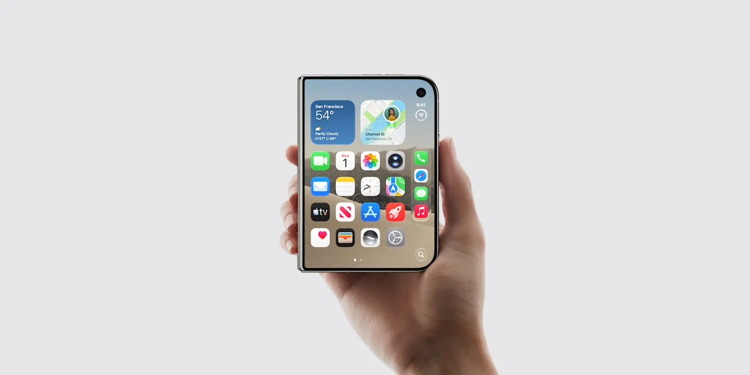
iPhone Duo durability tested on unfolding livestream, now over 260,000 folds
by Ryan Christoffel, 9to5mac
CNET built a 'Fold-a-Phone' machine that's been constantly folding and unfolding iPhone Duo for over a week to test durability, while livestreaming daily. Here's how it's going.
CNET machine is folding and unfolding iPhone Duo 24/7 with daily livestream
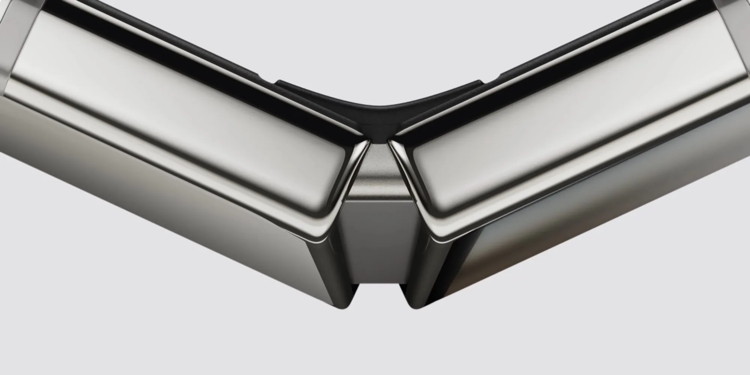
How durable is the iPhone Duo's hinge and folding display? Several early reviews tried to answer that question, including in some cases by building machines that constantly folded and unfolded the device.
But perhaps the best test yet is still ongoing.
CNET built a custom 'Fold-a-Phone' machine that has been folding and unfolding the iPhone Duo 24 hours per day, 7 days a week for over a week now.
Top comment by Gav Liked by 15 people
The issue with this is that it is kind of pointless, it is like the IP rating tests - very precise in lab conditions, but of limited value in the real world. As has been shown with all the recent foldables, in labs using machines they can do hundreds of thousands of folds. But in the real world, with varying conditions, dust, being put in and out of pockets, and with humans opening/closing, who do not repeat identically every time, these things will break more often. This isn't Apple related, it is just the reality of all foldables.
Click for article.
Apple Photos keeps getting better, here's what's new in iOS 27
by Ryan Christoffel, 9to5mac
iOS 27's biggest highlight is Siri AI, but the update also packs new features for apps like Messages, Notes, Wallet, and more. Here's everything new for Apple's Photos app in iOS 27.
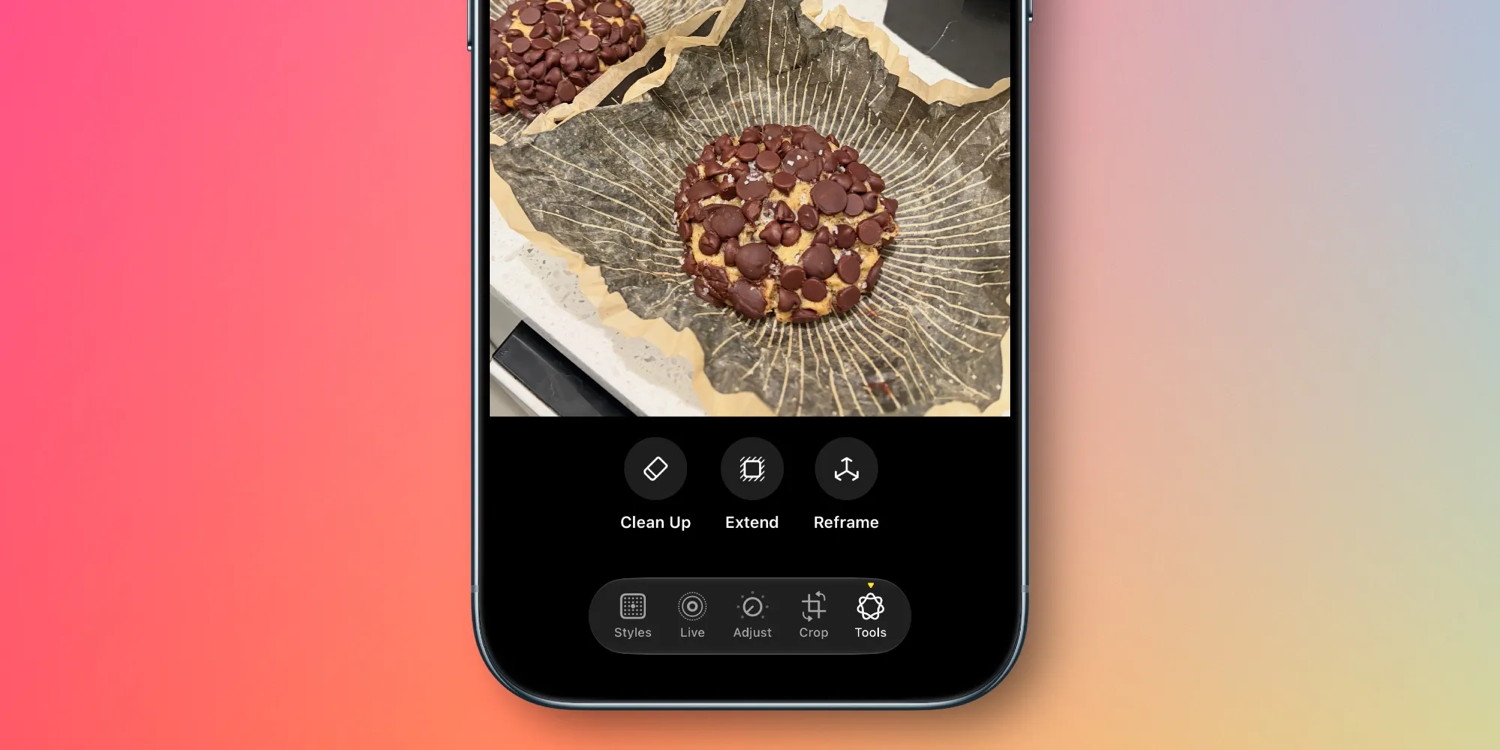
New editing tools: Extend and Reframe, plus improved Clean Up
Apple Intelligence powers a trio of editing tools in iOS 27's Photos app: Extend, Reframe, and a much-improved Clean Up feature.
Extend lets users "give their subjects more breathing room," per Apple. For example, "they can straighten a crooked horizon without cropping out anything important, or adjust the aspect ratio, and Extend will fill in the missing pieces."
Reframe lets you adjust the framing of your image spatially. Here's how Apple describes it:
With Spatial Reframing, users can improve the composition of a photo after it's been taken. Spatial Reframing builds on Apple's deep understanding of spatial models thanks to Apple Vision Pro, so users can touch and drag a photo and preview in real time how the perspective shifts — as if they'd repositioned the camera in the original scene. Using powerful image models, Spatial Reframing will only generate new content where the perspective has been shifted, ensuring the reframed photo stays consistent with the original scene.
And the Clean Up feature that debuted in iOS 18 "gets a major upgrade," Apple says, "so users can remove distractions with better quality and more realistic infill, even when the scene is complex."
Big upgrades to iCloud Shared Albums
iCloud Shared Albums get their first major upgrades in years with iOS 27. The timing is likely no coincidence, with the feature perfect for Apple's new HomeView product.
Here's an overview of what's new, per Apple:
- Full resolution photos and videos
- Shared Albums with Windows and Android
- React with any emoji
- Easier to save photos
- Expire your Shared Albums
- Additional participant permissions
New collections and organization tools
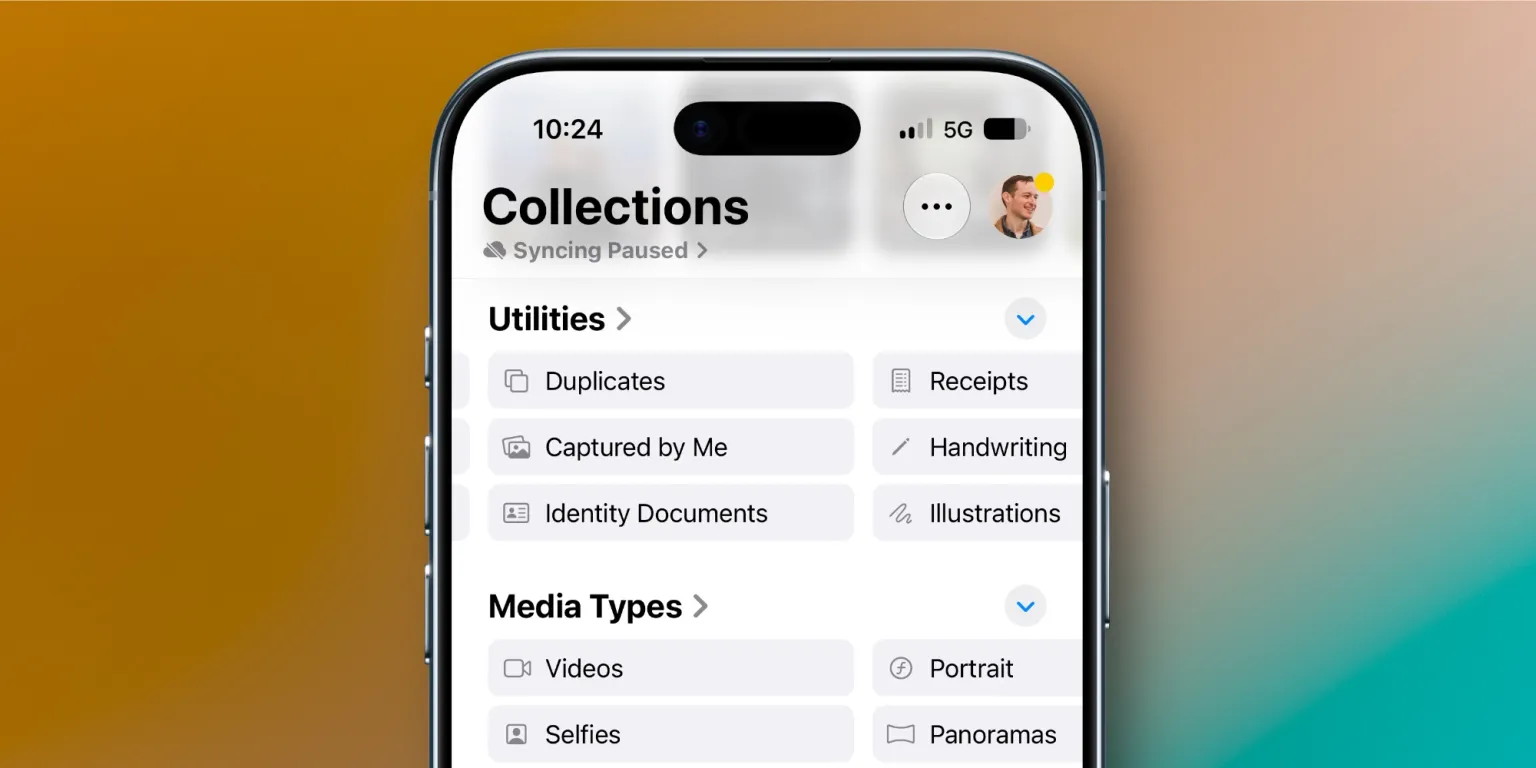
iOS 27 adds two new collections to the Photos app, available under Utilities.
Captured by Me exclusively contains photos taken by you. So it will filter out screenshots, photos you've saved from others, and so on.
Identity Documents scans through your Photos library and surfaces images that contain important reference documents, like your driver's license or passport.
Apple says iOS 27 also adds "Album organization improvements," but it doesn't mention specifics.
Another new organization tool in iOS 27 is that you can add keywords to photos. Captions are still available too, but if you scroll up on a photo, near the bottom you'll find a new 'Add Keywords' option.
Slideshow improvements
Another upgrade perfect for HomeView involves slideshow improvements.
Apple Photos has supported quick, easy slideshow creation for years. But if you wanted to customize the automatically generated slideshows, you were out of luck.
Now in iOS 27, slideshows offer new tools for customization. You can change the transition type, set a custom length for the full slideshow and for each photo, and more.
Another welcome addition is that Apple now lets you save any slideshow as a video with one tap.
Apple Photos in iOS 27: wrap-up
iOS 27 doesn't contain any big changes to the design of the Photos app, so if you were hoping to go back to the pre-iOS 18 era, you'll be disappointed. But the update does offer a variety of exciting new features that make iOS 27 a big release for Apple Photos.
Click for article.
John Ternus talks plans to improve Siri AI
by Ryan Christoffel, 9to5mac
During Apple's quarterly earnings call, CEO John Ternus was asked repeatedly about Siri AI's future. Here's what he said about Apple's plans for improving and expanding Siri AI.
John Ternus says there's 'so much more' Apple plans to do with Siri AI, hints at agentic capabilities
Sometimes when Apple launches a new feature or product, the company sees its work as finished, and whatever ships goes unchanged for far too long. Many might characterize Siri this way, arguing the assistant went years without meaningful improvement or updates.
But according to Apple CEO John Ternus, the Siri AI that just shipped is only the beginning of what's planned.
Yesterday on Apple's quarterly earnings call, Ternus gave a rundown of Siri AI's capabilities. He concluded: "We're really excited to have rolled all these innovations out, and there's still so much more we plan to do."
This signals that Apple doesn't see Siri AI as a feature that can now be left alone for a while. Instead, as we already saw in iOS 27.2 last week, Apple is focused on rapidly improving it.
What are those future plans? It sounds like agentic capabilities may be among them. Ternus said:
With Siri AI, we really have the kind of—the Siri we always wanted. It's primarily request-based today, but as we talked about at WWDC, it's built on a modern, orchestrator-driven architecture that gives us real room to expand capabilities over time.
As far as agentic capabilities, we think these are promising tools for users. We just want to make sure that users are aware of what they're getting access to. We want to make sure this is done in a way that protects security and privacy. So, you know, we're pushing really hard on that with Siri AI, but we're also really encouraged by the fact that Apple devices, we think, are the best places to use all forms of AI.
It's telling that Ternus says Siri is "primarily request-based today" and mentions "room to expand capabilities" before pivoting to mention agentic features. It sounds like Apple is already, behind-the-scenes, envisioning and working toward a version of Siri that won't need to be "primarily request-based."
Finally, later in the call when discussing opportunities for services growth, including potentially launching new services, Ternus says: "We think intelligence is going to be another opportunity as well." This refers back to an earlier discussion of Apple's intent to charge a fee for expanded usage limits on certain Siri AI and Apple Intelligence capabilities. The idea is that as Siri evolves and improves, Apple will have opportunities to charge for certain features.
Click for article.
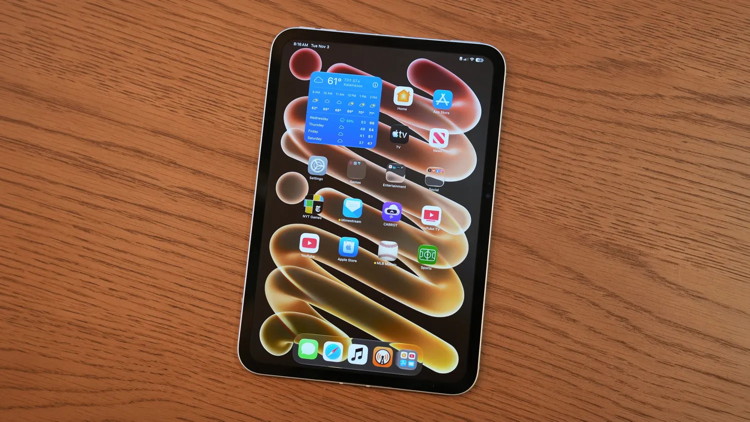
New iPad mini hands-on: Refreshed design, OLED display, more
by Chance Miller, 9to5mac
Apple's smallest iPad has gotten its biggest update in years. The new iPad mini features a much thinner and lighter design, a larger OLED display, water resistance, and the powerful A20 Pro chip.
I've been testing the new iPad mini, and there's a lot to like — but also a couple of frustrations. Here's everything you need to know.
Pre-order the new iPad mini now
Design
The new iPad mini lives up to the "mini" name even more than its predecessor. It's significantly thinner, down from 6.3mm on the previous iPad mini to 5.4mm on the new model. In fact, that puts it very close to the ultra-thin iPad Pro and the unfolded iPhone Duo.
Continue reading for details....
iOS 27.2's clever new Messages feature can be tailored to your needs
by Ryan Christoffel, 9to5mac
iOS 27.2 launched last week with a convenient new Messages feature called 'Suggested Actions.' Here's how you can customize the feature to your liking.
iOS 27.2 lets you fully customize new Messages 'Suggested Actions' feature
If your iPhone is running iOS 27.2, you might have noticed a handy addition in the Messages app.
Whenever a message contains actionable information—an event you might want to add to your calendar, or todo you need reminding of—Messages will add a 'Suggested Action' right below the relevant message.
Using these new suggestions, with a quick tap you can turn the message into an action. And they're so small and unobtrusive in the UI that they don't clutter up the app at all.
But depending on your needs, you might want to enable or disable some of these suggestions. And Apple lets you do that with a surprising level of granularity.
Inside Settings ⇾ Apps ⇾ Messages -> Suggested Actions you'll find customization options for the feature.
There are five different types of suggestions that can be enabled or disabled in Settings. By default, all five are enabled.
Here are the five categories:
- Add to Calendar
- Add to Reminders
- Add to Notes
- Show in Maps
- Flights and Packages
I'm planning to leave all five enabled, because I've found the feature a useful addition. But it's great to see Apple offer a refreshing level of control like this right off the bat.
Note: Suggested Actions are powered by Apple Intelligence, so you'll need an AI-compatible iPhone to get the feature.
Click for article.
tvOS 27.2 adds new Apple TV 4K setting that's an instant favorite
by Ryan Christoffel, 9to5mac
tvOS 27.2 launched last week as the latest software update for Apple TV 4K, and it includes a new setting I'm a big fan of: Shuffle for screen savers.
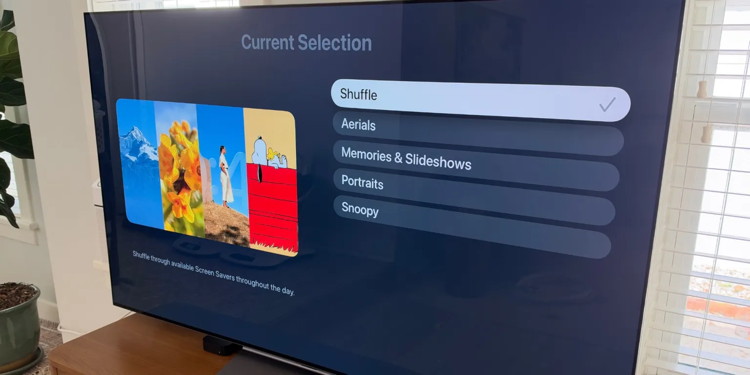
Shuffle option for screen savers is new in tvOS 27.2, letting you enjoy Apple's options across all categories
Screen savers have been one of the best Apple TV features since tvOS first launched in 2015. Largely that's due to the gorgeous aerials captured around the world (and even from space).
Aerials are still my favorite type of Apple TV screen saver, but tvOS has steadily added other categories worth checking out too.
Currently inside Settings ⇾ Screen Saver you'll find four categories:
- Aerials
- Memories & Slideshows
- Portraits
- Snoopy
The second and third options tap into your Apple Photos library and introduce the joy of seeing your favorite memories pop up on the big screen. Snoopy screen savers feature the beloved Peanuts character in a variety of entertaining scenes.
All of these screen saver options are great. But until tvOS 27.2, you had to select just one category and that's all you'd ever see.
Now with tvOS 27.2, Apple has introduced a 'Shuffle' option that randomly cycles through screen savers from across all four categories.
It's a welcome new setting, long overdue but I've been enjoying it a lot. The ability to be surprised by more different screen savers may sound like a small thing, but it's a meaningful improvement to the Apple TV 4K experience.
Click for article.
Apple TV just added a ton of free classic movies, here's everything new
by Ryan Christoffel, 9to5mac
Apple TV's November lineup is packed with originals, but the streamer also just added 20 beloved classic movies to its catalog that you can stream for a limited time. Here's everything new.
Apple TV adds 20 beloved classic films to its catalog for a limited time, including Interstellar, Pulp Fiction, and more
Apple TV has debuted several high-profile original movies this fall, like Mayday with Ryan Reynolds, Oscar hopeful Tenzing, and the forthcoming Being Heumann. But the streamer keeps licensing batches of beloved classic movies too, free for subscribers.
For November, Apple has added 20 new movies that are available for subscribers.
Here's everything new, available to stream via these links:
Most of these films are expected to only stick around for the month of November before a new slate of movies arrives. So if you plan to watch any while they're around, just know that you'll probably only have a month to do so.
Note that these films are available in the US, but the available options may vary in other parts of the world.
Click for article.
HomePod mini 2 offers a big step up from the original [Review]
by Ed Hardy, cultofmac
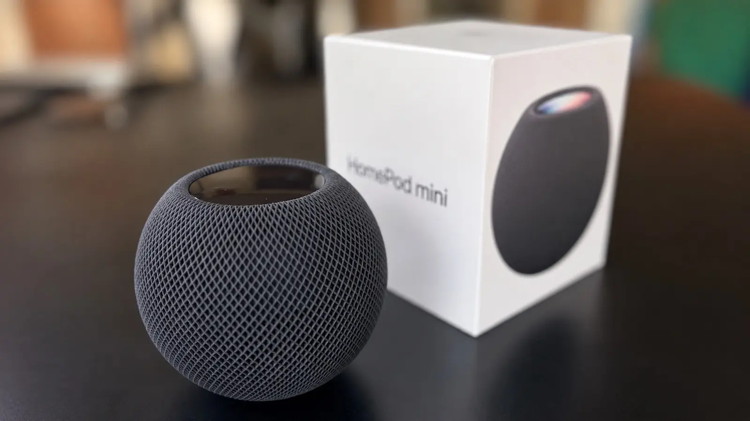
Don't let the modest appearance of the HomePod mini 2 fool you. The audio quality is excellent for a speaker in this price range and size. It's even better than its predecessor. And the speaker is useful for more than music or podcasts. It really is smart — though not as clever as it will be after the arrival of a future software update that will bring support for Siri AI.
As a longtime HomePod mini user, here's what it's like using the second-generation version.
HomePod mini 2 review: Electric Boogaloo
A HomePod makes much more sense for Mac, iPad and iPhone users than a Bluetooth speaker. The audio quality is really quite good, and the connection works seamlessly with your Apple devices. You can even make one (or a pair!) the default speaker on your Mac.
And, as a smart home hub, a HomePod can control your lights, thermostat and more. This is mostly accomplished via convenient voice commands. The new HomePod mini 2 is better at all of this than its predecessor.
Continue reading....
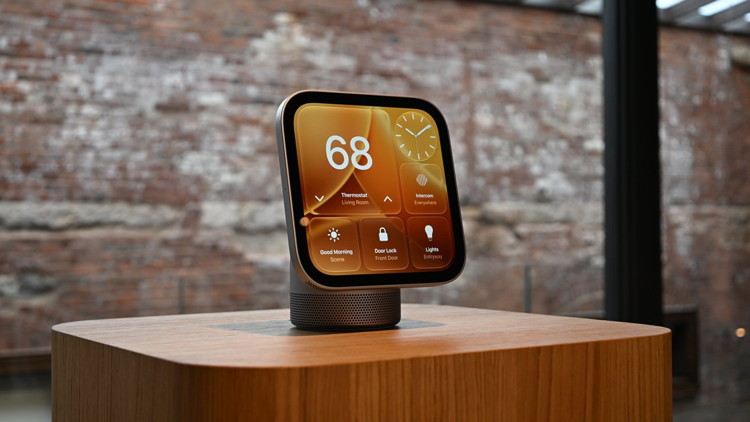
Apple HomeView hands on: So many questions, but I like it
by Andrew O'Hara, appleinsider
At Apple's NYC experience, I got an early look at HomeView, its new smart home display. I still have unanswered questions but my early take is that I like it. A lot.
Most of you have seen the general rundown on the hardware. It's a 7-inch Liquid Retina display, perched atop a speaker base or mounted to a wall that you can control with your voice or touch.
It has Siri AI built-in to operate your smart home, answer questions, find your lost Apple TV 4K Siri Remote, or otherwise control it. There's a built-in camera that can recognize up to six distinct users to load personal information, such as message history or calendars.
The device ships with a series of Apple apps such as Calendar, Safari, Music, and more. Additional apps are supported via your iPhone, like Apple TV.
It looks really nice
My first impression was how much I loved the look of it. It's small. Cute even.
Bedside table with a digital smart display showing time and weather, next to a small vase of white tulips, beside a neatly made bed in a softly lit bedroom
HomeView can get very dark, making it great for sitting next to your bed
The display feels just the right size to easily fit onto a night stand, desk, or kitchen counter without being too big. It's a bright display, too, looking crisp and sharp from anywhere, even in the well-lit demo areas.
Continue reading....
by Penny Holland, MAGIC*

Malware Examples *
by Ron Sharp and Robert Elphick, MAGIC *
Here are some tips if you do respond to a scam email. Call your bank. Put a stop payment on your charge card if it is involved. Change your account password for whatever accounts are involved. If it's a PayPal account, log into that account and change the password. If you use a bank account online change that password. You can also set up email "rules" to block email from the sender if their email address shows. If you use Apples Mail app you'll find the "Rules" options in the Mail app Settings. You should also change the password to your email account that the scam email came to.
 Scam maintenance email.
I did not! DO NOT RESPOND.
 This user does not have QuickBooks!
SPAM - DO NOT RESPOND.
 From address is not from Costco (arrow)
DO NOT RESPOND.
 From an unknown sender
NEVER open a file from an unknown sender.
 This was not ordered!
NEVER respond to a false order - it is just fishing
 Not from PayPal (red arrow)
MALWARE - DO NOT RESPOND
 Not from WhidbeyTel (red arrow)
MALWARE - DO NOT RESPOND
 Not from WhidbeyTel (upper red arrow)
'Dear valued customer' indicates this is not an email for you (lower red arrow)
MALWARE - DO NOT RESPOND
Internet Crime
Any one bothered by internet criminal activity should report it to the Federal Bureau of Investigation Internet Crime Complaint Center (IC3) at this web page. This includes phishing, malware, spoofing, any demand for money.

Sell or Swap
by MAGIC
Got something you would like to sell or give away? Need something second hand or out of date? Contact MAGIC at this email .
Nothing this month.

What's New in… Updates
by Ron Sharp, MAGIC
After completing an OS update, when you open an app with new features you get a message informing you of "What's New in (app)." I most often just click on the Continue button because I'm opening an app for a reason and don't want to take the time just then to read what's new. But in the iOS 27.2 update when I opened the Notes app I took the time to read What's new. After deciding they were worthwhile tips I've decided to read future update tips more often.
For the Notes app one of the features added is to insert "Divider Lines" within a note. If you click on the ellipses indicator in the upper right corner there are some tools but not the divider line option. To get that you have to tap and hold a second on the note and you'll get the popup tools for "Paste, Delete, Select," etc. If you click on the arrow at the end of that options box then you'll see the option at the bottom of another popup window for the "Insert Divider Line."
Also in that same popup you see another new option for adding a link. You can link an item in a note to another part of the note or to a different note.
Another feature makes it easier to share your notes with others. I don't think that's something I would use, but I guess it's good to know it's available.
A few other iOS 27.2 changes include security updates. The information says more than 160 security vulnerabilities were addressed. None had been exploited it's good to know security is a high priority.
Another change includes FaceTime now able to stream video content from the front and rear cameras at the same time. It's called Dual Capture. Only on iPhone 17 and newer.
In the Photos app it will now be able to edit captions and comments in the Shared Albums.
Siri is updated to use more information from your phone. You can also select what apps you allow Siri to access you data from.
And the Music app icon has changed from red and white to black and white. I rather prefer the red and white and don't know why they felt like changing it, but they did.
Fun or Informative Videos *
by Ron Sharp, MAGIC
Vivaldi Street Performers
iPhone Duo Livestream: How many folds can Apple's iPhone take? Day 8. .
Urban Downhill bicycle race.
MAGIC, the Macintosh Appreciation Group of Island County, serves people who use Macintosh computers, software and peripherals. Our goal is to share information and get answers to questions to make us more productive with our use of technology. Our monthly meetings give us a chance to discuss computer problems and share ideas with other Mac users, feature speakers on specific topics, and to keep apprised of Apple news.